

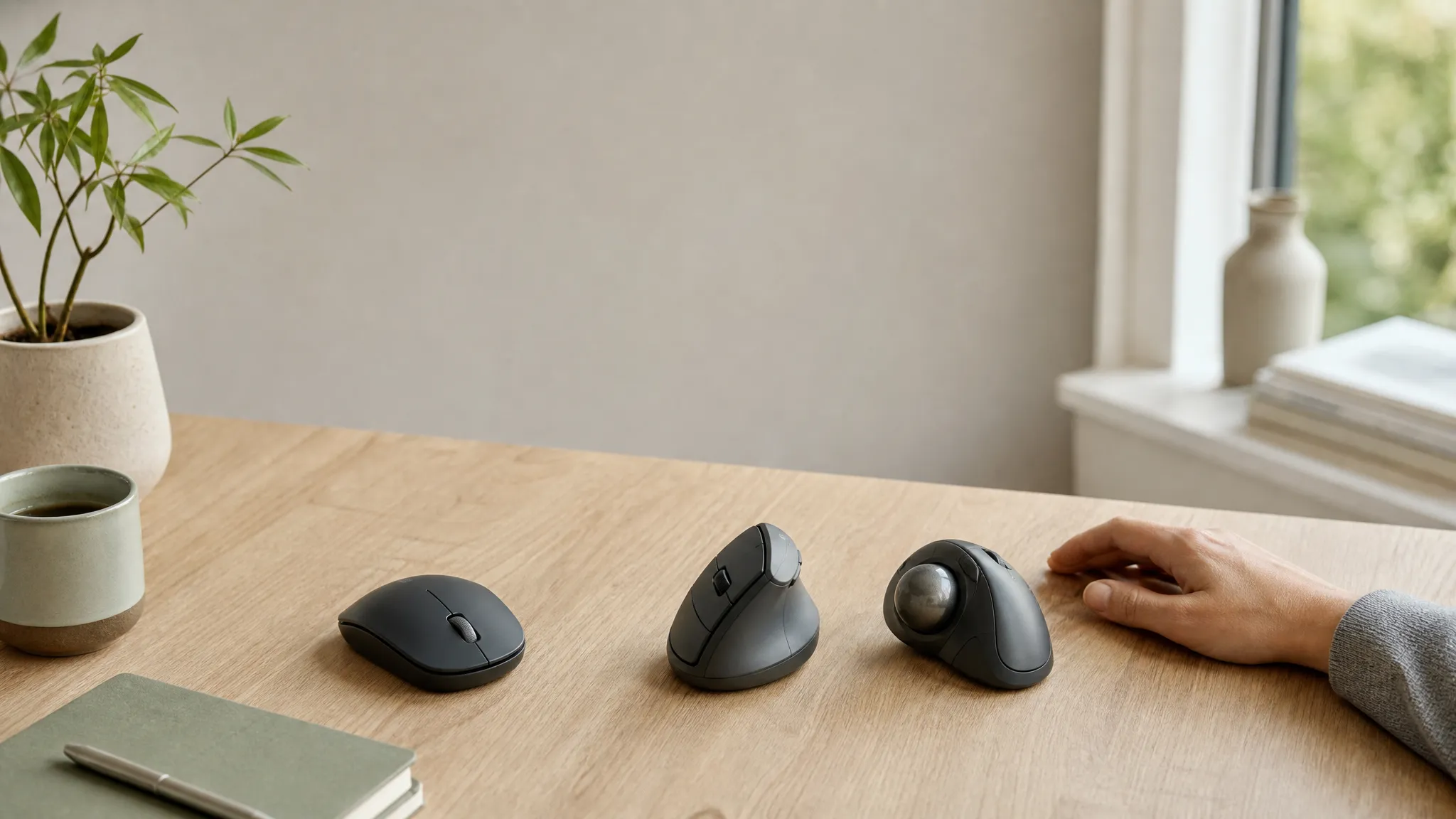
There isn’t one ergonomic mouse that’s right for everyone, which is exactly why learning how to choose an ergonomic mouse starts with figuring out what’s bothering you: which part of your hand, wrist, or arm feels the strain, and what movement brings it on. Work that out first, and the rest of the decision gets much simpler.
Start here – what are you noticing?
- Wrist discomfort, especially a twisting feeling – look at forearm rotation below.
- Hand or finger discomfort, and you click a lot – look at clicking workload below.
- Thumb discomfort – look at thumb workload below.
- Shoulder or forearm fatigue, and you’re moving the mouse a lot – look at arm and shoulder travel below.
- No pain, you’re just setting up more comfortably – skip ahead to the last row of the table below.
Not sure which pattern fits? The Wrist & Hand Pain Self-Test can help organize what you’re noticing first.
Each of these points to a different mechanical cause, and a different type of device worth investigating. The table further down puts them side by side.
Table of Contents
How to Choose an Ergonomic Mouse by Movement Pattern
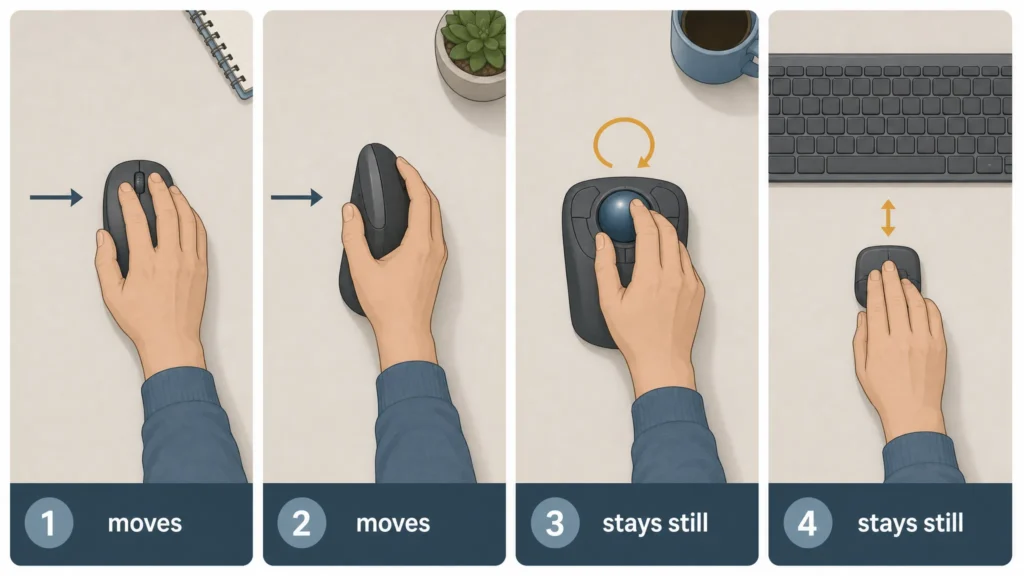
When you’re choosing a pointing device, it helps to look at a few repeated movements and workloads that can affect how the setup feels. Knowing which one applies to you tells you far more than any spec sheet. A practical answer to how to choose an ergonomic mouse is to match the device to the movement you want to reduce.
Forearm rotation. A conventional mouse sits flat on the desk, which keeps your forearm turned inward (pronated) for as long as you’re using it. Some people notice this as a twisting or tight feeling that runs from the wrist up toward the elbow. A vertical mouse changes the angle your hand and forearm sit at, which changes how much rotation is involved. It doesn’t eliminate the twisting sensation for everyone, but it’s the main mechanical difference worth understanding.
General ergonomic guidance on keeping the wrist and forearm in a more neutral position is available from CCOHS.
Wrist deviation. If your mouse sits too far to the side, or your keyboard pushes it further out than it needs to be, your wrist may bend sideways to reach it. That sideways bend, held for long stretches, is one of the setup factors worth checking. Where the mouse sits relative to your shoulder matters as much as its shape, this is often as much a positioning issue as a device issue.
OSHA’s computer workstation guidance covers mouse placement and reach distance if you want to check your own setup: OSHA Computer Workstation eTool.
If numbness or tingling is persistent or recurrent, don’t assume mouse position alone explains it. From an ergonomic standpoint, you can still check whether your wrist is held sideways or whether you’re reaching too far, but treat those as setup factors rather than a diagnosis. Our carpal tunnel from computer work guide covers this pattern in more depth.
Clicking workload. If your discomfort is concentrated in your fingers or knuckles rather than your wrist, one variable worth checking is how much force a click takes and how often you’re clicking. Some mice use stiffer switches than others, and heavy click-and-drag work (spreadsheets, design tools, certain games) adds up over a day.
Thumb workload. This one comes with a real trade-off. Thumb-operated trackballs take work away from your arm and fingers, but put more sustained control effort on your thumb. That’s a clear improvement for some people, but it can make things worse if your discomfort is already thumb-centered.
Arm and shoulder travel. A traditional mouse has to physically move across the desk every time you move the cursor, which means your whole arm, and sometimes your shoulder, is doing that work.
Trackballs and stationary pointing devices remove most of that travel: your hand stays in one place while your fingers or thumb do the moving. If your fatigue shows up as a general tired, achy feeling in the shoulder or upper arm by the afternoon, this may be a more relevant pattern to investigate, more than hand shape.
The Main Types of Ergonomic Pointing Devices
Traditional mouse. This is the baseline, and not everyone needs to replace one. If your discomfort is mild or inconsistent, the more relevant fix might be where the mouse sits, how far you’re reaching, or your desk height, rather than the device itself. When you choose an ergonomic mouse, remember that a new device is not automatically the answer.
Vertical mouse. If you are learning how to choose an ergonomic mouse for forearm rotation, this is the category to examine first. The main mechanical change is forearm and grip orientation: your hand meets the device at an angle rather than flat. The device still moves across the desk the same way a traditional mouse does; what changes is the angle your arm holds while it moves. If that category fits your pattern, see our Best Vertical Mouse guide to compare models by hand fit, handedness, and adjustability.
This is the design most directly aimed at the forearm-rotation pattern described above. It isn’t universally more comfortable: some people adjust quickly, while others find the learning curve isn’t worth it. For specific options, see our best ergonomic mice for wrist pain.
Trackball. When researching how to choose an ergonomic mouse for less arm travel, a trackball belongs on the shortlist. Here the device itself stays still, and you move a ball with your fingers or thumb instead of moving the whole unit. This is one of the designs most directly aimed at the arm-and-shoulder-travel pattern described above. Trackballs split into two rough types: finger-operated, where several fingers share the work, and thumb-operated, where the thumb does most of it. The thumb-workload trade-off described above applies specifically to the thumb-operated kind.
Central or stationary pointing devices (sometimes called rollermouse-style devices) keep the pointing control fixed in front of your keyboard rather than off to one side. Like a trackball, this removes most arm travel and the need to reach sideways at all. It’s a smaller, less familiar category, worth knowing about if your discomfort seems tied to reaching rather than hand shape.
Match Your Pattern to a Starting Point
Use this as a shortcut, not a diagnosis: it shows how to choose an ergonomic mouse by matching your most noticeable movement pattern to a sensible device category and next step.
| What you notice | What to evaluate | Device design worth exploring | Where to go next |
|---|---|---|---|
|
Wrist discomfort, a twisting or tight feeling |
Forearm rotation |
A vertical mouse, which changes forearm angle |
|
|
Numbness or tingling, or your wrist sits bent sideways |
Wrist deviation and sustained positioning — worth checking as setup factors, not a diagnosis |
A vertical or contoured shape that keeps the wrist straighter; a central/stationary device that removes sideways reach |
Best Mouse for Carpal Tunnel and Carpal Tunnel from Computer Work |
|
Ache in your fingers or knuckles, click-heavy work |
Click force and click frequency |
A mouse with lighter, less effortful buttons |
|
|
Thumb ache or strain |
How much control work falls on your thumb |
Devices with minimal thumb-button load; be cautious with thumb-operated trackballs if this is already the sore spot |
Best Ergonomic Mouse for Hand and Finger Pain; trackball: Vertical Mouse vs. Trackball guide |
|
Hand or arm fatigue from reaching and moving the mouse |
Total distance the device travels across the desk |
A trackball or a central/stationary device, since the device itself stays still |
|
|
Shoulder or upper-forearm ache |
Reach distance and how far you extend your arm |
A central/stationary device; also worth checking desk width and mouse placement before buying anything |
|
|
No pain yet, setting up proactively |
Nothing to fix, this is about good habits |
Any category works; focus on keeping your wrist straight and the mouse close, rather than chasing a specific device |
Wrist & Hand Pain Self-Test as a baseline check |
You may recognize more than one pattern. That’s normal: learning how to choose an ergonomic mouse often means weighing two overlapping demands rather than finding one perfect category. If you’re weighing a vertical mouse against a trackball specifically, our vertical mouse vs. trackball comparison goes into that comparison.
Does Hand Size Matter?
A little, but less than you’d think. When deciding how to choose an ergonomic mouse, use hand size only after you have narrowed down the right device category: within “vertical mice” or “trackballs,” a device that’s too large or too small for your hand can force you to stretch or cramp your fingers, which works against whatever the device was supposed to fix. A good fit should let you reach the primary buttons without stretching your fingers or curling them tightly, while still supporting the way you naturally hold and move the device.
You may also notice you tend to rest your whole palm on a mouse, or that you mostly touch it with your fingertips. That’s a real difference in how people hold a mouse, but it matters far less for office use than it does for competitive gaming, where it gets a lot of attention. For everyday comfort, movement pattern and fit matter more than palm contact.
When the Mouse May Not Be the Main Issue
Before you buy anything, it’s worth ruling out the setup itself. Learning how to choose an ergonomic mouse also means checking whether the mouse is actually the main problem. Where the mouse sits relative to your keyboard and shoulder, how far you reach for it, your desk height, and even pointer sensitivity can all contribute to the same symptoms as the wrong device.
Someone reaching too far on a desk that’s slightly too high can feel the same wrist strain a manufacturer would tell you their product fixes. A different mouse isn’t automatically the answer, sometimes moving the one you have a few inches closer does more than switching devices. the Ergonomic Assessment walks through your setup in more detail.
Frequently Asked Questions
Is a vertical mouse better than a regular mouse?
Not universally, it’s better for a specific pattern: discomfort tied to forearm rotation. If that’s not what you’re noticing, it may not change much for you, and it takes some people longer to adjust to.
Is a trackball better for wrist pain than a regular mouse?
It can be, particularly if your discomfort is linked to how far and how often you’re moving the device rather than your wrist angle. Because the device stays still, it removes a lot of arm travel, but a thumb-operated trackball shifts real work onto your thumb, so it’s not a clear upgrade for everyone.
How to choose an ergonomic mouse that fits your hand?
A good fit should let you reach the primary buttons without stretching your fingers or curling them tightly, while still supporting the way you naturally hold and move the device. Fit is worth checking once you’ve picked a category, but it’s a secondary factor, not the first thing to decide on.
What’s the difference between a vertical mouse and a trackball?
A vertical mouse still moves across the desk like a normal mouse, it just changes the angle of your hand and forearm. A trackball stays in one place, and you move a ball with your fingers or thumb instead. They address different movement patterns, so the right choice depends on what’s bothering you, not which one sounds more advanced.
Do I need a special mouse if I don’t have a diagnosed condition?
No. No specific mouse is inherently required if nothing is currently bothering you. Some people change devices proactively because they prefer a different hand position or movement pattern, even when they aren’t experiencing symptoms, that’s a reasonable setup preference on its own, not a way of preventing injury. Otherwise, the more useful step is usually checking your setup and habits rather than shopping for a specific device.
Should your wrist rest on the desk while using a mouse?
General ergonomic guidance from CCOHS favors keeping your wrist in a neutral, relatively straight position rather than resting it at an angle for long stretches, though brief resting isn’t inherently harmful. If you’re unsure whether your current setup supports that, the Ergonomic Assessment is a reasonable next step.