

Disclosure: This article may contain affiliate links. If you buy through these links, ErgoLivingSpace may earn a commission at no extra cost to you. Our recommendations are based on research, product usefulness, ergonomic relevance, value, and user needs.
Published May 2026 · Updated June 2026 · Prices verified at time of publication
If you are looking for the best ergonomic keyboards for neck pain, start with the setup problem: a laptop stand fixes roughly half the issue.
Raise the screen to eye level — great. Stop hunching down — great. But the moment you elevate your laptop, the built-in keyboard moves with it. Now it’s too high to type on comfortably. Your elbows come up. Your shoulders rise. Your trapezius muscles — the usual suspects in upper back and neck pain — start working overtime.
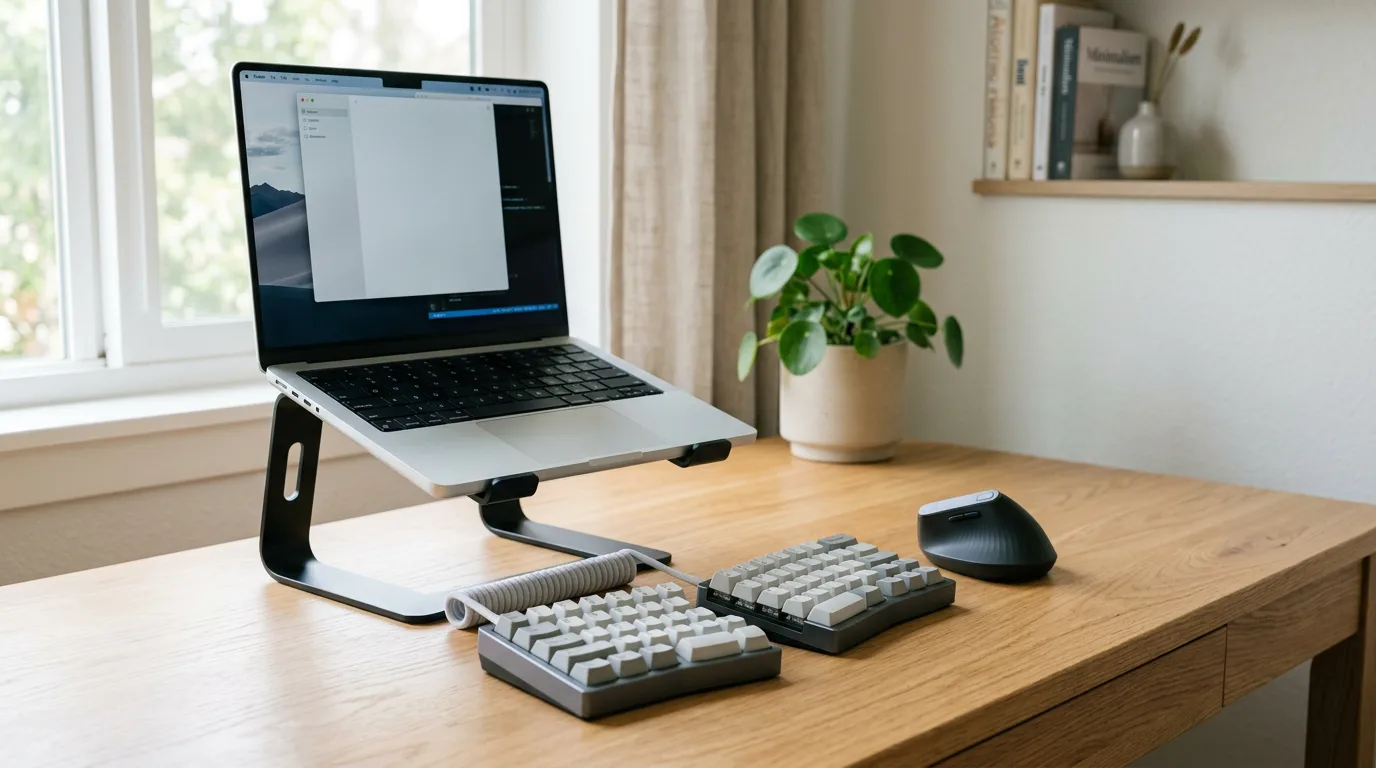
This is why an external keyboard isn’t a luxury add-on for laptop users. Once your screen goes on a stand, a separate keyboard is what actually completes the setup. Screen at eye level. Keyboard at desk level. Body finally in a position that isn’t fighting itself.
Whether you’re already running a proper laptop stand setup or building one from scratch, this guide covers the keyboards that deliver real ergonomic value — sensible geometry, appropriate key feel, and wireless flexibility for a real home office desk. And because the keyboard is only one piece of the puzzle, we’ll also cover how keyboard position, shoulder reach, mouse placement, and monitor height all work together to affect neck and shoulder comfort.
Quick Comparison — Best Ergonomic Keyboards for Neck and Shoulder Pain
| Keyboard | Layout | Split / Tented Type | Connectivity | Price | Desk Space | Learning Curve | Best Posture Use Case | Best For |
|---|---|---|---|---|---|---|---|---|
| Logitech ERGO K860 | Full-size | Wave split, no tent | Bluetooth + dongle | $130–165 | Large (18×9 in) | Low – 1-2 days | Shoulder width + wrist neutral | Best overall |
| Microsoft Sculpt Desktop | Full-size, separate numpad | Fixed split, high arch | USB dongle | $160–200 | Medium (numpad optional) | Low – 1-3 days | Opens chest / upper back | Best keyboard + mouse bundle |
| Logitech Wave Keys | Full-size | Contoured wave, no split | Bluetooth + dongle | $50–70 | Medium | None – immediate | Wrist neutral, mild shoulder relief | Best mid-range value |
| Kinesis Freestyle2 | Tenkeyless, modular | Fully adjustable split, optional tent | USB | $89-$113 | Flexible (halves separate) | High – 2-3 weeks | Max shoulder width + pronation relief | Best for chronic shoulder/neck pain |
| Perixx PERIBOARD-624B | Full-size | Fixed split, built-in tent | Bluetooth | $70–90 | Medium | Moderate – 1-2 weeks | Shoulder width + forearm pronation | Best budget wireless split |
| Logitech MX Keys S | Full-size, low-profile | Flat, no split | Bluetooth + dongle | $115–145 | Medium | None – immediate | Keyboard height only (no geometry benefit) | Best for minimal / Mac setups |
| Logitech K380s Pebble Keys 2 | Compact, no numpad | Flat, no split | Bluetooth | $30–40 | Small | None – immediate | Mouse proximity (compact layout benefit) | Best budget pick |
Jump to: K860 · Sculpt · Wave Keys · Freestyle2 · Perixx · MX Keys S · K380s
Our Top Picks
🏆 Best Overall → Logitech ERGO K860 — The ergonomic specialist’s recommendation, no caveats.
⚖️ Best Value → Logitech Wave Keys — Real improvement, half the price, no adaptation required.
🧠 Best for Chronic Pain → Kinesis Freestyle2 — What physios recommend when other things haven’t worked.
💰 Best Budget → Logitech K380s — 4.8★ across 8,300 reviews. Starts the job for $30–40.
Why Your Laptop Keyboard Is a Neck Pain Problem in Disguise
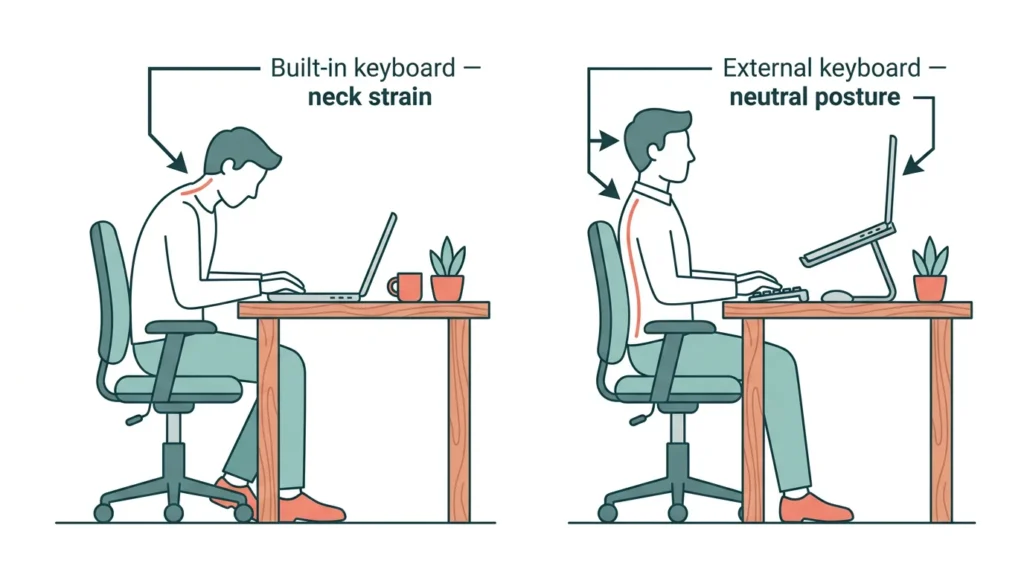
Screen and keyboard are locked together on a laptop. Position the keyboard at a comfortable arm height and the screen sits 8–12 inches too low. You tilt your head down to compensate — and that forward tilt dramatically increases the load on your cervical muscles. That’s tech neck.
The fix is a laptop stand: raise the screen to eye level. But the keyboard rises with it, ending up somewhere around chest height. Typing on it means shrugging your shoulders and loading the exact muscles — trapezius, levator scapulae — you were trying to rest.
The only real solution is to separate them. Screen up. Keyboard at desk level. This is the setup we cover in our laptop stand vs. laptop arm guide — the keyboard question is almost always the next step after getting the stand sorted.
💡 The setup logic: A laptop stand alone doesn’t complete the ergonomic fix. It trades neck pain from looking down for shoulder pain from reaching up. You need both pieces.
Keyboard Position for Neck and Shoulder Pain
Getting the right keyboard matters — but where and how you place it matters just as much. Even the best ergonomic keyboard won’t help if your setup undermines it. Four things work together here:
Keyboard position should be checked as part of the whole workstation. The free ergonomic assessment reviews screen, chair, desk, input-device and work-habit factors together.
Keyboard height: Elbows at 90–110°, upper arms hanging close to the body. If the keyboard is too high, the shoulders have to shrug to reach it, and that sustained tension is what causes neck stiffness by afternoon. Most people solve this by lowering the desk or chair, or adding a keyboard tray.
Shoulder reach and mouse placement: Standard keyboards with a full numpad push the right hand — and right shoulder — wide. A compact or TKL keyboard brings the mouse closer to centerline, reducing the chronic lateral shoulder strain that often presents as one-sided neck pain. If you’re also choosing an ergonomic mouse for wrist pain, pair it with a compact keyboard for maximum benefit.
Wrist angle: Fold the tilt legs flat. Most keyboards ship with positive tilt (front lower than back), which forces wrists into extension. A flat or slightly negative tilt keeps the wrist in a neutral position, reducing forearm tension that chains up into the shoulder and neck.
Distance from body: Keyboard close enough that the upper arms hang mostly vertical. Reaching forward shifts weight onto the shoulder girdle. A wrist rest should support the palm during pauses — not be leaned on continuously while typing.
All of these factors interact with your screen height. Getting your monitor at the right height is the single biggest lever for neck pain — the keyboard setup is the next. For the full workstation picture, our laptop ergonomics guide covers chair height, screen distance, and desk configuration together.
Split, Compact, and Tented Keyboards: Which Type Fits Your Pain?
Not all ergonomic keyboards address the same problem. Here’s how the main types differ in practice:
| Type | How it helps | Best for | Adaptation needed? | Example |
|---|---|---|---|---|
| Wave / contoured | Reduces ulnar deviation (sideways wrist bend) | First-time buyers, mild neck/shoulder discomfort | Minimal — usable from day one | Logitech Wave Keys, K860 |
| Fixed split | Opens shoulder width, reduces internal rotation | Moderate shoulder tension | 1–2 weeks | Microsoft Sculpt, Perixx 624B |
| Fully adjustable split | Maximum shoulder width positioning + tenting option | Chronic shoulder/thoracic pain, physio-referred | 2–3 weeks | Kinesis Freestyle2 |
| Compact / TKL (no numpad) | Brings mouse arm closer to centerline | Right-side shoulder/neck pain, limited desk space | None | Logitech K380s, MX Keys S |
| Tented split | Reduces forearm pronation + shoulder width | Wrist pronation combined with shoulder issues | Moderate | Perixx PERIBOARD-624B |
Quick rule of thumb: Start with wave if you’re new to ergonomic keyboards and have mild discomfort. Move to split if shoulder tension persists. Go fully adjustable only if you’ve already tried the above and still have chronic pain.
The Posture Chain: How Keyboard Design Affects Your Neck
Most keyboard reviews stop at specs. Here’s what actually connects your hands to your neck:
Shoulder width → upper back posture
Standard keyboards force your hands inward, internally rotating your shoulders and rounding your upper back. Over hours, that rounding creeps upward — and a rounded upper back almost always carries a forward-shifted head with it. Split and angled keyboards let your hands sit closer to shoulder width, which opens the chest and encourages a more neutral cervical spine.
Wrist angle → arm tension → neck load
Keyboards with steep positive tilt (back lower than front) push your wrists into extension, generating tension up the forearm and into the shoulder. A flat or negatively-tilted keyboard reduces that effort. Less arm tension means less incidental neck strain — it’s a chain, not an isolated joint problem.
Key travel → finger fatigue
Very shallow keys require precise force to avoid bottoming out; very heavy keys tax the fingers over time. Low-profile switches with moderate travel (1.5–2mm) tend to produce the least accumulated fatigue in long sessions. And finger fatigue does chain upward, even if it takes a few hours to feel it.
None of this replaces fixing your screen height, chair position, or movement habits. Our tech neck guide covers the mobility side. But keyboard geometry is a real, measurable contributor to how your upper body feels by 4pm.
Common Keyboard Mistakes That Still Cause Neck Pain
Even with a good ergonomic keyboard, these setup errors quietly undo the benefit:
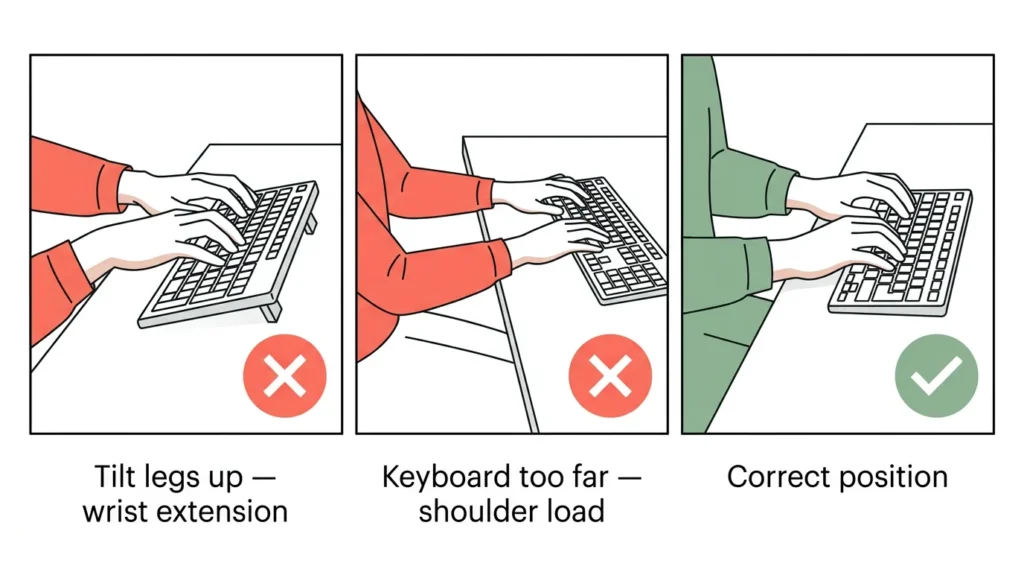
- Tilt legs extended. Most keyboards ship this way. Positive tilt forces wrists into extension. Fold them flat.
- Keyboard too far forward. Upper arms should hang mostly vertical. Reaching ahead creates shoulder fatigue people usually blame on their chair.
- Full numpad you never actually use. It pushes your right hand — and right shoulder — out wide. Go compact or TKL.
- Wrist resting while actively typing. The palm rest is for pauses between bursts, not continuous use. Resting during keystrokes can compress the carpal tunnel.
- Giving up on a split keyboard too early. Two weeks of slower typing is normal. Most people quit before the adaptation resolves.
What to Look for: Buying Guide
Not all “ergonomic” keyboards earn that label. A wrist rest glued to a standard keyboard isn’t ergonomics — it’s branding. Here’s what actually matters for neck and shoulder pain:
1. Split or wave design
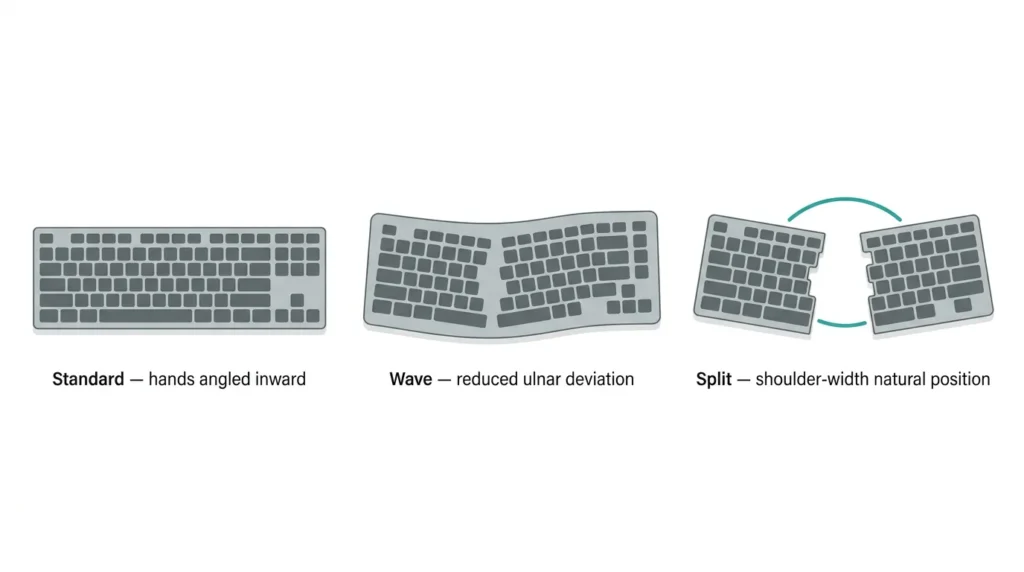
The single most impactful factor. Fully split keyboards let each hand sit at shoulder width. Wave-contoured designs reduce ulnar deviation while keeping the halves together — more approachable, slightly less benefit. Start with wave if you’re new to this; move to split if shoulder tension persists.
2. Flat or negative tilt — Fold the tilt legs down. A flat or front-elevated position keeps wrists in neutral. Positive tilt is the ergonomic industry’s most stubborn bad default.
3. Wireless — Important when using a laptop stand. You want to position the keyboard wherever it’s comfortable, not wherever the cable allows.
4. Compact layout — No numpad brings your mouse closer to your body’s centerline. This is routinely overlooked and routinely responsible for right-side shoulder issues.
5. Moderate key feel — Light-to-medium actuation, low-profile scissor or quiet mechanical switches. Heavy switches fatigue the fingers; ultra-shallow ones require constant precision.
6. Wrist rest — Integrated is convenient; separate is more flexible. Either works well for pauses. See our best wrist rest for keyboard guide if you need a standalone option.
The Best Ergonomic Keyboards for Neck and Shoulder Pain
1. Logitech ERGO K860
🏆 BEST OVERALL
~$130–165 | Bluetooth + USB Unifying Receiver | Full-size wave split
⚡ Quick Verdict: The strongest ergonomic geometry in any mainstream keyboard. If someone tells you they’re building a proper home office setup and asks what keyboard to buy, this is almost always the answer.
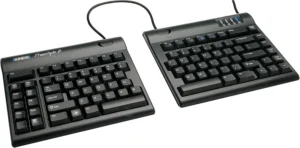
The K860 threads a difficult needle: genuinely engineered ergonomics in something that doesn’t look like occupational therapy hardware. The split-wave design places both hand clusters at a natural angle, reducing the internal shoulder rotation that straight keyboards create. The 4° negative incline — front of the keyboard slightly elevated — keeps wrists more neutral than virtually any conventional keyboard achieves.
The integrated curved palm rest is among the best on the market: firm enough for real support, not so rigid it becomes a problem during long sessions. Keys are quiet, rounded at the top to match fingertip curvature, and light enough to type on for hours without the fingers tiring.
One honest limitation: it’s large. Roughly 18″ × 9″ with the wrist rest included. If your desk is already working hard to fit a stand, mouse, and other gear, measure before buying.
| ✅ Best For | ⛔ Avoid If |
|---|---|
| Serious home office desk setup | Desk space is limited |
| Moderate-to-significant neck/shoulder tension | You prefer a minimal, unobtrusive aesthetic |
| Laptop stand users who type all day | You need Bluetooth-only (dongle required for full pairing) |
Ideal Setup: Pair with a compact or vertical mouse. Position at elbow height, tilt legs folded down.
Pros: Strongest ergonomic geometry of any mainstream keyboard · Negative incline reduces wrist extension · Quiet, pleasant key feel · 4.6★ / 4,300+ reviews
Cons: Large footprint · 1–2 week adaptation period · Premium price point
Who Should Buy the Logitech ERGO K860
- Laptop stand users who type for 4+ hours a day and want the strongest mainstream ergonomic geometry available
- People with moderate-to-significant neck or shoulder tension who have tried standard keyboards and not seen improvement
- Home office workers building a permanent desk setup where desk footprint is not a constraint
Who Should Skip It
- Anyone with a small or crowded desk — at 18″ × 9″ it requires real estate
- Users who need a minimal, clean aesthetic without visible ergonomic hardware
- Those who rely purely on Bluetooth and dislike dongles (the Unifying Receiver is required for full dual-device pairing)
Note: The K860 frequently drops to around $105–135 during sale events — worth checking before paying full price.
→ View current pricing on Amazon
2. Microsoft Sculpt Ergonomic Desktop
⚖️ BEST KEYBOARD + MOUSE BUNDLE
$160–200 | USB dongle only | Fixed split with high arch
⚡ Quick Verdict: A complete ergonomic purchase — keyboard, separate numpad, and mouse in one box. The high arch design opens shoulders particularly well, and the separate numpad is a smarter ergonomic decision than most people realize.
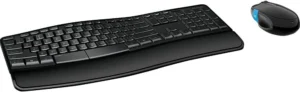
The Sculpt’s signature is its central arch: the keyboard rises toward the middle, angling each hand cluster outward in a way that opens the shoulders and reduces upper back rounding. The keycaps dome slightly to match finger curvature — a small thing that accumulates into less fatigue over long days.
The separate numpad is genuinely useful beyond the ergonomic argument. You can position it on the left if you’re right-handed, bringing the mouse closer to your centerline — or ignore it entirely on days you don’t need it. The bundled mouse is a rounded, palm-friendly design that holds up well.
Main limitation: USB dongle only. If you have a hub on your desk, this is a non-issue. Worth noting if you travel with the keyboard.
| ✅ Best For | ⛔ Avoid If |
|---|---|
| Wanting keyboard + mouse in one purchase | You need Bluetooth connectivity |
| Shoulder tension tied to upper back rounding | You prefer shallow, light key travel |
| Desk setups with a USB hub | You want something that looks contemporary |
Ideal Setup: Numpad goes on the left side for right-handed users — brings the mouse in by several inches.
Pros: High arch design opens shoulders effectively · Separate numpad is a real ergonomic advantage · Bundled mouse is above-average · Excellent battery life
Cons: Dongle-only connectivity · Deeper key travel fatigues some users · Design shows its age
Who Should Buy the Microsoft Sculpt Ergonomic Desktop
- Users who want keyboard, numpad, and mouse in one purchase
- People with shoulder tension from rounding — the high arch opens posture effectively
- Desk setups with a USB hub where dongle-only is not a limitation
Who Should Skip It
- Anyone who needs Bluetooth — dongle-only, no exceptions
- Users who prefer shallow key travel — the Sculpt is deeper than most modern keyboards
- Those who care about contemporary design — the aesthetic has aged
→ See current pricing on Amazon
3. Logitech Wave Keys
⚖️ BEST MID-RANGE VALUE
~$50–70 | Bluetooth + Logi Bolt receiver | Wave-contoured standard
⚡ Quick Verdict: The sensible entry point for anyone who wants a real ergonomic upgrade without committing to a split layout or spending $135–165. Wirecutter’s top pick, and it’s earned it.
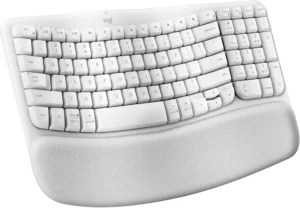
The Wave Keys is what you’d recommend to someone who wants a meaningful step up from a standard keyboard but doesn’t want to slow their typing down for two weeks to get there. The wave contour reduces ulnar deviation — the sideways wrist bend that flat keyboards silently create — and the key feel is pleasant enough to type on all day.
Be clear about what it isn’t: not a split keyboard, not a full ergonomic solution. It doesn’t address shoulder width the way the K860 or Freestyle2 does. For laptop stand users with mild neck issues who’ve never tried an ergonomic keyboard, it’s the right place to start.
Battery life is exceptional — Logitech rates it at up to 36 months. The multi-device Bluetooth makes switching between a work laptop on the stand and a personal machine seamless.
| ✅ Best For | ⛔ Avoid If |
|---|---|
| First ergonomic keyboard, mild neck discomfort | You have significant shoulder or thoracic tension |
| Zero adaptation period required | Your pain has persisted despite other ergonomic changes |
| Multi-device laptop setups | You need an integrated wrist rest (sold separately) |
Ideal Setup: Tilt legs folded flat; add a standalone wrist rest for extended uninterrupted sessions.
Pros: No adaptation period — usable from day one · Up to 36-month battery · Bluetooth + dongle · 4.6★ / 1,800+ reviews
Cons: Not a split layout · Lighter ergonomic benefit than the K860 or Sculpt · No built-in wrist rest
Who Should Buy the Logitech Wave Keys
- First-time ergonomic keyboard buyers with mild neck discomfort who want zero adaptation period
- Multi-device laptop users who switch between work and personal machines regularly
- Anyone who wants a meaningful ergonomic improvement over a standard keyboard for around $50–70
Who Should Skip It
- People with significant shoulder or thoracic tension — no split geometry here
- Those whose pain persists despite other ergonomic changes — this is a starting point, not a fix
- Users who want an integrated wrist rest — it is sold separately
→ Check availability on Amazon
4. Kinesis Freestyle2
🧠 BEST FOR CHRONIC NECK & SHOULDER PAIN
~$89–$113 | USB | Fully adjustable split
⚡ Quick Verdict: What physiotherapists and occupational therapists reach for when someone’s tried everything else. Maximum positional flexibility, real learning curve, and transformative for the people who need it.
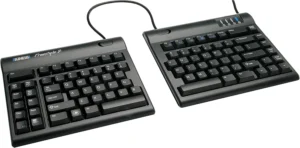
The Freestyle2 is a different kind of product than anything else on this list. The two halves are completely independent — joined by a cable — and can be separated up to nine inches apart. With the optional Ascent accessory, each half tents at angles up to 90° vertical. For people with significant wrist pronation or shoulder impingement, that level of fine-tuning is simply unavailable anywhere else at this price.
This is the keyboard for people who’ve already made ergonomic adjustments and still have chronic pain. The adaptation takes roughly two weeks — expect slower typing and some disorientation around key positions. Both resolve with patience.
If you’re not sure a fully split keyboard is necessary, start with the Wave Keys or K860. The Freestyle2 isn’t the right first step for most people — it’s the right step for people who’ve already taken the others.
| ✅ Best For | ⛔ Avoid If |
|---|---|
| Persistent shoulder or thoracic spine pain | You need wireless (standard model is wired) |
| Referred to ergonomic keyboards by a physio | You’re new to ergonomic keyboards |
| Fine-grained control over separation and tenting | Tenting kit is extra — account for the added cost |
Ideal Setup: Start at shoulder-width separation with no tenting. Adjust both incrementally across two weeks.
Pros: Maximum flexibility of any mainstream keyboard · Physio and OT recommended · Mac and PC versions available · Adjustable separation
Cons: Wired only · Tenting accessory sold separately · Significant adaptation period
Who Should Buy the Kinesis Freestyle2
- People with persistent shoulder, thoracic spine, or wrist pronation issues who have already tried wave and fixed-split keyboards
- Anyone referred to an ergonomic keyboard by a physiotherapist or occupational therapist
- Users who need fine-grained control over halve separation and tenting angle
Who Should Skip It
- Anyone who needs wireless — the standard Freestyle2 is wired only
- New ergonomic keyboard users — this is not a good starting point
- Budget shoppers who cannot account for the optional tenting accessory sold separately
5. Perixx PERIBOARD-624B
🖐️ BEST BUDGET WIRELESS SPLIT
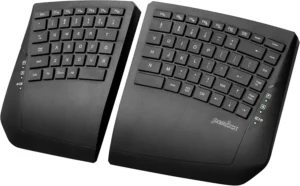
~$70–90 | Bluetooth | Fixed split with tenting
⚡ Quick Verdict: A wireless split keyboard around $70–90 — which is rarer than it should be. The split geometry is real, the tenting adjustment works, and it handles laptop stand setups well without a cable running across your desk.
The 624B earns its place by solving a specific problem: people who want split keyboard geometry and wireless connectivity without paying $135–165 for the K860. A fixed split with moderate separation and Bluetooth makes it one of the few genuine split keyboards you can position freely on a laptop stand desk without USB cable management getting involved.
The tenting riser under the center shifts the wrists noticeably — not dramatically, but enough to feel it. The membrane key feel is quiet and reliable, if not premium. Think of it as a legitimate try-before-you-commit-to-more option, not a cut-rate substitute.
| ✅ Best For | ⛔ Avoid If |
|---|---|
| Budget-conscious split keyboard shoppers | You want premium build quality |
| Laptop stand setups where wireless matters | You rely on review volume for purchase confidence |
| Testing split ergonomics before a bigger buy | You need fully independent halves |
Ideal Setup: Pair with a thin wrist rest; position at or just below elbow height.
Pros: Real split layout · Wireless — important for stand setups · Quiet keys · Tenting adjustment built in
Cons: Build quality is functional, not premium · Smaller community review base · Less wrist rest support than the K860
Who Should Buy the Perixx PERIBOARD-624B
- Budget buyers who want real split keyboard geometry and wireless connectivity around $70–90
- Laptop stand users who need cable-free positioning flexibility on a standing desk
- People testing split ergonomics before committing to a more expensive keyboard
Who Should Skip It
- Users who need premium build quality — the 624B is functional, not refined
- Those who rely on high review volume for purchase confidence — community reviews are limited
- Anyone who needs fully independent halves — this is a fixed split, not a modular one
6. Logitech MX Keys S
🍎 BEST FOR MINIMAL & MAC SETUPS
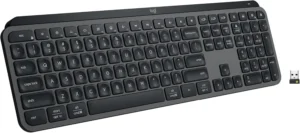
~$115–145 | Bluetooth + Logi Bolt | Flat low-profile
⚡ Quick Verdict: Not an ergonomic keyboard in the traditional sense — no contour, no split. But the best flat keyboard available, and the right pick for laptop stand users who want premium feel and a clean desk rather than visible ergonomic hardware.
The MX Keys S is for a specific kind of user: someone who works from a laptop stand most of the time but also needs the same keyboard to work at a coffee shop, during travel, or on a secondary device — without carrying anything that looks like office equipment. The spherically-shaped key tops cradle each fingertip in a way that’s genuinely distinctive. The three-device Bluetooth switching is about as seamless as wireless keyboards get.
The ergonomic benefit here is simpler than the other options: any external keyboard at proper desk height is significantly better than typing on a chest-high laptop keyboard. The MX Keys S handles that baseline job with better key quality than anything else at its price, and 4.7 stars across 8,500+ reviews is unusually strong for a keyboard that’s been out long enough for the initial enthusiasm to settle.
If shoulder and wrist issues are the priority, go to the K860. If the setup is clean, the desk is tidy, and the main complaint is that the built-in laptop keyboard is too high — this is the keyboard.
| ✅ Best For | ⛔ Avoid If |
|---|---|
| Mac-primary users who care about key feel | Wrist or shoulder issues are significant |
| Clean desk aesthetic, no ergonomic hardware look | You want contoured geometry |
| Multi-device setups: laptop, tablet, phone | Backlight is essential — it shortens battery meaningfully |
Ideal Setup: Flat position, no tilt legs; thin wrist rest on hard desk surfaces.
Pros: Best key feel on this list · Three-device Bluetooth switching · Compact footprint · 4.7★ / 8,500+ reviews
Cons: No ergonomic contour · Premium price for a flat keyboard · Backlight trades battery for visibility
Who Should Buy the Logitech MX Keys S
- Mac-primary users who prioritise key feel and a clean desk aesthetic over ergonomic geometry
- Multi-device professionals switching between laptop, tablet, and phone throughout the day
- Laptop stand users whose main complaint is keyboard height, not wrist or shoulder geometry
Who Should Skip It
- Anyone with wrist or shoulder issues as a primary concern — no ergonomic contour here
- Users who want split or wave geometry — this is a flat, standard layout only
- Those who rely on backlighting heavily — it reduces battery life significantly
→ Compare current pricing on Amazon
7. Logitech K380s Pebble Keys 2
💰 BEST BUDGET PICK
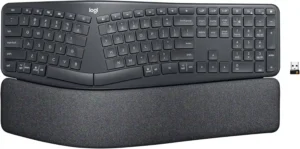
~$30–40 | Bluetooth | Compact flat
⚡ Quick Verdict: The straightforward option. Compact, wireless, quiet, affordable, and the highest user rating on this entire list. At $30–40, it removes the barrier to completing a laptop stand setup — and sometimes that’s what actually matters.
The K380s isn’t trying to solve an ergonomic condition. It’s the keyboard for someone who has a laptop on a stand, types on the built-in keyboard because they haven’t replaced it yet, and just needs a decent external option that connects and works. The circular keycaps feel good, the Bluetooth pairing across three devices is reliable, and the compact layout naturally keeps the mouse closer to your body’s centerline — which helps more than people expect.
4.8 stars across 8,300 reviews is the highest combined score on this list. That’s what sustained real-world use looks like after the initial review rush fades.
This is not the keyboard for solving an ergonomic condition. It’s the keyboard for someone who needs a reliable keyboard at desk height to complete the setup.
| ✅ Best For | ⛔ Avoid If |
|---|---|
| Budget-first buyers who want it handled | You need ergonomic contour or a split layout |
| Travel or secondary keyboard use | Heavy number entry — the layout is compact |
| “I just need something that works” situations | You need USB dongle compatibility |
Ideal Setup: Flat with a thin wrist pad; position centrally to keep the mouse arm relaxed.
Pros: Highest rating on this list (4.8★ / 8,300+ reviews) · Very affordable · Compact layout keeps mouse close · Multi-device Bluetooth · Portable
Cons: No ergonomic contour · Slower for extended numpad work · Bluetooth-only, no dongle
Who Should Buy the Logitech K380s Pebble Keys 2
- Budget-first buyers who need a reliable wireless keyboard to complete a laptop stand setup
- Travel or secondary desk users who want something portable and compact
- Anyone in an “I just need something that works” situation — no overthinking required
Who Should Skip It
- Users who need ergonomic contour or a split layout — flat standard geometry only
- Heavy number entry users — compact layout with no numpad
- Anyone who needs a USB dongle option — Bluetooth-only, no receiver included
Still Getting Neck Pain After Switching Keyboards?
If the new keyboard is on the desk and the stiffness is still there by mid-afternoon, run through this before assuming the product is the problem:
- Shoulders raised while typing → keyboard is too high; lower your desk or add a keyboard tray
- Wrists angling up at the heel → tilt legs are still extended; fold them flat
- Right shoulder aching more than left → mouse is too far right; try a compact keyboard or move the numpad to the left
- Neck stiff after video calls specifically → posture is probably collapsing during passive screen time; set a reminder to reset every 45 minutes
- Forearms tight, not just wrists → elbow angle above 110° means the keyboard surface is too high
- Screen still too low → even the best keyboard won’t help if the monitor is below eye level; check our ideal monitor height guide
How to Position Your External Keyboard
Getting this right takes about 10 minutes and makes the keyboard work properly regardless of which one you bought.
Height: Elbows at 90–110° with hands resting on the keys. If that’s not achievable at your desk height, a keyboard tray is often the most cost-effective fix.
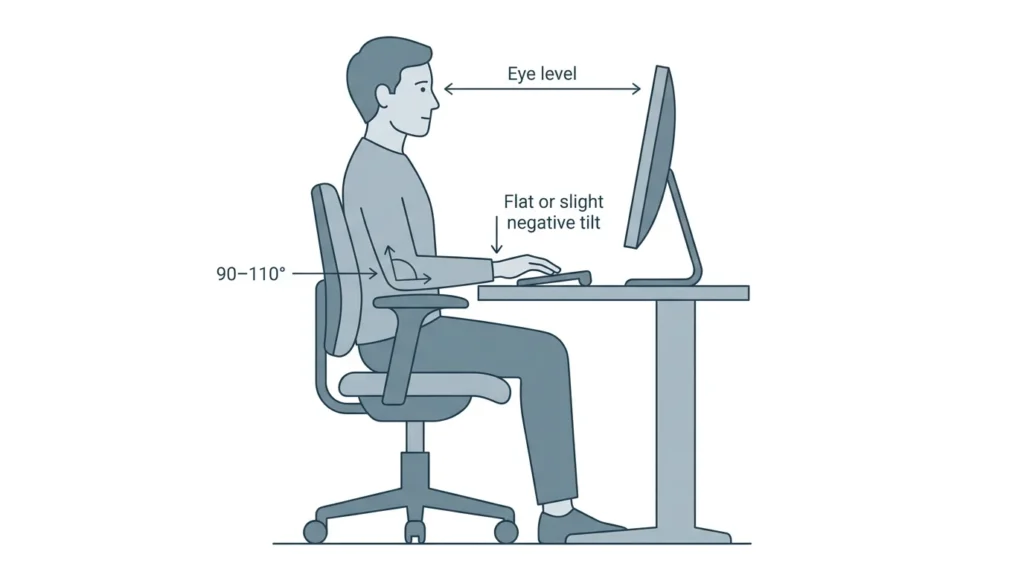
Tilt: Flat or slight negative tilt. The first thing to do with any new keyboard is fold the tilt feet down — most keyboards ship with them extended.
Distance: Elbows stay close to your sides, upper arms mostly vertical. If you’re reaching forward to type, slide the keyboard toward you.
Split keyboard users: Start with halves narrower than you think you need. Increase separation gradually over two weeks. Jumping straight to full shoulder-width from a lifetime of conventional keyboards can temporarily strain the muscles that aren’t used to that position.
For the complete picture — screen height, monitor distance, chair setup — our tech neck guide covers the full workstation prescription. If you’re pairing the keyboard with a new mouse, our ergonomic mouse guide covers what to look for alongside an ergonomic keyboard.
Which Keyboard Is Right for You?
First ergonomic keyboard, mild neck discomfort:
→ Logitech Wave Keys ($50–70) — No adaptation. A real improvement from day one.
Best ergonomic geometry, full desk setup:
→ Logitech ERGO K860 ($130–165) — The specialist pick. Get this if you’re serious about it.
Chronic shoulder or thoracic spine pain:
→ Kinesis Freestyle2 ($89–$113) — What physios recommend when other adjustments haven’t been enough.
Keyboard + ergonomic mouse in one purchase:
→ Microsoft Sculpt Desktop ($160–200) — The bundle option that actually makes ergonomic sense.
Wireless split keyboard on a budget:
→ Perixx PERIBOARD-624B ($70–90) — Real split geometry, wireless, around $70–90.
Premium feel, minimal aesthetic, Mac-friendly:
→ Logitech MX Keys S ($115–145) — The best flat keyboard available at this price.
Just need something that works:
→ Logitech K380s ($30–40) — Highest-rated on this list. No overthinking required.
Frequently Asked Questions
What is the best keyboard for neck and shoulder pain?
The Logitech ERGO K860 for most people — it combines a split-wave layout, negative tilt, and an integrated palm rest without asking you to relearn how to type. If budget is the priority, the Logitech Wave Keys delivers meaningful improvement at half the price.
Does an ergonomic keyboard actually help with neck pain?
Yes — but only as part of a complete setup. A keyboard alone won’t fix neck pain if your screen is still flat on the desk. The real improvement comes from the combination: laptop stand raising the screen to eye level, external keyboard at proper desk height. One without the other is a half-measure.
What type of keyboard should I use with a laptop stand?
Any wireless external keyboard is a meaningful improvement over typing on an elevated built-in keyboard. For additional benefit, a split or wave layout reduces shoulder tension, and a compact layout (no numpad) keeps your mouse arm from reaching wide.
Is a split keyboard better than a curved keyboard for neck pain?
For shoulder and thoracic spine issues, a fully split keyboard generally delivers more — it lets your hands sit at a wider, more natural position. For cervical spine pain primarily caused by screen height, either is an improvement over a conventional keyboard. A wave or curved keyboard is significantly easier to adapt to if you haven’t used an ergonomic keyboard before.
How should I position my keyboard to reduce neck strain?
Elbows at 90–110°, keyboard flat or slightly negative-tilted, positioned close to the body rather than reached toward. Wrists stay straight during active typing; the palm rest is for pauses. Make sure your monitor is at eye level — keyboard position alone won’t override a poorly positioned screen.
Can a keyboard position cause neck pain even when the screen is at the right height?
Yes. If the keyboard forces shoulders up or forward, the resulting tension in the trapezius still shows up as neck stiffness. Screen height is the bigger culprit, but keyboard placement is a real secondary factor — especially for people who already carry baseline neck tension.
Do I need a wrist rest with an ergonomic keyboard?
Not necessarily — but it helps for extended sessions. A wrist rest should support the palm during pauses, not be used as a continuous resting surface while typing. See our wrist rest guide for the best options by keyboard type.
Our Recommendation
The most important thing this guide can tell you: use any external keyboard at the right height before worrying too much about which external keyboard. The core ergonomic gain comes from separating the keyboard from an elevated laptop screen. Beyond that, the right choice depends on how significant your discomfort is and what your budget allows.
For most people — laptop workers with mild to moderate neck stiffness building a proper setup — the Logitech ERGO K860 is the recommendation with the fewest caveats. It’s a real ergonomic product, wireless, well-reviewed across thousands of verified buyers, and doesn’t require a fundamental change in how you type.
Not ready to spend $135–165? The Logitech Wave Keys at $50–70 is a meaningful upgrade from anything standard and will serve most laptop stand users well.
And if pain has persisted despite other ergonomic changes, a single session with an occupational therapist or physiotherapist is usually more efficient than continuing to iterate on hardware. They can assess what’s actually happening and tell you whether the keyboard is the remaining piece, or whether something else is.