

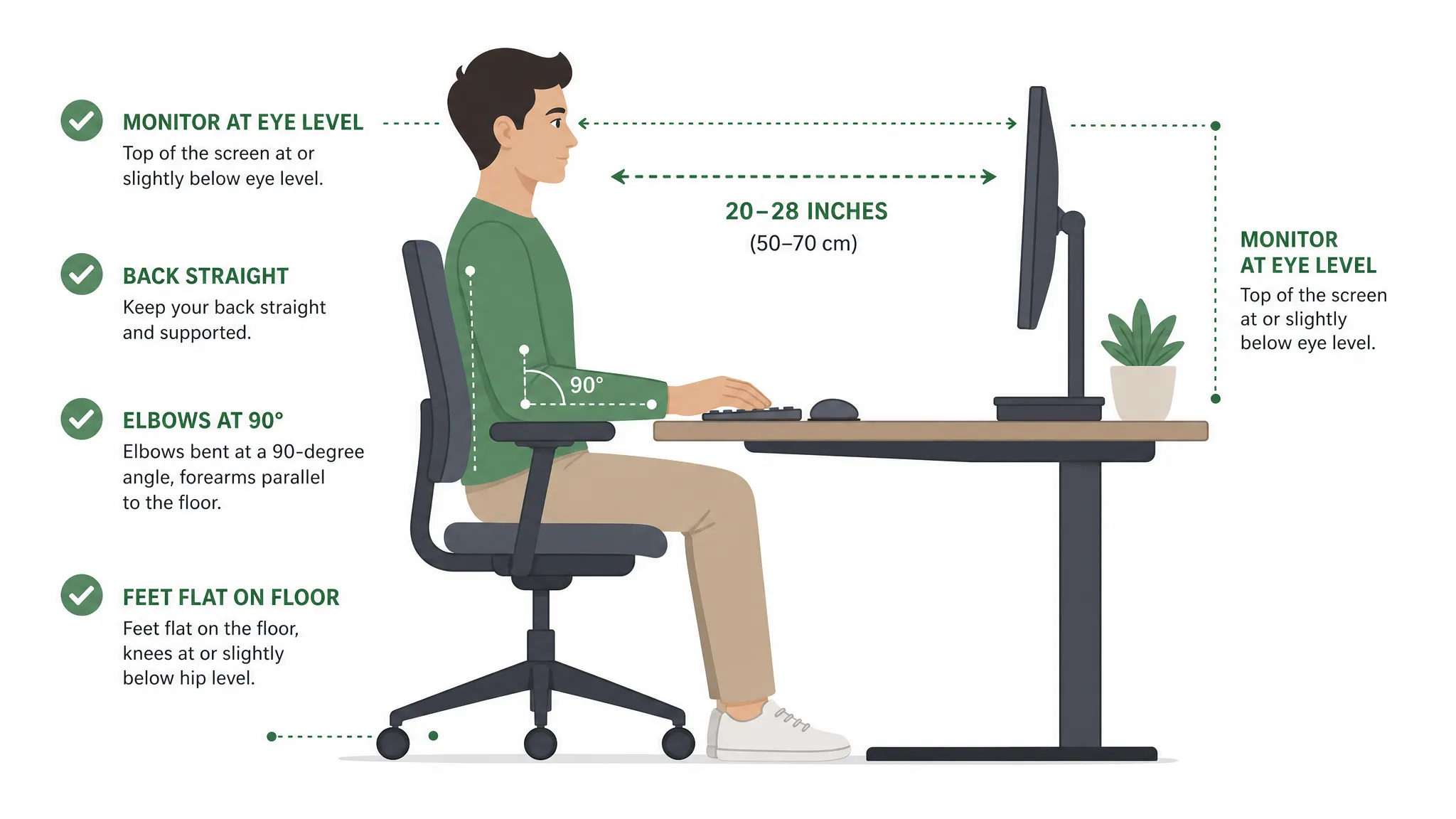
Most people spend years at a desk with their monitor in completely the wrong position. Not dramatically wrong — just a few inches too low, a little too close, or slightly off to one side. Those small misalignments compound over eight hours a day, five days a week, and eventually show up as neck stiffness, headaches, or the kind of shoulder tension that makes you dread Monday morning.
The good news: ergonomic monitor setup is one of the simplest parts of your workstation to fix. You don’t need expensive equipment or a professional assessment. You need to know four things — height, distance, tilt, and alignment — and apply them in about ten minutes. This guide covers all of that, plus dual monitor setups, lighting, common mistakes, eye health, and the specific tools that make everything easier to achieve.
If you’re dealing with existing neck pain from screen work, our guide on how to fix tech neck covers both the setup corrections and the exercises that help reverse the damage.
Table of Contents
What Is the Ideal Ergonomic Monitor Setup?
The ideal ergonomic monitor setup positions the top of your screen at or just below eye level, at a distance of 20–28 inches from your eyes, tilted 10–20 degrees backward, and centered directly in front of your body. These four ergonomic monitor setup measurements, drawn from OSHA and NIOSH ergonomics guidelines, eliminate the most common causes of neck, shoulder, and eye strain at a desk.
Why Monitor Positioning Causes More Problems Than People Realize
Your head weighs around 10–12 pounds in a neutral position. For every inch your head tilts forward — which is exactly what happens when your monitor is too low — the effective strain on your neck roughly doubles. At a 2-inch forward tilt, your neck is supporting something closer to 20–30 pounds. Do that for years and you’ll understand why “desk neck” has become such a common complaint.
The same principle applies to monitors positioned off-center. Looking left or right by even 15 degrees for hours at a time creates sustained asymmetric strain on one side of your neck. Most people adjust unconsciously, then wonder why one shoulder always hurts worse than the other.
None of this is dramatic or immediately painful, which is why it persists. You adapt. And then, a few years later, you’re dealing with chronic tightness that wasn’t there before.
The Four Core Rules of Ergonomic Monitor Positioning
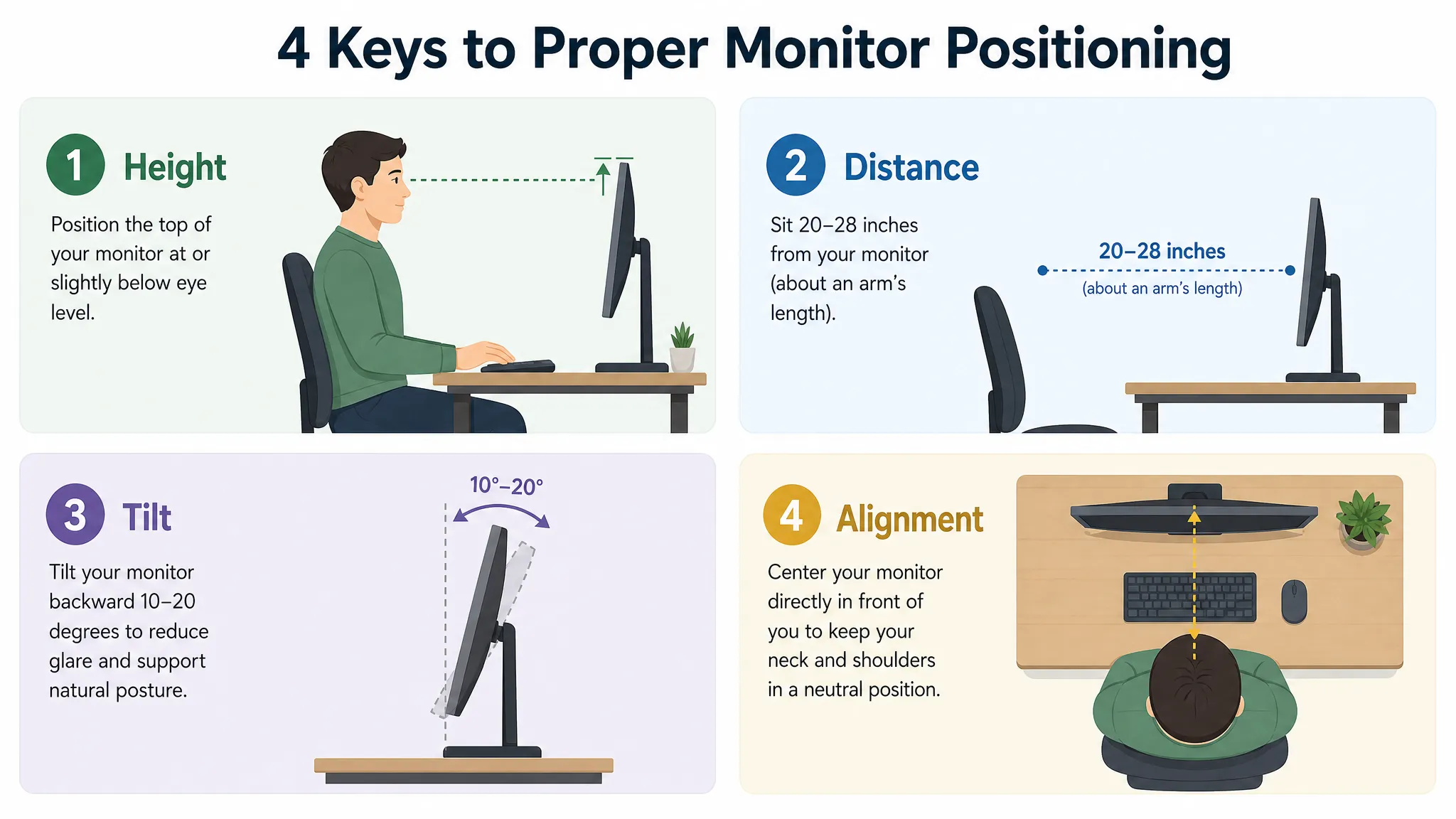
These guidelines are grounded in established ergonomics research — including standards from OSHA, NIOSH, and the Canadian Centre for Occupational Health and Safety (CCOHS), as well as widely applied guidance from Ergotron and ViewSonic. They’re not opinions; they’re measurable positions your body needs to hold for hours without strain.
| Element | Recommendation |
|---|---|
| Height | Top of screen at or just below eye level |
| Distance | 20–28 inches from eyes |
| Tilt | 10–20° backward |
| Alignment | Centered directly in front of body |
| Dual Monitors | 15–30° inward angle |
| Breaks | Follow the 20/20/20 rule |
1. Height — Top of Screen at Eye Level
The top edge of your monitor should sit at or just slightly below your eye level when you’re seated in your natural working posture. This means your gaze falls naturally downward by about 15–20 degrees when looking at the center of the screen — which is exactly where the optic nerve is least strained.
Common mistake: people set the monitor so the center is at eye level. This puts the top of the screen too high, which means you tilt your head back slightly all day — not as bad as looking down, but still problematic over time.
For a full breakdown of how to calculate the right height for your specific body height and chair, see our dedicated guide on ideal monitor height for desk work.
2. Distance — 20 to 28 Inches from Your Eyes
Sit an arm’s length away from your screen. For most people, that’s approximately 20–28 inches (50–70 cm). The right distance depends partly on monitor size — a 32″ display needs more distance than a 24″ one.
A practical test: stretch your arm forward while seated. Your fingertips should just reach or nearly reach the screen. If you’re squinting to read text at arm’s length, don’t move closer — increase your font size or display scaling instead.
Eye strain from monitors is largely a focus problem. At closer distances, your eye muscles work harder to maintain focus on a flat panel, contributing to the fatigue commonly called computer vision syndrome.
3. Tilt — Lean It Back 10–20 Degrees
Most monitors should be tilted backward slightly, so the top of the screen is farther from you than the bottom. The CCOHS recommends 10–20 degrees of backward tilt as standard.
Two reasons: first, it maintains more consistent viewing distance across the full screen. Second, it reduces glare from overhead lighting — a tilted screen reflects ceiling lights upward rather than straight into your eyes.
Many people leave their monitors perfectly vertical or even tilt them forward (toward the viewer), which is nearly always the wrong call ergonomically.
4. Alignment — Directly in Front, No Twisting
Your monitor should be centered directly in front of your body, so you face it squarely without turning your head or torso. “Directly in front” means the center of the screen aligns with the center of your body — not the center of your desk.
This is frequently wrong in shared or office setups where a monitor is positioned to share desk space with other items. Even a chronic 10-degree head rotation to one side will stress one side of your neck significantly more than the other over time.
How to Calculate Your Correct Monitor Height
You don’t need a tape measure for this, but a rough formula helps.
Step 1: Sit in your chair in your natural working position — feet flat on the floor, back against the backrest, eyes looking forward naturally.
Step 2: Close your eyes, relax your neck completely, then open them. Where your gaze lands is your natural eye level.
Step 3: The top edge of your monitor should sit at or just at that point.
For most people at a standard 29″–30″ desk, this ergonomic monitor setup adjustment means raising the monitor somewhere between 3 and 6 inches. The built-in stand that comes with a monitor almost never achieves this — a monitor riser, monitor arm, or adjustable stand is almost always required. For the full height calculation by body height, head to our ideal monitor height guide.
Ergonomic Dual Monitor Setup
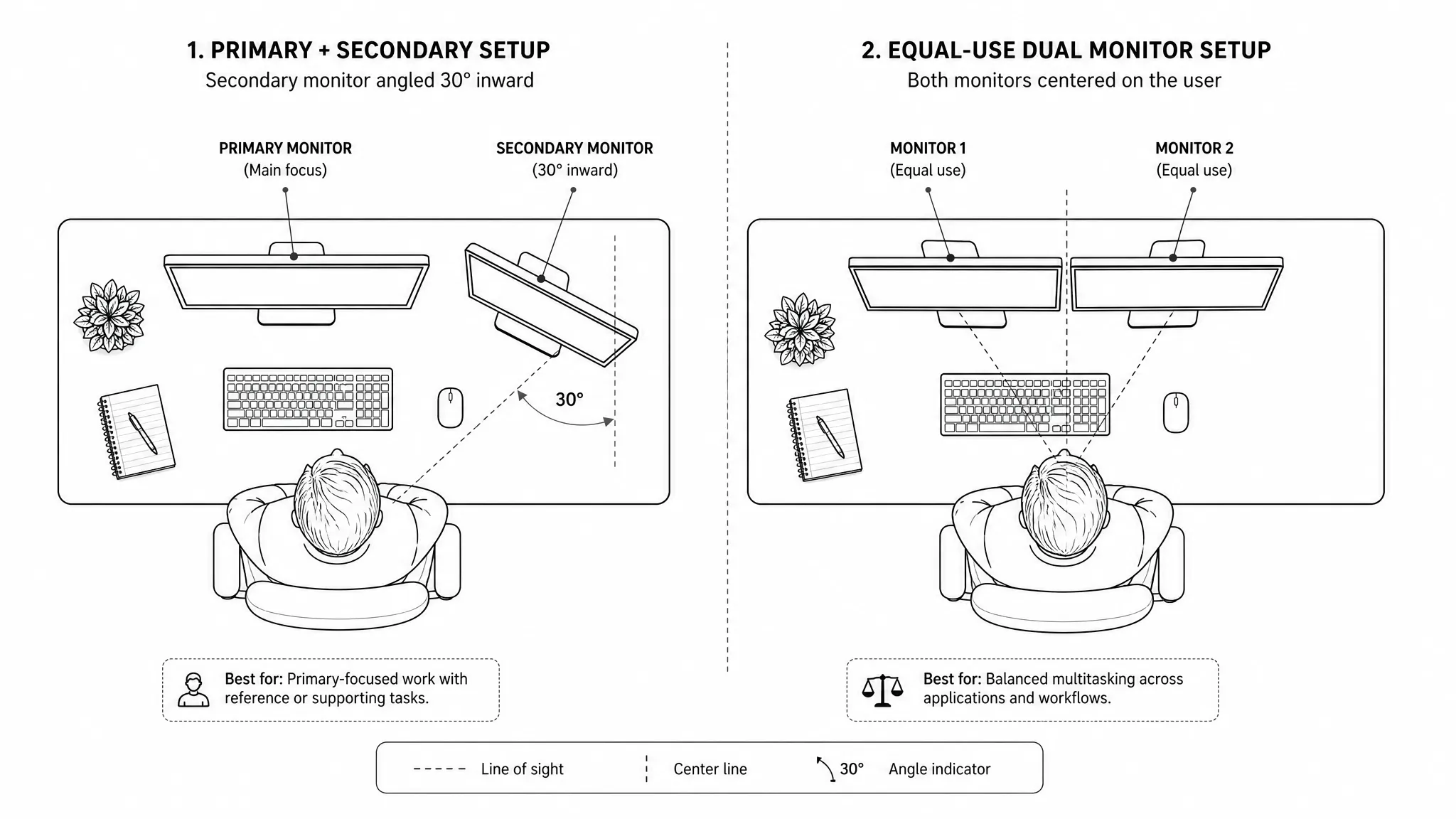
A good ergonomic monitor setup for dual screens starts with one question: which monitor do you use more? Dual monitors introduce new variables, and most people get them wrong.
If one monitor is primary (used 80%+ of the time): Position the primary monitor directly in front of you, centered on your body, following all four rules above. Place the secondary monitor directly beside it, angled inward by about 15–30 degrees — like the pages of a half-open book — so you’re not fully turning your head to use it.
If you use both monitors roughly equally: Position them side by side and sit centered at the bezel (the join between them). Both screens should be angled inward slightly so you see them at equal distances.
What to avoid: Placing a secondary monitor at a 90-degree angle. That forces a severe head rotation every time you switch — the fastest way to create one-sided neck and shoulder pain.
Should You Use a Vertical Monitor?
Rotating a monitor to portrait mode is useful for specific tasks — long documents, code, reading. The ergonomic question is whether it introduces new problems.
When it works well: As a secondary monitor positioned to the side for reading-heavy tasks. Portrait mode reduces side-to-side eye movement, which lessens neck rotation.
When it’s problematic: As a primary monitor for general work. Portrait mode usually means the top of the screen is significantly higher than eye level to keep the bottom within usable range, causing you to tilt your head back to read upper content.
If you use a vertical secondary monitor, position it slightly lower than you would a horizontal one, so the upper content stays within your normal viewing zone.
Lighting and Glare — The Setup Mistake Everyone Makes
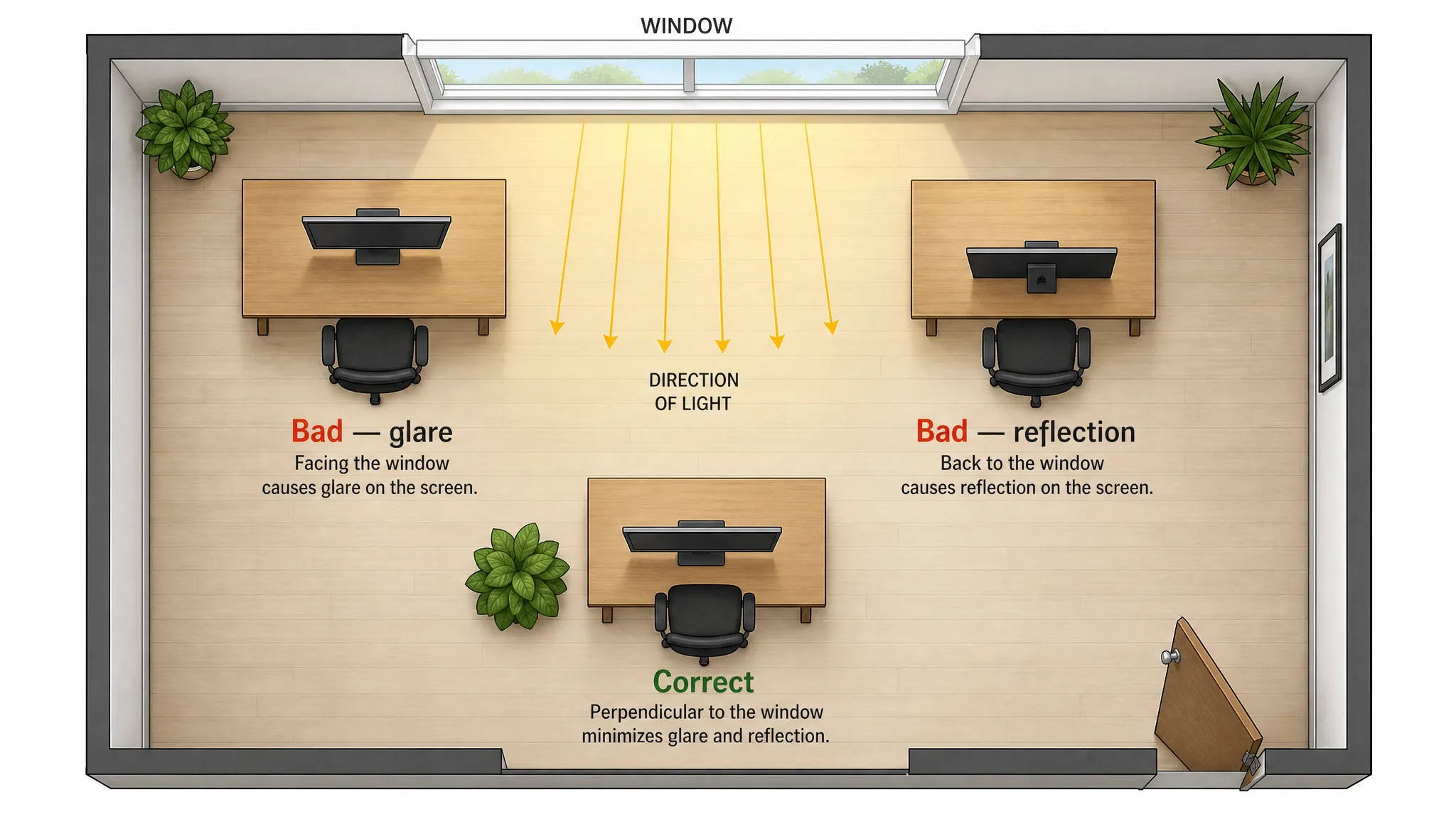
Ergonomic monitor positioning means nothing if your screen is covered in glare. Reflected light forces you to lean forward, shift to one side, or tilt your neck to find a viewable angle — destroying whatever position you’ve carefully set up.
The rule: Your monitor should be positioned perpendicular to windows and overhead light sources — not facing them, and not with your back to them.
Facing a window means daylight shines directly on your screen. Your back to a window means glare reflects off the screen toward you. Perpendicular eliminates both.
If your desk layout doesn’t allow perpendicular placement, a monitor anti-glare filter can reduce the problem. Adjusting your backward tilt also redirects ceiling light reflections upward and away from your line of sight.
The Tools That Make Ergonomic Monitor Placement Possible
Knowing the right position is one thing. The stand that shipped with your monitor probably can’t get you there. Here’s what actually helps:
Monitor riser: The simplest and cheapest option. A solid platform that lifts your monitor 4–6 inches. Works well for most single-monitor setups at standard desk heights. See our best monitor riser guide for the top picks.
Monitor arm: Mounts to the desk edge and holds your monitor on an articulated arm. Offers full height, depth, and angle adjustment, and frees up your entire desk surface. Better for precise setups, dual monitors, or standing desks.
Adjustable keyboard tray: Often overlooked, but relevant — lowering your keyboard raises your effective eye level relative to the desk surface, which may reduce the amount of monitor lift you need.
Ergonomic peripherals: Once your monitor is correctly placed, your keyboard and mouse positioning become the next priority. An ergonomic keyboard and ergonomic mouse complete the setup by keeping your wrists and shoulders in better alignment while you work. If you’re working from a laptop, our laptop ergonomics guide covers the additional adjustments required.
Which Tool Should You Choose for Your Ergonomic Monitor Setup?
Not sure which monitor solution to get? Here’s a quick decision guide:
- Need only more height on a fixed desk? → A monitor riser is the simplest and most affordable fix.
- Need full height, depth, and angle adjustment? → Choose a monitor arm.
- Running a dual-monitor workstation? → A dual monitor arm gives both screens independent adjustment.
- Switching between sitting and standing throughout the day? → A monitor arm is almost always the better long-term investment over a fixed riser.
Our upcoming guide to the best monitor arms for desk work covers the top-rated options in detail — worth bookmarking if a monitor arm is on your shortlist.
The 20/20/20 Rule for Eye Health
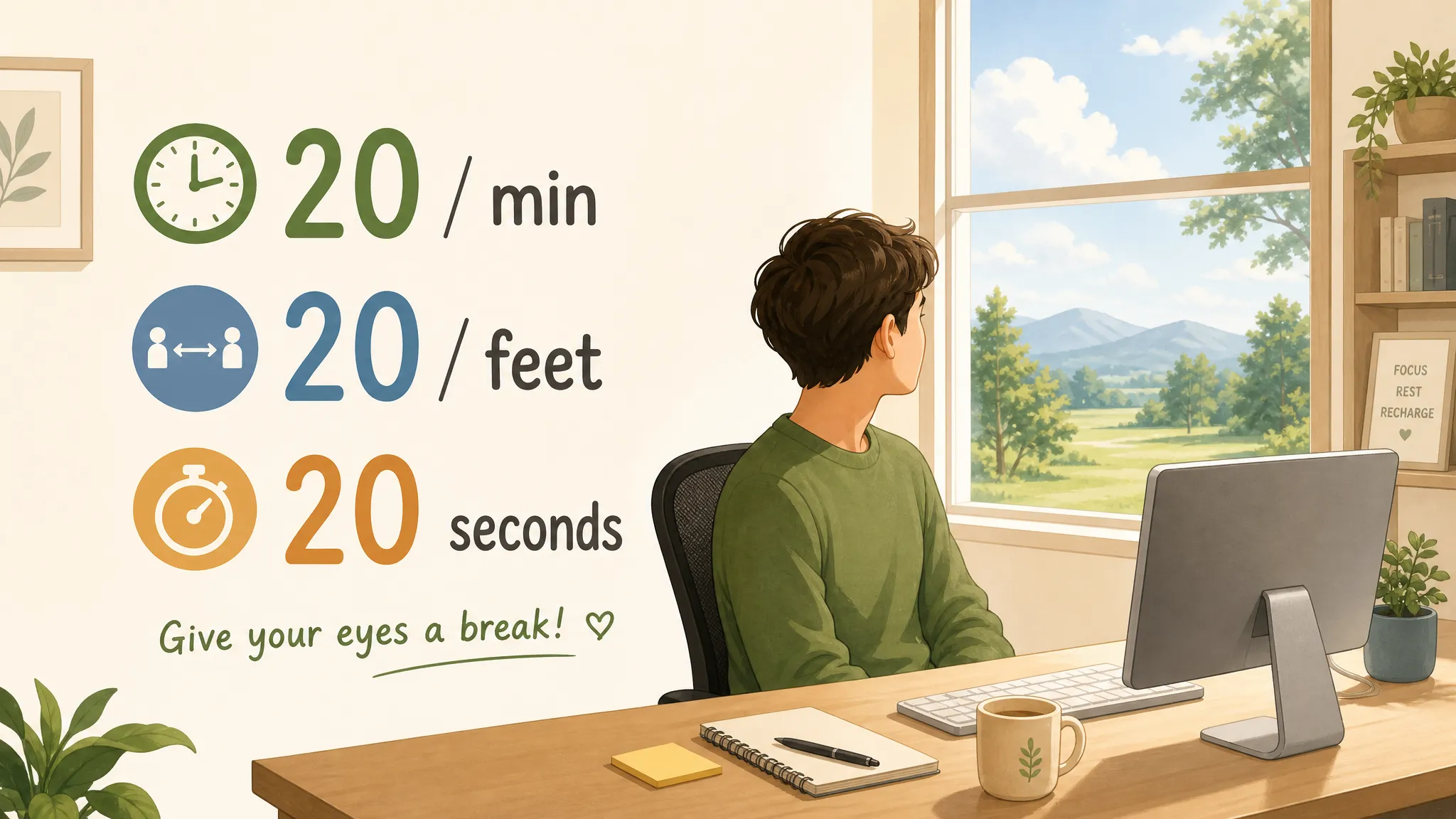
Even a perfectly positioned monitor causes eye fatigue over a long session. The 20/20/20 rule — endorsed by the American Academy of Ophthalmology — is the simplest defense: every 20 minutes, look at something 20 feet away for at least 20 seconds.
This gives your eye’s focusing muscles a break from sustained near-field work. Glancing out a window or across the room is enough. Combine this with blinking consciously — screen work reduces blink rate significantly, drying out your eyes and increasing fatigue over time.
Common Ergonomic Monitor Setup Mistakes
Even people who know the principles get these wrong. Here are the most common mistakes and what to do instead.
1. Placing the monitor too low. The most widespread error. Most desk setups leave the monitor at or below shoulder height, forcing the head to tilt forward all day. If your chin drops when you look at your screen, your monitor is too low. Raise it with a riser or arm until the top edge meets your natural eye line.
2. Sitting too close to a large monitor. A 32″ display at 20 inches requires significant eye movement to scan the full screen, which leads to neck micro-rotations and faster eye fatigue. Larger screens need more distance — 28–36 inches for 32″ displays is a more appropriate starting range.
3. Positioning dual monitors at a 90-degree angle. One screen straight ahead and one hard to the right (or left) means you turn your head 90 degrees every time you switch. That’s a significant cervical rotation repeated dozens of times per hour. Angle secondary monitors inward to 15–30 degrees maximum.
4. Putting the monitor directly in front of a window. Natural light behind the screen turns it into a dark panel against a bright background — uncomfortable for your eyes and impossible to fix with brightness settings alone. Move the monitor perpendicular to the window.
5. Raising the monitor without adjusting chair height. Monitor height and chair height interact. If you raise your monitor but your chair is too low, your arms may have to reach up to type, straining your shoulders. When you change one, reassess the other.
Frequently Asked Questions
What is the 90/90/90 rule for ergonomics?
The 90/90/90 rule describes the ideal seated posture: hips at 90 degrees (thighs parallel to the floor), knees at 90 degrees, and elbows at 90 degrees while typing. When all three angles are roughly 90 degrees and your eyes are level with the top of your monitor, your body is in the most neutral and sustainable position for desk work.
What is the 20/20/20 rule in ergonomics?
Every 20 minutes of screen time, look at something at least 20 feet away for at least 20 seconds. This reduces eye muscle fatigue from sustained near-focus work and helps combat computer vision syndrome — eye strain, dry eyes, headaches, and blurred vision caused by extended screen use.
Should my monitor be directly in front of me?
Yes, always. The center of your monitor should align with the center of your body, so you face it squarely without turning your head or torso. Any chronic rotation — even 10–15 degrees — creates sustained asymmetric strain on one side of your neck and shoulders.
How do I set up dual monitors ergonomically?
If you have a primary monitor you use most of the time, center it in front of you and place the secondary monitor beside it at a 15–30 degree inward angle. If you use both screens equally, sit centered at the bezel join with both screens angled slightly inward. Never place a secondary monitor at a 90-degree angle.
How far should my monitor be from my eyes?
Between 20 and 28 inches (50–70 cm), or roughly arm’s length. Larger monitors need more distance. If you’re squinting at text at arm’s length, increase your font size or system display scaling rather than moving closer.
Is a vertical monitor better for ergonomics?
It depends on use. As a secondary monitor for documents or code, portrait mode can reduce neck rotation. As a primary monitor for general work, it typically pushes content too high and causes upward head tilt. Position a vertical monitor slightly lower than you would a horizontal one.
What if I can’t achieve the right monitor height on my current desk?
A monitor riser (fixed lift) or a monitor arm (fully adjustable) solves this in most cases. If your desk is too high for comfortable typing at the right monitor height, a keyboard tray that lowers your keyboard is often the smarter solution — it lets you optimize monitor height and keyboard height independently.
Quick Reference: Ergonomic Monitor Setup Checklist
Once the screen is positioned, run the free ergonomic assessment to review the chair, input devices, support and work habits across the rest of the station. You can also browse all free ergonomic calculators and educational self-checks.
- Top of screen at or just below eye level
- Screen distance: 20–28 inches from eyes
- Tilt: 10–20 degrees backward
- Centered directly in front of your body
- Monitor perpendicular to windows and overhead lights
- 20/20/20 rule applied throughout the day
- Secondary monitor angled inward at 15–30° (not 90°)
- Chair height adjusted to match monitor height change
- No glare on screen from direct or reflected light
Getting even three or four of these right produces a noticeable improvement in how your neck and shoulders feel by end of day. Getting all of them right removes most of the physical reasons that ergonomic monitor setup matters in the first place.