

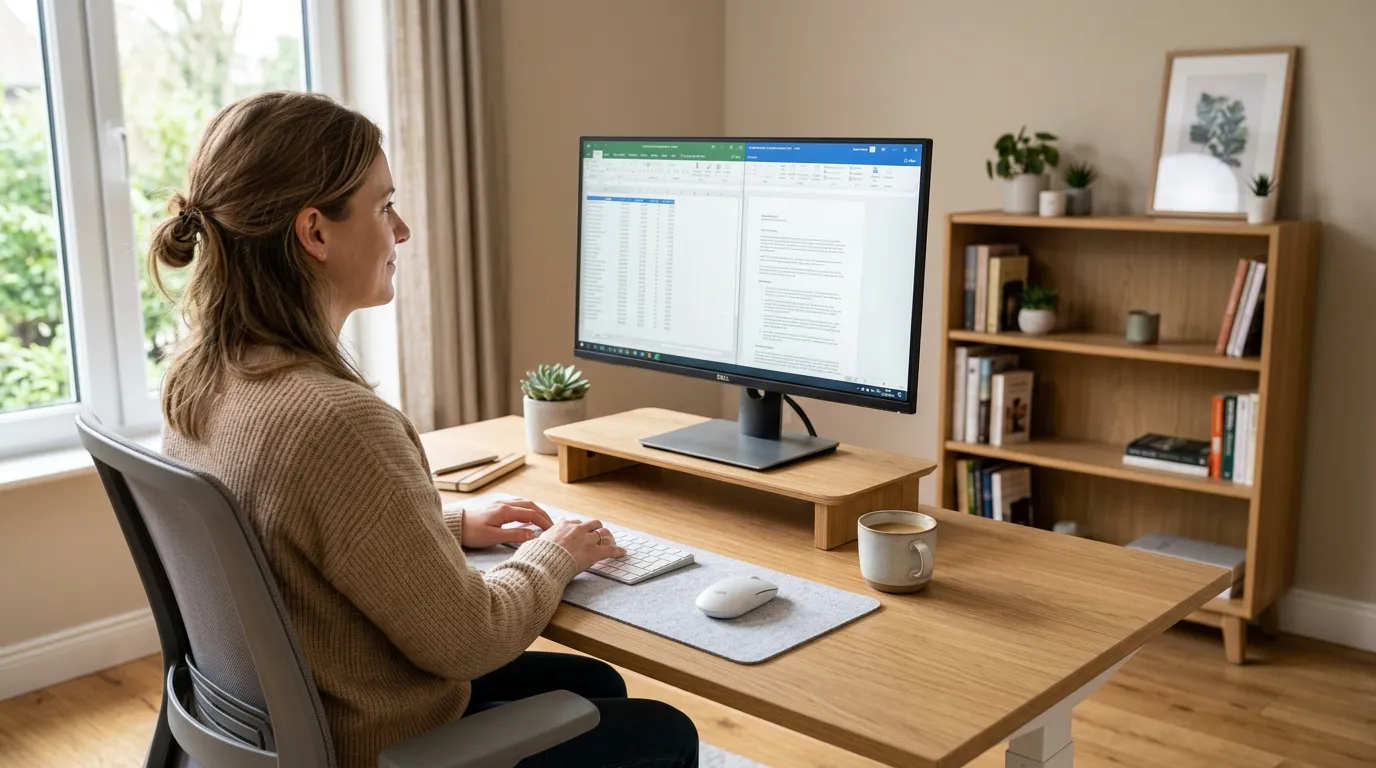
Most people spend years at a desk without ever questioning where their monitor sits. It came with the desk, it fits on the shelf, and that feels close enough. But monitor height is one of the biggest factors determining whether you finish a workday feeling fine or finish it with a stiff neck and tight shoulders.
The ideal monitor height is not complicated to get right. You need to know what to aim for and why it matters. This guide covers both — including how monitor height ergonomics affects your neck, eyes, and posture throughout the day.
Use this ideal monitor height guide to check your screen position, viewing distance, and posture in a few practical steps.
Table of Contents
- What Is the Ideal Monitor Height?
- Why Monitor Height Matters More Than Most People Think
- How to Find Your Ideal Monitor Height
- How Far Should Your Monitor Be From Your Eyes?
- Ideal Monitor Height by Setup Type
- Monitor Height vs Desk Height
- Signs Your Monitor Is Too High or Too Low
- Monitor Arm, Riser, or Books: What Should You Use?
- Monitor Height Mistakes That Cause Neck Strain
- Troubleshooting: Monitor Problems and Fixes
- Quick Measurements Reference
- Quick Monitor Height Checklist
- Frequently Asked Questions
- Conclusion
What Is the Ideal Monitor Height?
Here is the short answer:
The top edge of your monitor should sit at or very slightly below your eye level when you are seated upright. Your gaze should naturally fall toward the center of the screen at a downward angle of roughly 10 to 20 degrees — without tilting your head up or craning your neck forward.
For viewing distance, place your monitor between 20 and 30 inches from your eyes — roughly arm’s length. If you have a large screen (32 inches or more), push it a little farther back.
That combination — screen top at eye level, center of screen slightly below your line of sight, monitor about arm’s length away — is the correct monitor height foundation for a pain-free setup.
| Element | Recommendation |
|---|---|
| Top of monitor | At or slightly below eye level |
| Viewing distance | 20–30 inches (arm’s length) |
| Gaze angle | 10–20° downward to screen center |
| Monitor tilt | 10–20° backward |
| Large screens (32″+) | 30–36 inches away |
If you are using a laptop without an external monitor, the rules are different because the screen and keyboard are physically attached. See the Laptop Ergonomics guide for that setup specifically.
Why Monitor Height Matters More Than Most People Think
When your monitor is at the wrong height, your body compensates. That compensation is what causes pain.
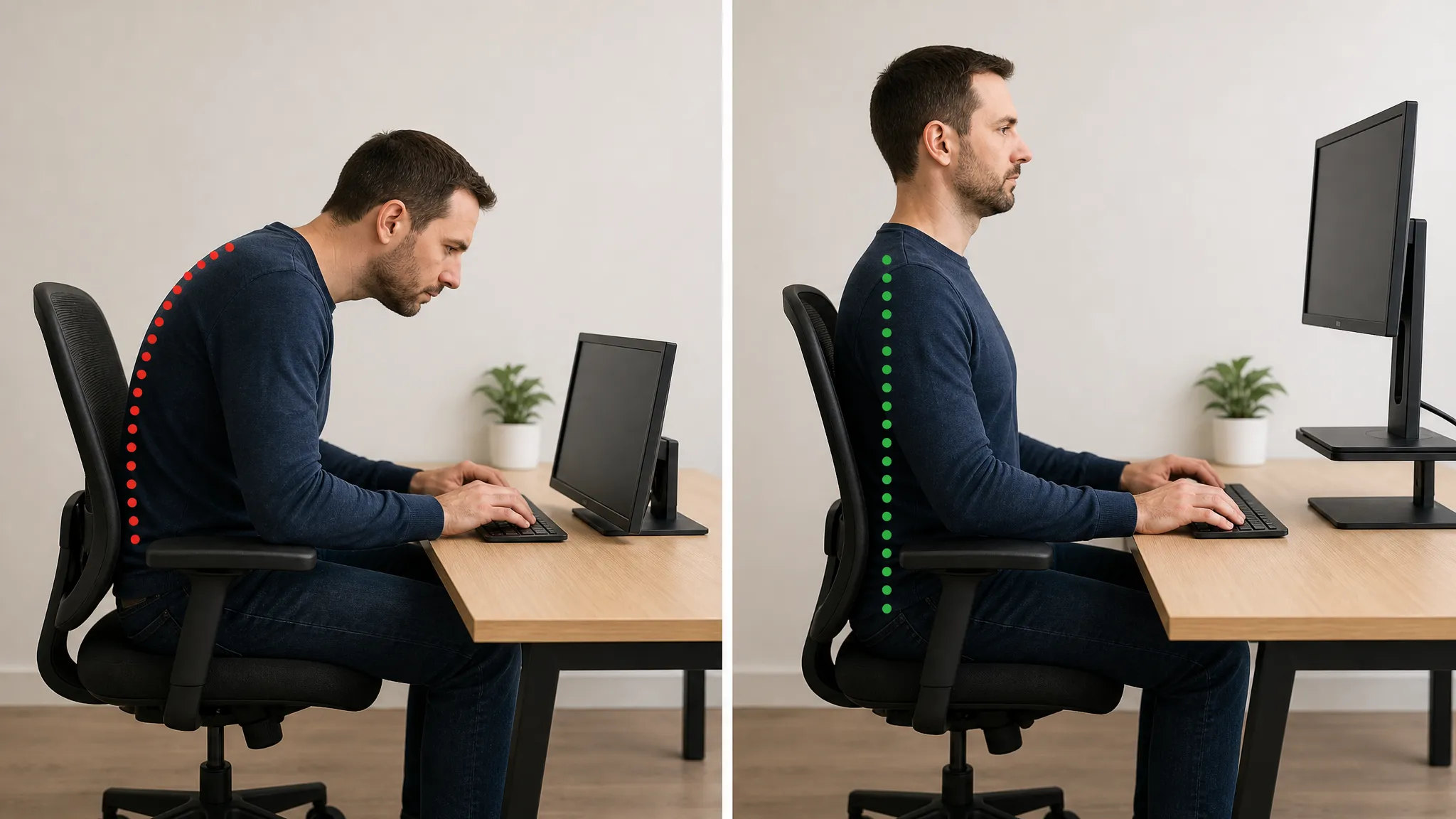
Too low: Your head drops forward and down. A head tilted just 30 degrees forward puts roughly 40 pounds of effective force on your cervical spine — compared to 10 to 12 pounds when your head is upright. Over a full workday, that load accumulates into the tight, aching neck and upper back that many desk workers treat as normal. It is not normal. It is the direct result of looking downward for hours.
This is the same mechanism behind tech neck — the increasingly common pattern of forward head posture and neck strain caused by chronic screen use. If you are already dealing with monitor height for neck pain, the How to Fix Tech Neck guide covers it in detail, but correcting your monitor position for posture is where the fix always starts.
Too high: Your eyes look upward, opening the eyelids wider than natural. More eye surface exposed to air can accelerate moisture evaporation — a monitor that is too high may contribute to dry eye symptoms, especially in air-conditioned offices. Your neck also tips backward slightly, which can place strain on the posterior cervical structures and lead to headaches at the base of the skull.
Wrong viewing distance: Too close forces your eyes to work harder to focus (convergence strain). Too far means you lean forward to read, which collapses your posture and brings your head forward — recreating the same problem as a monitor that is too low.
Getting the height right keeps your head, neck, and eyes in the position they are built to sustain for extended periods.
How to Find Your Ideal Monitor Height
You do not need a measuring tape or a calculator. Follow these steps.
For a personalized starting point, calculate your monitor height and viewing distance from your screen size, posture and work style.

Step 1: Set up your chair first.
Sit the way you actually work — not the way you would sit if someone told you to sit up straight, but your real, relaxed working posture. Feet flat on the floor (or on a best foot rest under desk), back supported by the chair, hips at roughly a 90-degree angle. Your chair height matters because it determines where your eyes are. Everything else is calibrated from there.
Step 2: Find your natural eye level.
Close your eyes, relax your neck completely, then open them. Where your gaze naturally settles — without looking up or down — is your resting eye level. This is the reference point for your monitor position.
Step 3: Position the top of the monitor.
The top edge of your screen should sit at or just below that point. If you are a bifocal or progressive lens wearer, position the screen lower — you view through the bottom of those lenses, so a higher monitor forces you to tip your head back uncomfortably.
Step 4: Set your viewing distance.
Reach one arm out toward the screen. Your fingertips should nearly touch or gently graze it. If your arm is fully extended and your fingers are well short of the screen, move it closer. If it is much closer than arm’s length, push it back.
Step 5: Tilt the monitor slightly backward.
A slight backward tilt of about 10 to 20 degrees helps maintain an equal distance from your eyes to the top and bottom of the screen. It also reduces glare from overhead lighting.
Step 6: Check your posture from the side.
If someone took a photo of you from the side, your ear should be roughly above your shoulder. Shoulders relaxed, not hunched. If you look like you are craning toward the screen, something is still off. A complete ergonomic monitor setup gets this right: height, distance, and tilt working together — not just one in isolation.
How Far Should Your Monitor Be From Your Eyes?
Ideal monitor height and viewing distance work together. Monitor distance from the eyes is the dimension most people overlook entirely — yet it works directly against you when it is wrong.
The general guidance from occupational health standards, including OSHA’s computer workstation monitor guidelines, is 20 to 30 inches (50 to 75 cm). In practice, most people sit comfortably at about 24 inches for a 24-to-27-inch monitor.
Larger monitors need more distance. A 32-inch screen viewed at 20 inches produces a visual angle that strains your peripheral vision and forces head movement to scan the display. With a 32-inch or larger screen, aim for 30 to 36 inches.
The practical test: read your screen without leaning forward or squinting. If you catch yourself leaning in, increase the font size before moving the monitor closer — proper monitor viewing distance with larger text is better for your eyes than a screen that is too near.
Ideal Monitor Height by Setup Type
The core rule — top of screen at or just below eye level, center of screen at a 10–20° downward angle — applies across every setup. What changes is how you get there.
Laptop Only (No External Monitor)
A laptop screen on a flat desk is almost always 4 to 6 inches below where it needs to be. The average seated eye level is 43 to 49 inches from the floor. A 15-inch laptop on a standard desk sits with its screen center at roughly 31 to 33 inches — a gap of 10 to 16 inches that translates directly into chronic forward head posture.
What you need: A laptop stand that raises the screen 4 to 6 inches plus an external keyboard and mouse. This separates the keyboard plane from the screen plane — the only way to solve the structural conflict built into laptop design.
Target: Screen center at 43–47 inches from floor (adjust based on your seated eye level). See the best laptop stands for neck pain guide for options across budget tiers, or compare options in the laptop stand vs laptop arm breakdown.
Laptop + External Monitor
Use the external monitor as your primary screen, positioned at correct eye level. The laptop screen becomes a secondary display — positioned lower and to the side, used for reference materials that don’t require sustained reading.
Primary (external) monitor: Top at eye level, 20–28 inches from your eyes. Secondary (laptop) screen: 3 to 5 inches below primary, angled 30–45° to one side. Do not try to match heights — it is physically impossible without a stand, and the laptop screen is rarely used enough to justify the compromise to your primary position.
If you work equally on both screens, raise the laptop on a stand to match the external monitor’s height and use it as a true dual-monitor setup (see below).
Single External Monitor
A 24–27 inch monitor on a factory stand is typically 2 to 4 inches too low for most adults. The stand is designed for the median user and your eye level may differ.
Target measurements:
- Monitor top: at seated eye level (typically 43–49 inches from floor)
- Monitor center: 3 to 4 inches below eye level
- Viewing distance: 20–28 inches for a 24–27 inch screen
- Monitor tilt: 10–20° backward
If your current stand leaves the monitor too low, a riser of 3 to 4 inches typically solves it. If you need more than 4 inches of lift or want depth adjustability, a monitor arm is the better investment. See Best Monitor Riser for Desk Work and Monitor Arm for Desk Work for specific options.
Dual Monitors (Equal Use)
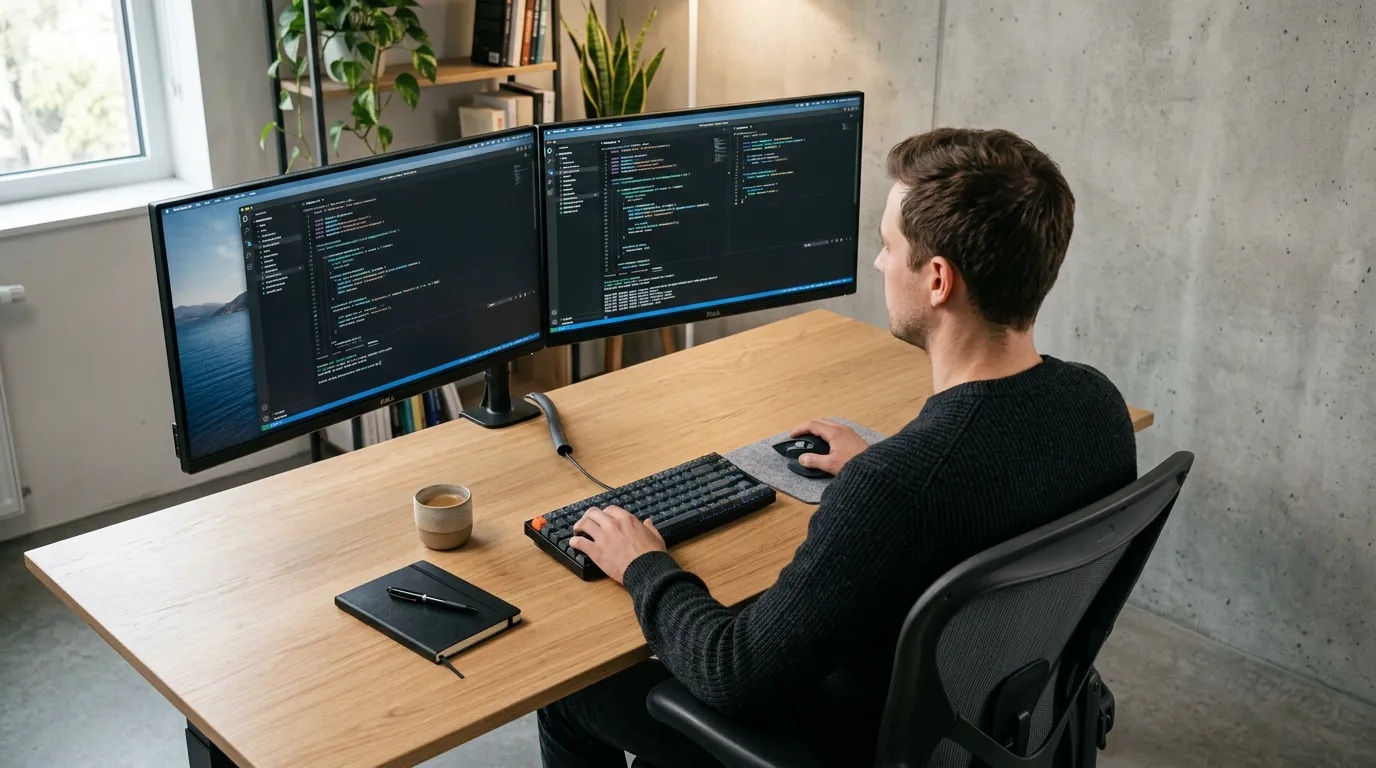
If both monitors get roughly equal use throughout the day, treat them as a matched pair.
Same-height, side-by-side: Place both monitors at the same height, bezels touching, centered on your body midline. The seam between the two screens — not the center of either screen — should sit directly in front of you. This minimizes total head rotation across the day.
Measurements:
- Both monitor tops: at eye level
- Horizontal angle: each monitor angled 15–30° inward toward you
- Combined viewing distance: 24–32 inches from your midline to each screen
- Avoid turning beyond 30° to read either screen — if you are, you are too close or the screens are set too wide
One primary, one secondary: Center your dominant monitor directly in front of you. Place the secondary at 30–45° to your non-dominant side and 2 to 3 inches lower than the primary. This prevents neck rotation to access a screen you use infrequently.
Ultrawide Monitor
An ultrawide (21:9 or 32:9 aspect ratio) sits differently from a standard monitor. Because the screen extends far to the left and right, the vertical center is still positioned by eye level — but the viewing distance needs to increase.
Target measurements:
- Monitor center (vertically): 3 to 4 inches below eye level, same as standard
- Viewing distance: 30–40 inches minimum for a 34-inch ultrawide; 36–48 inches for a 49-inch super-ultrawide
- Monitor curve: if curved (1800R–3400R), the curve naturally helps maintain consistent eye distance across the full width — still position vertically the same way
- Height adjustment: ultrawide monitors on fixed stands often cannot be raised enough. A monitor arm is strongly recommended for any ultrawide setup.
The main ergonomic risk with ultrawides is insufficient distance. Sitting too close to an ultrawide creates extreme peripheral visual angles and forces frequent head rotation — the opposite of what a wide screen is meant to prevent.
Standing Desk Setup
When you stand, your eye level rises — typically 4 to 10 inches higher than your seated eye level, depending on your height. Your monitor position needs to rise with it.
For a sit-stand desk: A monitor arm is the only practical solution. A fixed stand or riser cannot accommodate both sitting and standing eye levels without manual adjustment that most people will not do. A monitor arm allows you to shift between positions in seconds.
Standing target:
- Monitor top: at or just below your standing eye level
- Viewing distance: keep the same 20–28 inch rule — standing does not change the optimal distance
- Recalibrate the height-finding steps (close eyes, relax, open) while standing, not while seated
If you use a standing desk for more than 30 minutes per session, correct monitor height while standing is at least as important as seated positioning — an elevated eye level with the monitor still at its seated position leaves you looking sharply downward while standing.
A monitor arm is the only practical solution for sit-stand setups — see the Monitor Arm for Desk Work guide for options that work with adjustable desks.
Monitor Height vs Desk Height
Most ergonomic problems start with the desk, not the monitor.
If the screen cannot reach the correct position without changing the rest of the workstation, estimate your seated and standing desk height before adding a riser or monitor arm.
A standard office desk is 29 to 30 inches tall. That height was designed around a historical average — it is not ergonomically derived for any particular user. For a person under 5’6″ or over 6’0″, a 29-inch desk creates problems before the monitor enters the picture.
The relationship works like this:
Your chair height is set so your feet are flat on the floor and your elbows are near desk level. That determines where your eyes are when you are seated upright. Your monitor position then has to match that eye level — not the other way around.
When desk height is wrong, people make one of two common mistakes:
Mistake 1: Raising the chair to compensate for a high desk. The chair goes up, feet leave the floor, and posture collapses. Eye level changes, monitor position needs to change, and everything else cascades incorrectly. The fix for a too-high desk is a footrest — not a higher chair — so you can keep the chair at the correct arm height while supporting your feet.
Mistake 2: Adjusting the monitor instead of the chair. If your chair is too low or too high, your eye level is wrong. No amount of monitor adjustment compensates for sitting at the wrong height. Set the chair first, then set the monitor.
The Correct Setup Sequence
- Set chair height so elbows are at or slightly above desk surface, feet flat on floor (or footrest).
- Find your natural eye level from that seated position (close eyes, relax, open).
- Position monitor so top edge sits at that eye level.
- If the desk is too high and preventing correct chair height, use a footrest.
- If the desk is too low and the monitor cannot be raised enough, use a monitor arm or riser.
Desk Height Reference by User Height
| User Height | Suggested Desk Height | Approx. Seated Eye Level | Monitor Center Target |
|---|---|---|---|
| 5’0″–5’3″ | 24–26 inches | 38–41 inches from floor | 36–39 inches from floor |
| 5’4″–5’7″ | 26–28 inches | 41–44 inches from floor | 39–42 inches from floor |
| 5’8″–5’11” | 28–30 inches | 44–47 inches from floor | 42–45 inches from floor |
| 6’0″–6’3″ | 30–32 inches | 47–51 inches from floor | 45–49 inches from floor |
| 6’4″+ | 32–34 inches | 51–54 inches from floor | 49–52 inches from floor |
These are starting points. Measure from your actual seated position — body proportions vary within height groups.
When Your Desk Is Fixed and Wrong
Fixed-height desks cannot be raised or lowered. If your desk is wrong for your body:
Desk too high: Use a higher chair and add a footrest to maintain foot support. Raise the monitor to match the new (higher) seated eye level.
Desk too low: A monitor arm or riser raises the screen independently of the desk surface. Your chair and arm/wrist position may still be uncomfortable if the desk is significantly too low — this is a structural limit of fixed desks.
A height-adjustable desk solves both problems permanently and is the single highest-impact ergonomic investment for people who spend more than four hours per day at a desk.
Signs Your Monitor Is Too High or Too Low
Use this as a quick self-check.
Monitor too low — neck pain and posture signs:
– Neck stiffness at the front and back by end of day
– A tendency to slide forward in your chair during long sessions
– Upper back tightness, especially between the shoulder blades
– Rounded shoulders and forward head posture (classic tech neck)
– Chin dropping toward your chest when you are focused on work
Monitor too high — eye strain and tension signs:
– Dry, irritated, or burning eyes after a few hours
– Headaches that start at the base of the skull or top of the neck
– Tension in the back of your neck rather than the front
– Needing to tip your head back slightly to read the screen
Your monitor is probably too far away if you experience:
– Leaning forward in your chair unconsciously
– Eye strain or difficulty focusing, especially late in the day
– Squinting to read text
Monitor Arm, Riser, or Books: What Should You Use?
Once you know your ideal position, the question becomes: what gets your monitor there? You have three real options — and a fourth that most people try first and should avoid.
Monitor Riser
A monitor riser sits under the monitor and raises it by a fixed amount — typically 3 to 6 inches. Most have additional storage space underneath for a keyboard or supplies.
Best for:
- Fixed-height desks where you need 2 to 5 inches of lift
- Setups where your monitor position will not change
- Budget-conscious upgrades (a quality riser costs $20–$50)
Limitations:
- Zero adjustability once chosen — if you choose wrong, you need another riser
- Does not change depth (forward/back distance) or tilt independently
- Not suitable for sit-stand desks where eye level changes constantly
See the Best Monitor Riser for Desk Work guide for tested options at every price point.
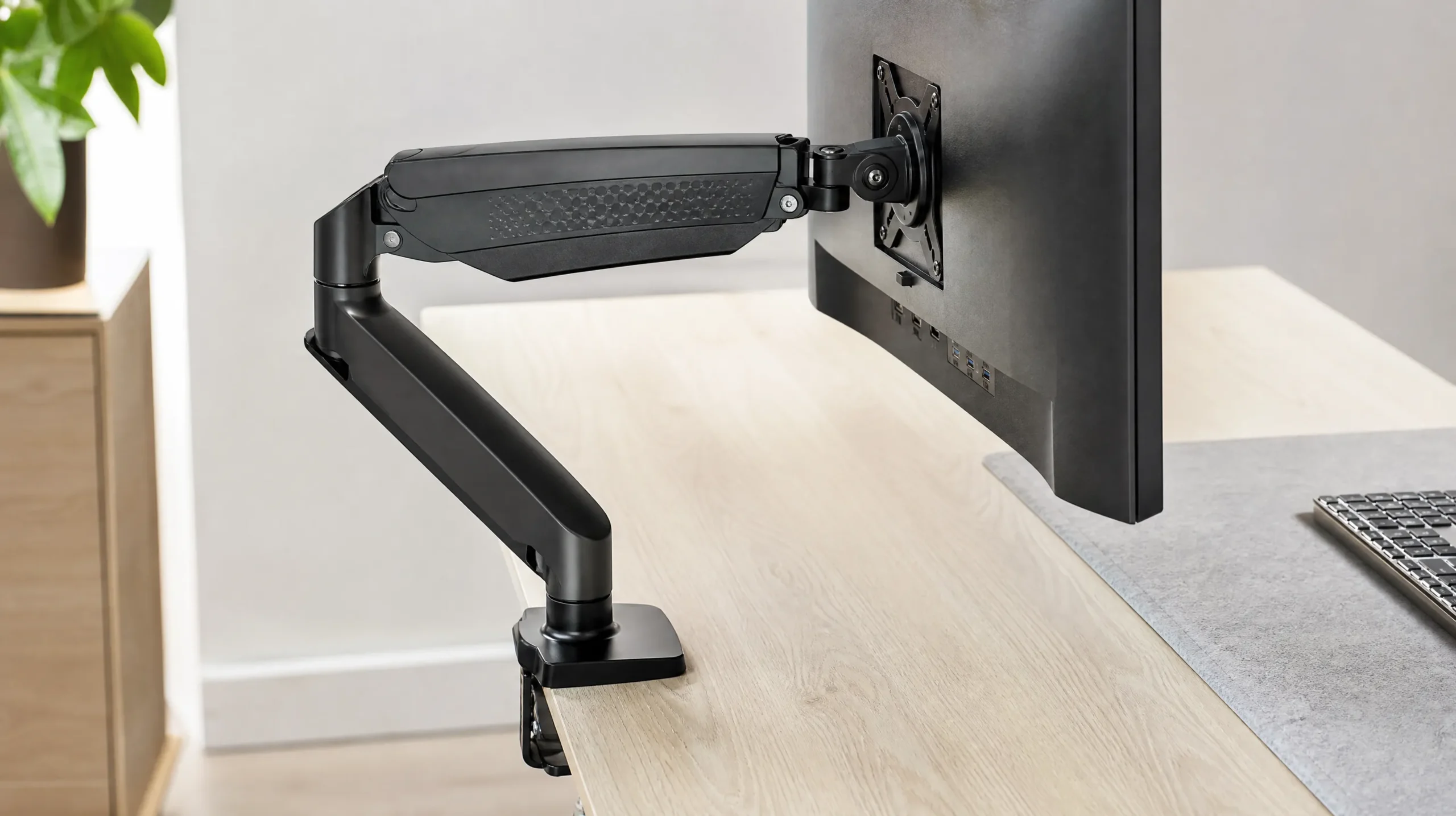
Monitor Arm
A monitor arm replaces the factory stand and clamps to the edge of your desk. It gives you full, continuous adjustability: height, depth, tilt, and swivel, all independently.
Best for:
- Sit-stand desks (essential — no other solution adapts between positions)
- Ultrawide or large monitors where a fixed stand is too low
- Dual monitor setups (dual-arm models available)
- Anyone who wants to free up desk real estate (the arm keeps the monitor off the desk surface)
Limitations:
- Costs more than a riser ($40–$150 for a quality single arm)
- Requires a desk edge or grommet mount — some desk materials (glass, thin MDF) cannot support clamping
- Installation takes 15 to 20 minutes
See the Monitor Arm for Desk Work guide for setup instructions and options by desk type.
Height-Adjustable Desk
A sit-stand desk raises and lowers the entire working surface — keyboard, monitor, and everything else. This is the complete solution if your current desk height is fundamentally wrong for your body or if you want to alternate between sitting and standing.
Best for:
- Users where desk height is the primary problem (not just monitor height)
- Anyone spending more than 4 hours per day at a desk
- Sit-stand workflows (pair with a monitor arm for full flexibility)
Limitations:
- Significant investment ($300–$800 for a quality motorized desk)
- Not necessary if your desk height is correct and only the monitor needs adjustment
Stacking Books or Boxes
Stacking books, reams of paper, or boxes under the monitor is the most common DIY solution — and the one most likely to create new problems.
Why books don’t work:
- The stack is rarely stable, especially with a heavy monitor
- Books compress over time and shift height unpredictably
- The height is fixed at whatever combination you happen to have
- Books do not allow tilt adjustment
- They waste the space under the monitor that a proper riser would turn into storage
If your monitor is currently on books, the cost to replace that with a purpose-built riser or arm is $20 to $50. It is a one-time fix that is more stable, more accurate, and recovers the desk space.
Monitor Height Mistakes That Cause Neck Strain
These are the errors that cause most desk-related neck pain. Each one has a specific fix.
Mistake: Monitor too low What happens: Head tilts forward. At 15° of forward tilt, your head exerts roughly 27 pounds of effective force on your cervical spine. At 30°, that rises to 40 pounds. Over a full workday this load accumulates into the neck tightness most desk workers accept as normal. The fix: Raise the monitor so the top edge is at eye level. If your stand does not reach, use a riser or monitor arm.
Mistake: Monitor too high What happens: You look upward, opening your eyelids wider than their resting position. Eye surface exposure increases, which can accelerate evaporative moisture loss — a contributing factor in dry eye in air-conditioned offices. Neck extends backward, compressing the posterior cervical structures and often causing base-of-skull headaches. The fix: Lower the monitor until the top bezel is at or just below your resting eye level. Never position the center of the screen at eye level — that puts the top several inches too high.
Mistake: Monitor too close What happens: Eyes must converge more aggressively to focus, creating convergence fatigue. You may also notice more frequent blinking, visual fatigue by mid-afternoon, and a tendency to lean your head backward slightly to increase the effective distance. The fix: Push the monitor back to arm’s length minimum (20 inches). For large screens (32″+), extend that to 28–34 inches. Increase font size rather than moving the monitor closer.
Mistake: Monitor too far away What happens: You lean forward to read, breaking the upright posture you just set up. The monitor being far away physically pulls your head and torso toward it — recreating forward head posture from a different cause. The fix: Pull the monitor to arm’s length. If you are squinting or leaning in, increase your font size (Ctrl +/Cmd +) before moving the screen closer.
Mistake: Wrong monitor tilt angle What happens: A monitor tilted toward you (top closer than bottom) reflects overhead lighting directly into your eyes and forces upward gaze to read the top of the screen. A monitor tilted too far backward reduces effective viewing angle to the bottom of the screen. The fix: Tilt the top of the monitor 10–20° away from you. Test: the top edge should be slightly farther from your face than the bottom edge.
Mistake: Adjusting monitor height while standing What happens: You calibrate the monitor to your standing eye level, then sit down and spend 7 hours looking upward at a too-high screen. The fix: Always calibrate from your actual working position — seated, in your normal working posture, the way you actually sit after an hour of work (not the idealized straight-back version).
Mistake: Stacking books instead of using a proper riser What happens: Books shift, compress, and are rarely the right height. They also reduce stability for heavy monitors and block the useful storage space under a dedicated riser. The fix: A purpose-built monitor riser costs $20–$40. It is a permanent solution with zero instability risk.
Mistake: Not recalibrating for a standing desk What happens: Users who switch from a sitting to standing desk leave the monitor at its seated position. Eye level rises 4–10 inches when you stand. A monitor that was correct while seated puts you looking sharply downward while standing — the same strain pattern as a monitor that is too low. The fix: Use a monitor arm. Recalibrate monitor height whenever you change between sitting and standing.
If neck pain is already established rather than just starting, monitor height correction is the first step — but not the only one. The How to Fix Tech Neck guide covers the full recovery process.
Troubleshooting: Monitor Problems and Fixes
| Problem | Likely Cause | Best Fix | Related Guide |
|---|---|---|---|
| Neck stiffness at end of day | Monitor too low — head tilting forward | Raise monitor so top edge is at eye level | How to Fix Tech Neck |
| Base-of-skull headaches | Monitor too high — neck extending backward | Lower monitor top to eye level; never center at eye level | Current article (Signs section) |
| Dry or burning eyes | Monitor too high OR too close | Lower monitor; check 20–28 inch distance; try 20-20-20 rule | Current article (Signs section) |
| Eye fatigue by mid-afternoon | Monitor too close / wrong tilt / too bright | Increase distance; tilt top away 10–20°; reduce brightness | Current article (Steps section) |
| Leaning forward to read | Monitor too far away OR font too small | Pull to arm’s length; increase font size (Ctrl/Cmd +) | Current article (Distance section) |
| Shoulder tension and hunching | Chair too low OR monitor too far / too high | Reset chair first; then recalibrate monitor to new eye level | Current article (Setup steps) |
| Laptop screen too low | Screen and keyboard physically coupled | Laptop stand + external keyboard and mouse | Best Laptop Stands for Neck Pain |
| Monitor still too low after raising stand | Factory stand at maximum height | Replace factory stand with monitor arm or add a riser | Monitor Arm for Desk Work / Best Monitor Riser |
| Neck rotates to see secondary monitor | Secondary monitor placed too wide or at wrong angle | Move secondary to 30–45° from primary; lower it 2–3 inches | Current article (Dual monitors section) |
| Monitor wobbles | Desk surface thin MDF or glass; clamp slipping | Use grommet mount instead of clamp; verify desk weight rating | Monitor Arm for Desk Work |
| Correct height seated but wrong standing | Fixed stand can’t accommodate both positions | Replace with monitor arm for sit-stand adjustability | Monitor Arm for Desk Work |
Quick Measurements Reference
Use this table as your at-a-glance setup reference. All measurements assume correct chair height (feet flat on floor, elbows near desk level).
| Parameter | Standard Range | Notes |
|---|---|---|
| Eye level (seated, 5’4″–5’10”) | 41–47 inches from floor | Measure yours: close eyes, relax, open — that’s your resting eye level |
| Monitor top position | At or up to 1 inch below eye level | Top bezel = reference point, not screen content |
| Monitor center position | 3–5 inches below eye level | Where most of your reading happens |
| Gaze angle to center | 10–20° downward | Natural; no head tilt needed |
| Viewing distance (24–27″ monitor) | 20–28 inches | Arm’s length test |
| Viewing distance (32″ monitor) | 28–34 inches | Push it back |
| Viewing distance (ultrawide 34″+) | 32–42 inches | More distance = less peripheral strain |
| Monitor tilt | 10–20° backward | Top farther from you than bottom |
| Dual monitor angle (each screen) | 15–30° inward | Measured from straight-ahead center |
| Dual monitor seam | Centered on your midline | Seam centered, not either screen |
| Laptop stand target height | 4–6 inch lift from desk | Gets screen to approx. eye level |
| Standing desk: additional height | 4–10 inches above seated | Recalibrate standing eye level each time |
| Desk height (ergonomic, 5’4″–5’10”) | 26–30 inches | Elbows at or slightly above desk surface |
Quick Monitor Height Checklist
Before you finish reading, run through this:
- [ ] Top of screen at or slightly below resting eye level
- [ ] Center of screen viewed at roughly 15–20° downward angle
- [ ] Screen 20–30 inches from your eyes (farther for large displays)
- [ ] Monitor tilted slightly backward (10–20°)
- [ ] Ear sitting roughly above shoulder when you look at the screen
- [ ] No leaning forward, no chin dropping toward chest
- [ ] No head tipping back to see the top of the screen
- [ ] Both monitors at the same height in a dual-monitor setup
If you tick all of these, your monitor position is correct.
Frequently Asked Questions
What is the ideal monitor height?
The top of your monitor screen should sit at or very slightly below your eye level when you are seated in your normal working position. Your natural gaze should land at the center of the screen at a 10 to 20 degree downward angle. This keeps your neck in a neutral position and reduces both neck strain and eye fatigue.
How high should your monitor be from your desk?
This depends on your chair height and your body proportions, so there is no universal measurement in inches from the desk surface. What matters is the relationship between your eye level and the top of the screen, not the desk surface. Follow the eye-level calibration method in this guide rather than looking for a fixed desk-to-screen measurement.
Should the monitor be exactly at eye level?
At or slightly below eye level is ideal. “Slightly below” means the top bezel sits at or just beneath your resting eye line — not several inches lower. Some ergonomists recommend centering the screen at eye level rather than the top edge, which positions the monitor slightly higher. Both are defensible. The key is no head tilting in either direction.
How far should a monitor be from your face?
For a 24 to 27-inch monitor, aim for 20 to 28 inches (arm’s length). For a 32-inch or larger screen, extend that to 30 to 36 inches. If you are increasing text size to compensate for a farther distance, that is the right trade-off — distance protects your eyes and your posture.
Can monitor height cause neck pain?
Yes. Achieving the ideal monitor height for neck pain prevention is often the most impactful desk change you can make. A monitor too low tilts your head forward, significantly increasing cervical load over a workday. A monitor too high forces neck extension and may contribute to dry eyes. Correcting the ergonomics monitor height may help reduce strain over time.
What is the correct monitor height for a standing desk?
When standing, your eye level rises 4 to 10 inches above your seated eye level, depending on your height. Your monitor needs to rise with it. Position the top of the screen at your standing eye level, using the same technique as for seated use — close your eyes, relax, open them, and note where your gaze settles. A monitor arm is the most practical way to shift between seated and standing positions without recalibrating manually each time.
How high should a monitor be for a 6-foot person?
A 6-foot person has a seated eye level of roughly 47 to 51 inches from the floor. The top of the monitor should sit at approximately 47 to 51 inches from the floor, with the center of the screen around 43 to 47 inches. Most standard monitor stands top out well below this. A monitor arm or a 4 to 6 inch riser is typically needed to reach the correct height for taller users.
Should both monitors be at the same height in a dual monitor setup?
Yes, if you use both monitors equally. Place them side by side at the same height, with the seam between the two screens centered on your midline. If one monitor is used significantly more than the other, center your dominant screen directly in front of you and position the secondary screen 2 to 3 inches lower, angled 30 to 45 degrees to the side. This prevents constant neck rotation to access a screen you use infrequently.
How do I fix monitor height on a desk with a fixed-height stand?
You have two main options. A monitor riser places a platform under the monitor and raises it by 3 to 6 inches — inexpensive and permanent, but the height is fixed once chosen. A monitor arm replaces the factory stand entirely and gives you full height, depth, and tilt adjustability on demand. If your monitor needs to rise more than 4 inches or you have a sit-stand desk, a monitor arm is the better long-term solution.
What is the ideal monitor height for neck pain?
The same as the ergonomic ideal: top of the screen at or just below eye level, with your gaze falling naturally to the center of the screen at a 10 to 20 degree downward angle. A monitor that is too low forces your head forward, dramatically increasing the load on your cervical spine across a full workday. Correcting monitor height is typically the first and most impactful change for desk-related neck pain. If pain is already established, the How to Fix Tech Neck guide covers the full recovery process.
How far should an ultrawide monitor be from your eyes?
Further than a standard monitor. A 34-inch ultrawide should be at least 32 to 40 inches from your eyes. A 49-inch super-ultrawide should be 36 to 48 inches away. The concern with ultrawides is not vertical positioning — that follows the same eye-level rule — but horizontal viewing angle. Too close, and you have to rotate your head significantly to read the edges, defeating the purpose of a wide screen and creating its own neck strain pattern.
Can I use a laptop on a stand next to an external monitor?
Yes, and this is the recommended configuration. Set the external monitor at your primary eye level and use it as your main screen. Place the laptop on a stand and use it as a secondary screen. The laptop screen will typically be at a slightly different height than the external monitor — that is acceptable for a secondary display. If you work equally across both screens, raise the laptop to match the external monitor’s height using a stand.
Does monitor height affect eye strain?
Yes, in two ways. A monitor that is too high opens your eyelids wider than their resting position, increasing evaporative surface area on the eye — a contributing factor in dry eye and the burning sensation many desk workers experience by afternoon. A monitor that is too close creates convergence strain as your eyes work harder to focus at a near distance. Correct height (top at eye level) and correct distance (arm’s length, 20–28 inches) together reduce both types of eye strain.
Conclusion
Getting the ideal monitor height right is one of those small adjustments that compounds over time. You will not feel the difference in the first five minutes. You will feel it at the end of the week — or more accurately, you will stop feeling the neck tightness and end-of-day headaches you had accepted as part of desk work.
The rule is simple: top of screen at or just below eye level, monitor about arm’s length away, gaze falling naturally to the center of the screen at a slight downward angle. Calibrate from your seated eye level, not from the desk surface.
If your current setup does not allow it, a monitor riser or monitor arm will solve it. Both are covered in the buying guides linked below. For a complete picture of every adjustment beyond height — distance, tilt, color calibration, and dual-screen configuration — the Ergonomic Monitor Setup guide is the right next read.
And if neck pain is already a problem, the How to Fix Tech Neck guide is the right next read — monitor height correction is step one, but there is more to address when the pattern has already set in.