

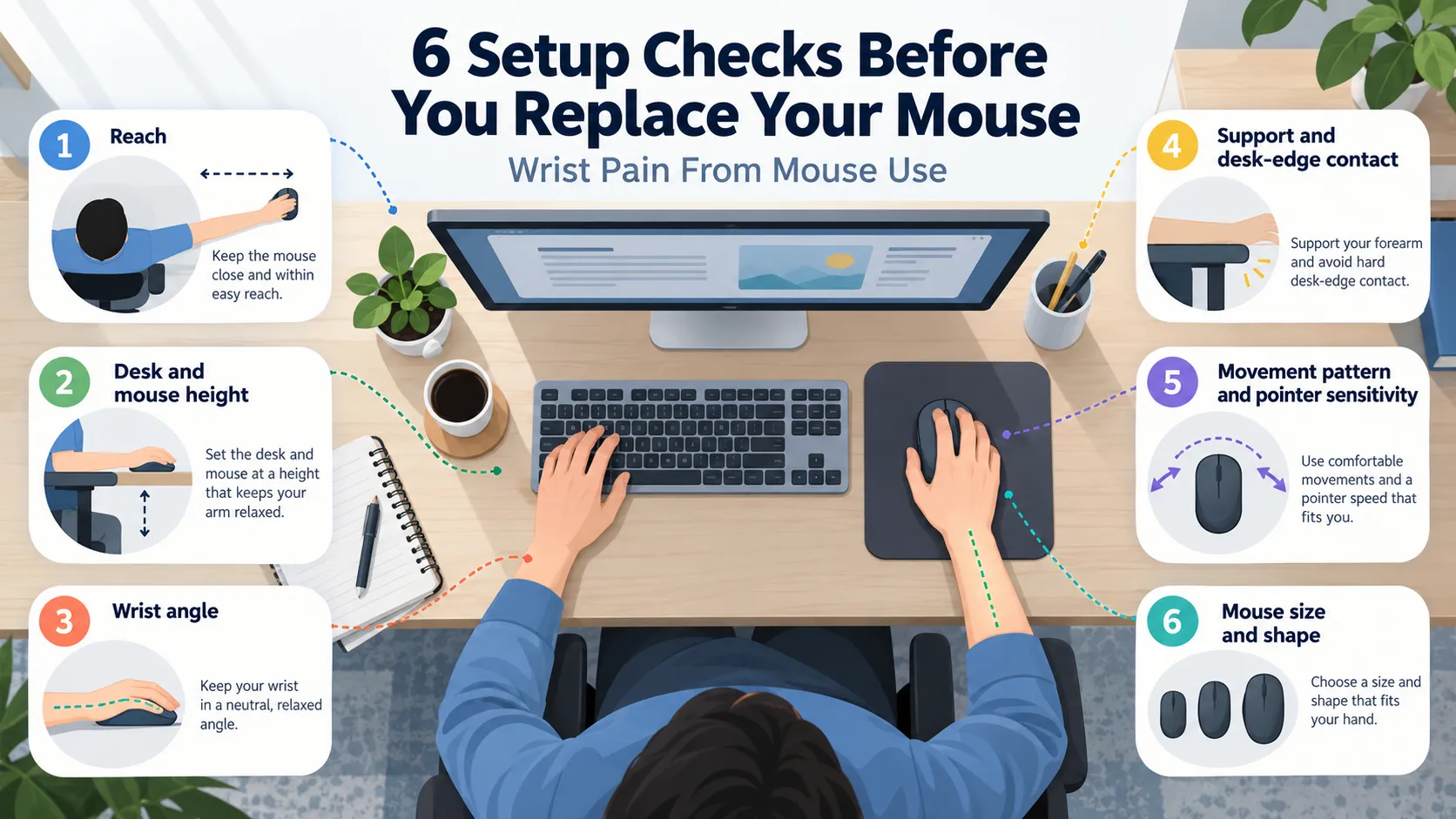
Wrist pain from mouse use rarely has one tidy cause. Reach, desk height, wrist position, what your hand rests on, how you move the pointer and the mouse itself can each contribute. A new mouse is only one of those levers, and it is not always the first one worth trying.
This guide gives you six setup checks to run in order. Each says what to look for, one small change to test and where to go next. It is educational troubleshooting, not a diagnosis, and it can’t tell you what is causing your symptoms.
Pause the experiments if… symptoms are persistent, worsening, include numbness or tingling, weakness or trouble gripping or dropping things, disturb your sleep, or interfere with normal activities. In those cases, setup experiments should not replace qualified medical advice. See When Setup Changes Aren’t Enough.
Quick Answer: What Should You Check First for Wrist Pain From Mouse Use?
For wrist pain from mouse use, run these checks in order:
- Reach
- Mouse and desk height
- Wrist angle
- Support and desk-edge contact
- Movement pattern and pointer sensitivity
- Mouse size and shape
The order matters because early checks change later ones. Reach and height shape the wrist angle you’ll see in Check 3, and it’s hard to judge a mouse’s shape while the desk is working against your hand.
Change one thing at a time, use it through a normal work session, then retest. That shows you which change mattered. Nothing here promises relief. The goal is a clearer next step: adjust the setup, reconsider the mouse, or stop shopping and seek qualified medical advice.

Jump to a Check
First: Where Does It Hurt?
Pain location has one job here: helping you decide which part of this guide to read. It can’t tell you what is wrong, and this article won’t try.
- Discomfort at the wrist while mousing: you’re in the right place. Start with Check 1. If you already notice the mouse far from the keyboard, or your wrist pressing on an edge, go to Check 1 or Check 4 first.
- Mostly thumb, fingers or clicking: the hand and finger mouse guide covers grip, click and thumb load.
- Numbness, tingling or weakness: this is not a product question. Go to When Setup Changes Aren’t Enough.
Not sure how to describe what you notice? The Wrist & Hand Pain Self-Test compares broad symptom patterns. It doesn’t diagnose anything.
Check 1: How Far Do You Reach?
Look for: the mouse sits beyond a number pad, or your elbow drifts away from your body to reach it. OSHA warns that a mouse that isn’t near the keyboard can mean awkward postures, contact stress or forceful hand exertions.
It adds that prolonged use this way stresses the shoulder and arm. CCOHS says there is no single right position, but reaching forward or sideways beyond an easy-reach zone can lead to discomfort. It also notes that extra keys, such as a number pad, keep the mouse out of line with your arm and shoulder.
Try this: for one work session, bring the mouse as close to the keyboard as is comfortable, so your elbow can stay nearer your body. If a number pad is what’s in the way, both sources describe a keyboard without one, or a mouse platform, as options. There’s no measurement to hit. The target is an ergonomic mouse position that allows easy reach without leaning.
What next: the keyboard and mouse height guide covers reach and placement in more detail.

Check 2: Are the Desk and Mouse at the Right Height?
Look for: the keyboard and mouse sit on noticeably different levels (for example, a keyboard on a lowered tray with the mouse on the desk), or your hand is being pushed noticeably above your elbow.
OSHA says the mouse should be positioned so you can keep a straight, neutral wrist, which may mean adjusting the chair, desk or keyboard tray. Mayo Clinic gives the same general workstation principle for keyboard height: around elbow level or slightly lower. CCOHS notes that a mouse platform can lift the mouse a little above the keyboard.
Try this: check whether keyboard and mouse sit at about the same working level, and whether your hand is being lifted above your elbow. If not, change one thing (chair, desk or tray) and retest before changing another. The full measurements live in the height guide, so this page doesn’t repeat them.
What next: the keyboard and mouse height guide, or the desk height calculator if your desk is fixed.
Check 3: Is Your Wrist Relatively Straight?
Look for: the wrist bent upward or sideways while you’re actually mousing. OSHA’s goal is a straight, neutral wrist. It adds that a mouse with too little sensitivity can force large wrist deviations to cross the screen. Mayo Clinic makes a related point for keyboards: a relaxed middle position rather than bent all the way up or down.
Try this: only after Checks 1 and 2, look at your wrist from the side and from above while using the mouse. This guide gives no target angle, because the sources reviewed don’t give one for mouse use. If the wrist still looks bent, go back to reach and height before concluding anything.
What next: the 20-question ergonomic assessment scores the wider workstation, including wrist position.

Check 4: What Supports Your Hand and Forearm?
Look for: your forearm or wrist pressing on a hard or sharp desk edge, or weight resting on the wrist while the hand moves. OSHA describes this as contact stress and says wrist rests with hard, sharp leading edges can affect forearms and wrists. CCOHS, relaying OSHA’s tips, says a support should be soft and rounded, with contact at the heel of the palm rather than directly under the wrist.
Guidance on supports isn’t uniform. OSHA lists a mouse pad with a wrist or palm rest as one option for neutral posture, while CCOHS describes the question as debated. The mouse pad guide walks through that disagreement, so it isn’t repeated here.
Try this: compare your current arrangement with an open, flat surface where your hand can move freely. You’re only noticing which feels easier to move on. Neither is claimed to prevent or cause anything.
What next: the mouse pad with wrist support guide.
Check 5: How Are You Moving the Mouse?
Look for: a tight grip, small repeated wrist-only movements, or a pointer that needs big hand movements to cross the screen. OSHA notes that pointer settings at either extreme can create extra effort: very low sensitivity can require larger wrist movements, while very high sensitivity can demand finer control.
Try this: change pointer sensitivity one step in your system settings and use it for a session. Separately, try reducing repeated wrist-only movements and see whether a broader, more relaxed movement pattern feels easier. Treat that as a practical experiment, not an established rule, because the sources reviewed here don’t prescribe a movement style. OSHA also suggests keyboard shortcuts to reduce mouse use.
What next: if the problem is how far the device has to travel rather than how you move it, vertical mouse vs trackball compares the formats.

Check 6: Does the Mouse Fit Your Hand?
Look for: fingers stretching to reach buttons, a hand that overhangs the mouse, squeezing to hold it, or awkward button reach. OSHA says a pointing device that is too big or too small can increase finger force and push the wrist into awkward positions. It adds that devices come in left- and right-hand versions and different sizes. Mayo Clinic advises making sure your mouse is easy to use and doesn’t strain your wrist.
Try this: use a light grip and see whether the mouse still feels controllable. If you can, temporarily compare another size or format: a colleague’s, a family member’s, or one with a return window. OSHA recommends testing a device before long-term use. Don’t buy first.
What next: start with how to choose an ergonomic mouse. If a device change looks warranted, see our comparison of mice for broader wrist discomfort. For thumb, finger or click-load problems, use the hand and finger guide.
When Setup Changes Aren’t Enough
Setup checks are small experiments, and some symptoms call for more than an experiment. NHS and Mayo Clinic guidance on hand and wrist symptoms points the same way. Seek qualified medical advice, rather than continuing to try new equipment, if you notice:
- symptoms that persist or are getting worse
- numbness or tingling
- weakness, trouble gripping, or dropping things
- symptoms that disturb or wake you at night
- symptoms that interfere with usual activities
This isn’t a complete list, and it can’t tell you what is going on. If you’re unsure whether something counts, a health professional can help you decide.
For background on how computer-related hand symptoms are discussed in medical sources, see carpal tunnel and computer work. It is educational only and doesn’t diagnose or rule anything in or out for you.
Bottom Line: What Should You Change First?
Start with the smallest setup change that addresses what you actually saw. If bringing the mouse closer or aligning the working height makes wrist pain from mouse use feel easier during normal work, keep that change and retest before buying anything. If the setup checks do not change the problem, Check 6 gives you a reason to compare mouse size or shape.
Treat each result as evidence, not a diagnosis. Persistent or worsening symptoms, numbness or tingling, weakness, sleep disruption, or interference with normal activities still belong in the qualified-advice path rather than the shopping path.
Quick Troubleshooting Table
Match what you see to the quick test, then follow the next guide only if the test points there.
| Observation | Possible setup factor | Quick test | Next guide |
|---|---|---|---|
| Mouse far from keyboard, elbow drifting out | Excess reach | Bring it closer for a work session | Height guide |
| Keyboard and mouse at different levels | Height mismatch | Align working levels | Height guide / calculator |
| Wrist bent upward or sideways | Reach, height or position | Re-check after fixing reach and height | Ergonomic assessment |
| Wrist anchored or pressing a hard edge | Support / contact stress | Compare with an open flat surface | Mouse pad guide |
| Movement feels constrained, or needs big sweeps | Movement / sensitivity | Adjust pointer sensitivity one step | Vertical mouse vs trackball (if travel is the issue) |
| Mouse fit feels wrong | Size / shape | Light grip; compare another size | Choosing guide |
| Numbness, weakness, persistent or worsening symptoms | Not a product-selection issue | Stop experimenting; seek qualified advice | Seek qualified medical advice |
Frequently Asked Questions
Why Can Wrist Pain From Mouse Use Happen?
There’s no single answer to wrist pain from mouse use, and an article can’t identify yours. OSHA points to setup factors worth checking: reach, posture, contact with desk edges, pointer settings and device fit. NHS notes that arm and hand pain often has a combination of causes. If symptoms persist or worsen, seek qualified advice.
Can using a mouse cause wrist pain?
NHS describes repetitive strain injury as pain linked to repeated movement, but adds that repetitive work doesn’t always cause problems and many people do the same job for years without them. Mayo Clinic says the evidence isn’t clear enough to call computer use a risk factor for carpal tunnel syndrome, though computer use may cause a different form of hand pain. Mouse use and workstation setup can be factors worth examining when discomfort appears during computer work, but that does not justify naming a specific condition from mouse use alone.
How should I position my wrist when using a mouse?
OSHA’s guidance is a straight, neutral wrist, adjusting chair, desk and keyboard tray so you don’t have to bend it up, down or sideways. Checks 1–3 work through that in order. No specific angle is given.
How high should my mouse be?
Roughly at the same working level as your keyboard, without your hand being pushed noticeably above your elbow. Mayo Clinic advises keeping the keyboard at elbow height or slightly lower, and OSHA’s aim is a neutral wrist. Exact numbers depend on your body and desk, so use the height guide and desk height calculator.
Should I use a wrist rest with a mouse?
Guidance isn’t uniform. OSHA lists a mouse pad with a wrist or palm rest as one option. CCOHS describes the question as debated, notes that heavy or frequent contact on the wrist can add pressure, and says a softer rest may be better than a sharp desk edge. If you use one, it suggests soft and rounded, with contact at the heel of the palm. The mouse pad guide covers the options.
When should I see a doctor about wrist pain?
Seek qualified advice if symptoms persist or are getting worse, include numbness, tingling or weakness, wake you at night, make gripping difficult, or interfere with normal activities. NHS and Mayo Clinic guidance points the same way. This guide sets no waiting period. If you’re concerned, you can seek advice at any time.