

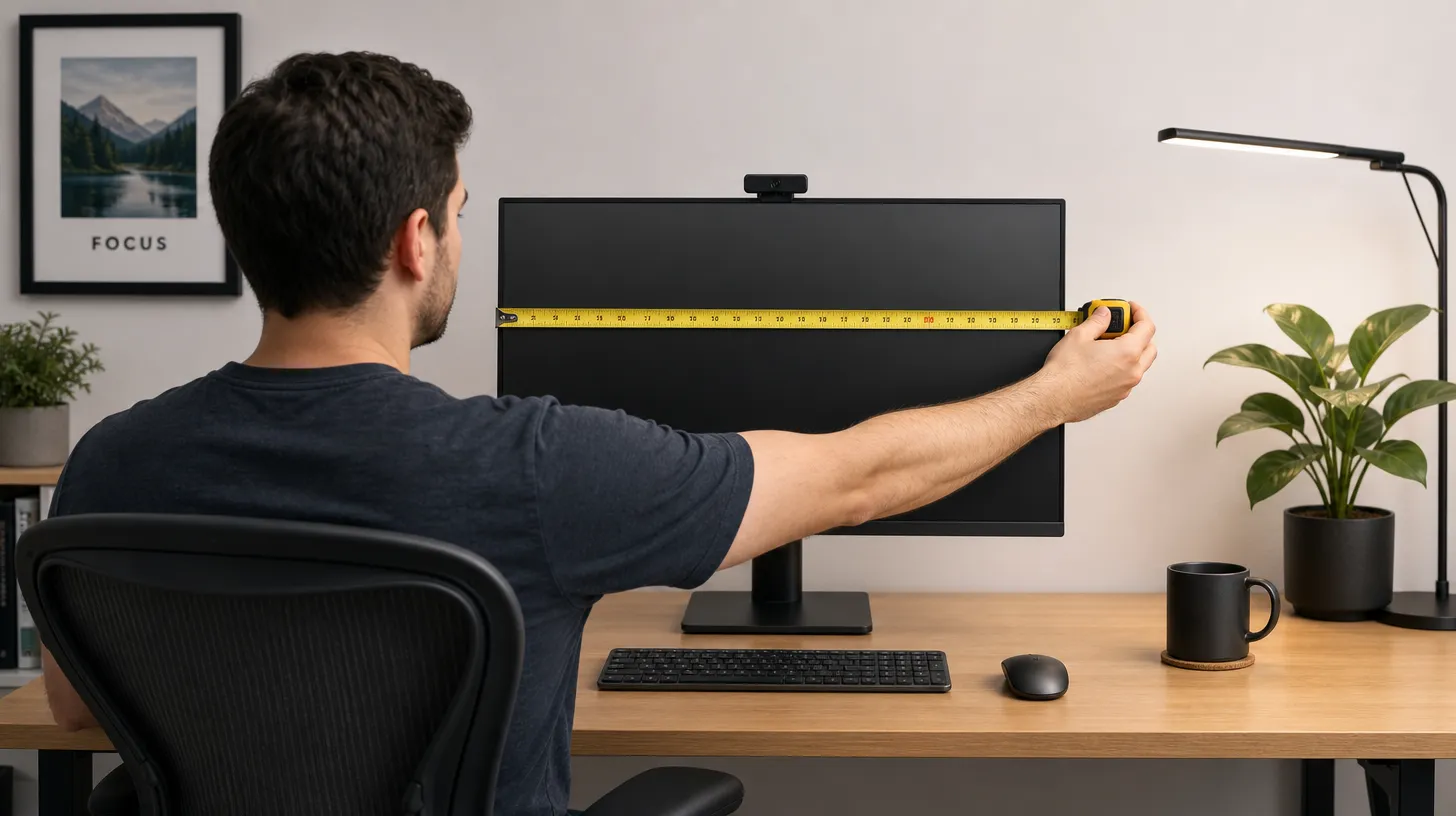
Quick Answer: The ideal monitor distance from your eyes is 20–30 inches (50–76 cm) for standard 24–27″ monitors — roughly arm’s length. For 32″ displays, push back to 30–36 inches. For 4K monitors, you can sit 15–20% closer than the standard rule without losing clarity. If text is hard to read at the correct distance, increase your OS font size rather than moving the screen closer.
You already know your monitor should be “about arm’s length” away. But what does that actually mean — and does it change depending on your screen size, resolution, or whether you’re gaming versus working?
The short answer is yes, monitor distance matters a great deal, and arm’s length is only the starting point. Sit too close and your eye muscles work overtime to maintain focus, causing the fatigue, headaches, and blurred vision collectively known as Computer Vision Syndrome (CVS). Sit too far and you crane your neck forward to read small text — which trades eye strain for neck and shoulder strain.
This guide gives you exact measurements by screen size and resolution, a printable monitor distance chart, a troubleshooting framework for common problems, and practical solutions for setups where achieving the ideal distance is physically difficult. Whether you’re optimizing a home office, a gaming rig, or a dual-monitor workstation, the numbers here will help you get it right.
Why Monitor Distance Matters: The Science Behind Eye Strain
When you look at a nearby object, two things happen inside your eyes simultaneously. Your ciliary muscles contract to change the shape of your lens — a process called accommodation — so the image lands in sharp focus on your retina. At the same time, both eyes rotate inward toward each other, a process called convergence.
Both mechanisms are designed for brief, occasional near-focus tasks. Holding them under sustained load — as you do when you stare at a screen 12 inches away for six hours — creates the muscular fatigue that becomes eye strain, headaches, and the blurring you notice when you finally look up and try to focus on something across the room.
At the correct monitor distance (roughly 20–30 inches), your eyes can maintain focus with far less muscular effort. The strain doesn’t disappear entirely — regular breaks still matter — but the cumulative daily load drops dramatically.
The American Optometric Association classifies symptoms of Computer Vision Syndrome (also called Digital Eye Strain) as: eyestrain, headaches, blurred vision, dry eyes, and neck or shoulder pain. Incorrect monitor distance is the leading ergonomic contributor to all five.
The Golden Rule: What “Arm’s Length” Actually Means
Every ergonomics guideline — OSHA, NIOSH, the HSE in the UK, and Ergotron — recommends placing your monitor approximately one arm’s length away. In practice, that translates to 20–30 inches (51–76 cm) for most adults.
The problem is that “arm’s length” varies. A 5’2″ person has a reach of roughly 22–24 inches while seated; a 6’3″ person may reach 28–30 inches. The rule works as a rough starting point, but the better approach is measuring from the screen to the bridge of your nose while you’re seated naturally in your chair.
How to find your correct distance in 30 seconds:
- Sit in your normal working posture.
- Extend your arm fully toward the screen.
- Your fingertips should lightly touch — or nearly touch — the center of the display.
- If you have to lean forward to reach it, the monitor is too far. If your arm bends before your fingertips reach the screen, it is too close.
This arm-extension test gives you a personalized baseline. Adjust from there using the size-specific numbers in the next section.
Ideal Monitor Distance by Screen Size
Screen size is the biggest variable in monitor distance. A larger display subtends a greater angle of your visual field from any given distance, which means sitting too close causes your eyes — and your neck — to scan constantly just to see the full picture. The following table provides the recommended viewing range for the most common monitor sizes.
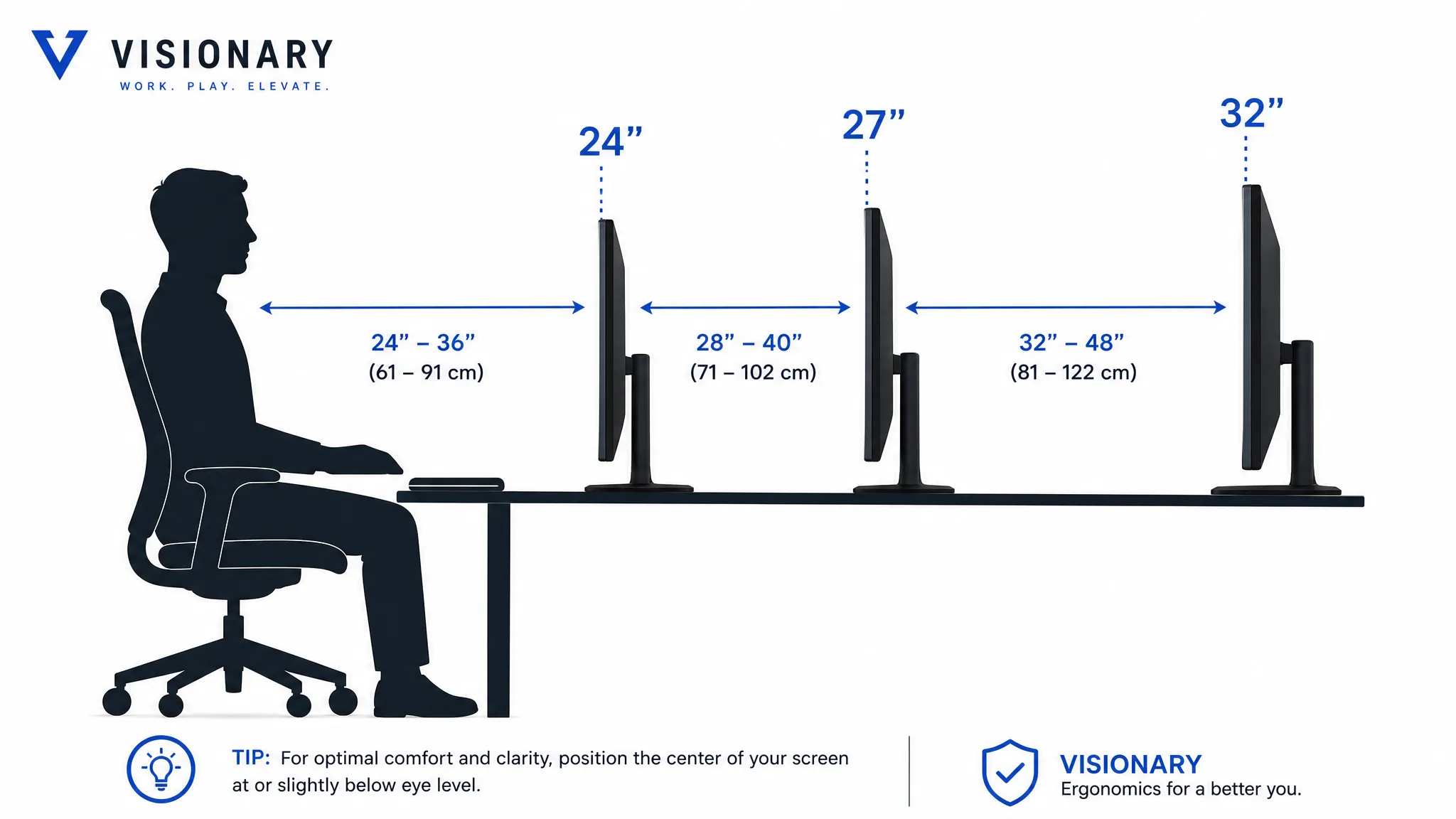
Monitor Distance Chart by Screen Size
| Monitor Size | Minimum Distance | Ideal Distance | Maximum Distance | Notes |
|---|---|---|---|---|
| 21-22 inches | 20 in / 51 cm | 22-26 in / 56-66 cm | 28 in / 71 cm | Common entry-level size; arm’s length rule applies directly |
| 24 inches | 20 in / 51 cm | 24-28 in / 61-71 cm | 30 in / 76 cm | Most popular office monitor size |
| 27 inches | 24 in / 61 cm | 27-30 in / 69-76 cm | 34 in / 86 cm | The “sweet spot” size – distance matters more at this size |
| 32 inches | 28 in / 71 cm | 30-36 in / 76-91 cm | 40 in / 102 cm | Needs a deep desk or monitor arm to achieve correct distance |
| 34″ Ultrawide | 30 in / 76 cm | 33-38 in / 84-97 cm | 42 in / 107 cm | Curved panels reduce effective edge distance |
| 38″ Ultrawide | 32 in / 81 cm | 36-42 in / 91-107 cm | 46 in / 117 cm | May exceed standard desk depth – monitor arm often required |
| 49″ Super-Ultrawide | 36 in / 91 cm | 40-48 in / 102-122 cm | 52 in / 132 cm | Field-of-view strain common; consider desk position carefully |
How to use this table: Find your monitor size, then confirm that the distance from your eyes to the screen surface (not the desk edge) falls within the ideal range. If it doesn’t, see the desk depth and monitor arm sections below.
Distance from Monitor to Eyes: 27-Inch Monitor
The 27″ monitor is the most common size for home offices and gaming setups, and it generates the most questions. The correct distance is 27–30 inches (69–76 cm), measured from the screen surface to your eyes. This is slightly more than arm’s length for most people. If your desk is shallow and your monitor sits close to the desk’s back edge, a monitor arm is almost always necessary to push a 27″ screen to the correct distance.
Distance from Monitor to Eyes: 32-Inch Monitor
At 32 inches, you are at the threshold where standard desk setups often fail. Most desks are 24–30 inches deep. With a monitor stand, the screen surface may end up only 18–22 inches from your eyes — well inside the too-close zone. For a 32″ monitor, a minimum 28-inch distance is required, with 30–36 inches being optimal. A monitor arm that extends the screen forward from the wall side of the desk is the most reliable solution.
How Resolution Changes Your Ideal Monitor Distance
Resolution affects the practical viewing distance because it determines pixel density — how many pixels are packed into each inch of screen (measured in PPI, or pixels per inch). A higher PPI means smaller individual pixels, which means you need to be closer to resolve fine detail. A lower PPI at large screen sizes means individual pixels become visible if you sit too close, creating a grainy or “screen-door” appearance.
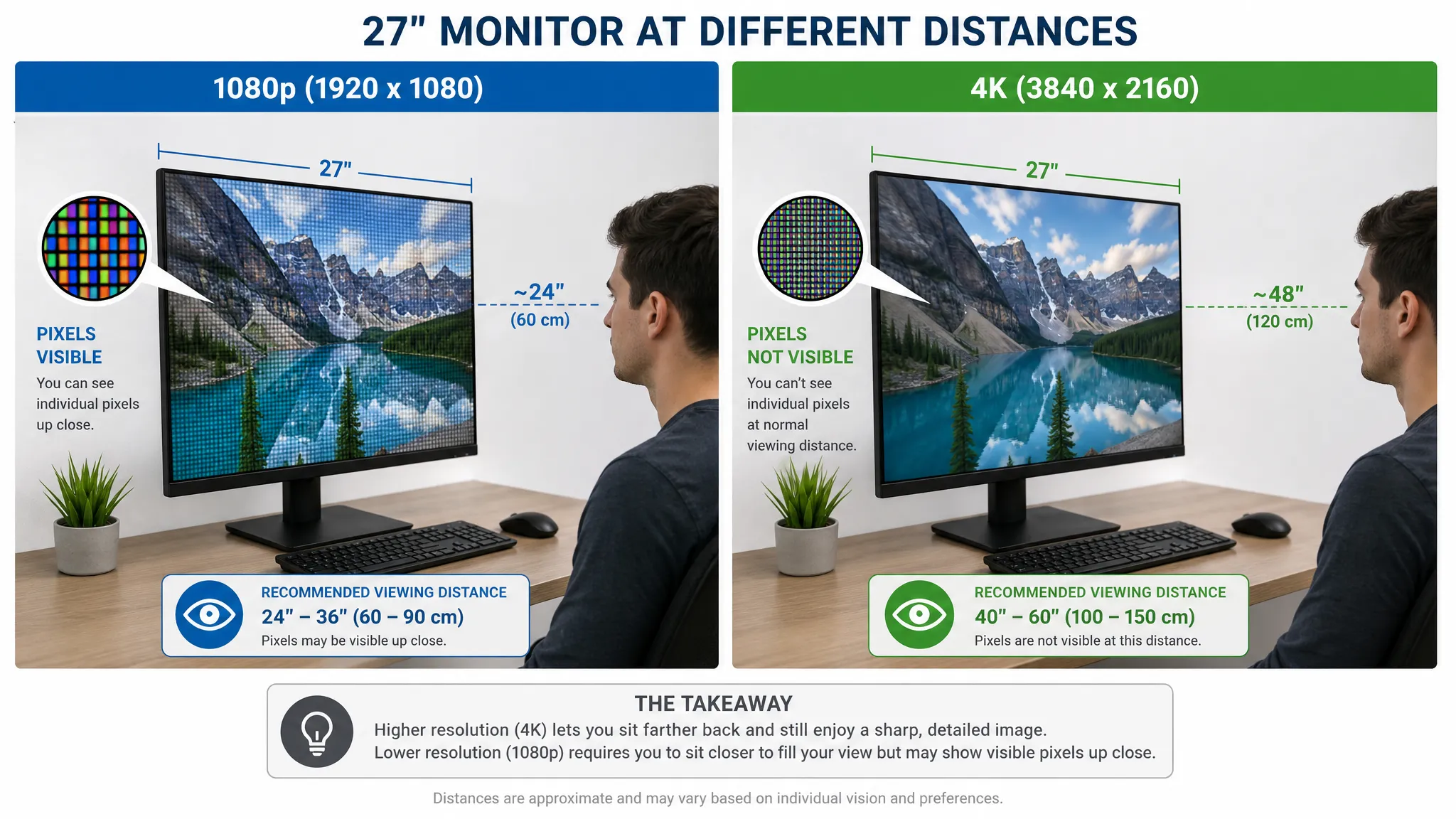
Resolution and Viewing Distance Table
| Screen Size | Resolution | PPI | Ideal Distance | Key Insight |
|---|---|---|---|---|
| 24″ | 1080p (FHD) | 92 PPI | 24-28 in | Standard; pixels visible below 20 in |
| 24″ | 1440p (QHD) | 123 PPI | 20-26 in | Can sit slightly closer without pixel grain |
| 27″ | 1080p (FHD) | 82 PPI | 28-34 in | Lower PPI – sit further; pixels visible at arm’s length |
| 27″ | 1440p (QHD) | 109 PPI | 25-30 in | The most common sweet-spot combination |
| 27″ | 4K (UHD) | 163 PPI | 22-28 in | Very high PPI – sitting closer is ergonomically viable |
| 32″ | 1080p (FHD) | 69 PPI | 32-40 in | Low PPI – pixel grain visible up close; sit well back |
| 32″ | 1440p (QHD) | 92 PPI | 28-36 in | Standard density; follows general 32″ guidelines |
| 32″ | 4K (UHD) | 138 PPI | 24-34 in | High density allows closer sitting without grain |
| 34″ Ultrawide | 1440p (UWQHD) | 109 PPI | 30-38 in | Curved panels reduce edge distance; factor in curvature |
| 34″ Ultrawide | 4K (UWUHD) | 130 PPI | 28-36 in | Closer viable due to high PPI |
The 4K exception: This is the most common misconception in monitor distance advice. A 4K 27″ monitor has 163 PPI — nearly twice the pixel density of a 1080p 27″ monitor. You can sit 15–20% closer than the standard rule without seeing individual pixels. However, this does not eliminate the eye accommodation and convergence problem. You still should not sit closer than 22 inches from any screen, regardless of resolution, because the physiological strain on your eye muscles is independent of pixel visibility.
How to Measure Your Monitor Distance (Monitor Distance Calculator Method)
Use the monitor height and distance calculator to turn this manual measurement into a screen-size and task-specific starting range.
You do not need a dedicated monitor distance calculator tool, though they exist. The following method takes under two minutes and is more accurate because it accounts for your actual seated position.
Step 1 — Sit normally. Get into your typical working posture. Do not sit up straighter than you naturally would; you want to measure real conditions.
Step 2 — Find the screen center. The measurement point on your monitor is the center of the screen surface — not the desk edge, not the bezel, not the back of the monitor.
Step 3 — Measure to your eyes. Use a tape measure or a long ruler from the screen center to the bridge of your nose. Have a colleague help, or use a piece of string and then measure the string.
Step 4 — Compare to your target range. Cross-reference with the size/resolution table above.
Step 5 — Adjust and re-measure. If you need to move the monitor further, consider a monitor arm (see below) or repositioning your chair closer to the desk. If you need to bring it closer, a monitor stand or riser can help.
The font-size alternative: If you are at the correct distance but finding yourself squinting to read text, do not move the screen closer. Instead, increase your operating system’s display scaling or font size. On Windows, go to Settings → Display → Scale. On macOS, go to System Settings → Displays → Resolution. This preserves your ergonomic distance while making content more legible.
Monitor Distance for Different Use Cases
The science-based ideal distance applies universally, but practical setups vary by how you use your monitor. Here is how distance considerations shift across common use cases.
| Use Case | Best Starting Distance | Adjustment Tip |
|---|---|---|
| Office work | 20?30 in / 51?76 cm | Increase text scaling instead of moving closer. |
| Competitive gaming | 18?24 in / 46?61 cm | Use closer distances only for short sessions and smaller displays. |
| Video/photo editing | 22?30 in / 56?76 cm | Stay close enough for detail, but keep the full canvas in view. |
| Coding | 24?34 in / 61?86 cm | Use larger fonts and split panes rather than leaning forward. |
Office Work and Productivity
For document work, spreadsheets, email, and general productivity, the standard 20–30 inch range applies directly. The priority here is reducing sustained eye strain over long sessions — often six to ten hours. Pair correct distance with regular breaks using the 20-20-20 Rule (see below).
If you read a lot of small text, the temptation is to move the monitor closer. Resist it. Use your OS display scaling to increase text size and maintain ergonomic distance.
Gaming
Gaming distance is one of the most debated topics in the ergonomics community, and the answer depends on game type.
For competitive first-person shooters (CS2, Valorant, Apex Legends), some pro players sit 18–22 inches from a 24″ monitor to make small targets more visible. This is a performance trade-off — the closer distance increases visual acuity for small targets at the cost of eye and neck strain. For casual players or anyone playing more than a few hours, this distance is not recommended for daily use.
For strategy games, RPGs, open-world titles, and console-style games, standard ergonomic distance (24–30 inches for a 27″ display) provides better overall scene awareness and is far more comfortable over long sessions.
For ultrawide gaming setups (34″ and above), correct distance is especially important. Sitting too close to a 34″ or 49″ ultrawide creates excessive lateral head movement that causes neck strain quickly.
Video and Photo Editing
Color-critical work introduces an additional variable: viewing angle affects color rendering, particularly on IPS and VA panels. For editing, the ideal distance sits at the closer end of the recommended range — 22–26 inches for a 27″ panel — because detail visibility matters and most editing panels have good off-axis color performance. The distance should still never drop below 20 inches.
Coding and Development
Coding often involves split-screen views, multiple windows, and small fonts. The standard distance range applies, but many developers benefit from a slightly larger monitor (27″ or 32″) at correct distance rather than a smaller monitor close up. A larger screen at proper distance is always preferable to a smaller screen moved too close.
Dual Monitor Distance: How to Set Up Both Screens
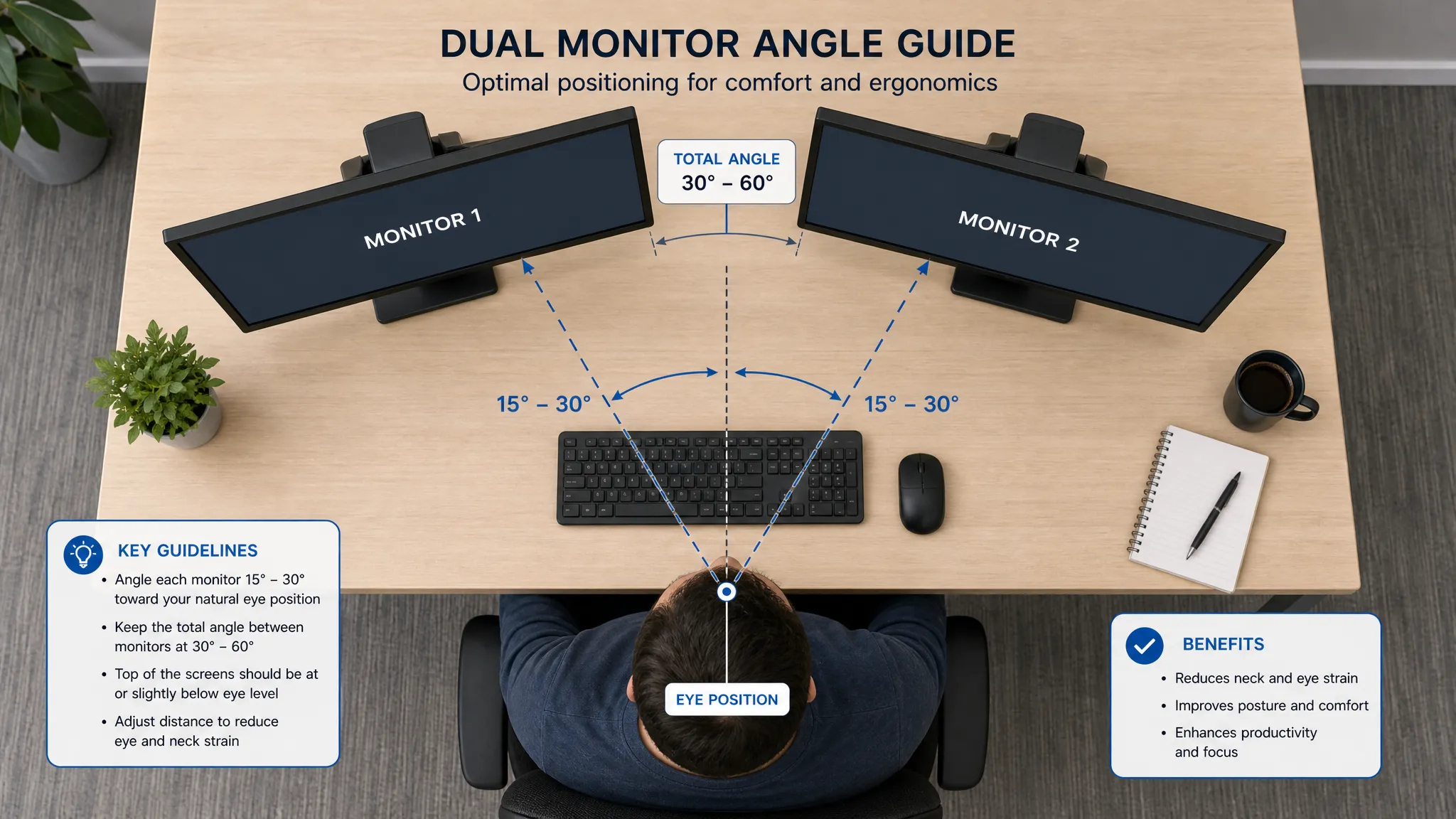
Dual monitor setups require thinking about distance differently because your secondary monitor is rarely at the same distance as your primary.
Primary monitor: Position this directly in front of you at standard ergonomic distance (based on its size). This is the screen you spend most time looking at.
Secondary monitor: Place it directly adjacent to the primary, with both screen surfaces roughly equidistant from your eyes. If the secondary is noticeably further away (common in side-by-side setups on shallow desks), compensate by increasing that monitor’s font size or display scaling.
The angle factor: In a typical dual-monitor setup, the secondary monitor is viewed at an angle rather than straight on. This means the effective viewing distance to the edges of the secondary screen is greater than the measured distance to its center. If the secondary monitor feels blurry or uncomfortable, try angling both monitors inward slightly — 15–30 degrees each — so that both screen centers point toward your eye position.
Matching heights: Both monitors should have their top edges at approximately the same height, within one inch of each other. Mismatched heights create repetitive neck tilting that is as problematic as incorrect distance.
What If Your Desk Is Too Shallow? The Desk Depth Problem
This is the most common real-world barrier to correct monitor distance, and it is rarely addressed in generic ergonomics guides. Standard office desks are 24–30 inches deep. After accounting for the monitor stand depth (typically 6–9 inches), the screen surface may end up only 15–22 inches from your eyes — well below the recommended minimum.
Option 1 — Monitor arm (recommended): A monitor arm mounts to the desk edge or through a grommet hole, allowing you to position the screen anywhere within the arm’s reach range — typically 6 to 20 inches of forward extension from the mount point. This is the most effective solution for shallow desks and is explored fully in the monitor arm section below.
Option 2 — Wall mount: If your desk sits close to a wall, a wall-mounted monitor bracket places the screen on the wall surface, effectively giving you unlimited depth adjustment. The trade-off is reduced flexibility and the need to drill into the wall.
Option 3 — Reposition your seating: If minor adjustment is all that’s needed, moving your chair further back from the desk while maintaining proper posture may be sufficient. This works for 1–3 inches of additional distance.
Option 4 — Upgrade your desk: A deeper desk (32–36 inch depth) resolves the problem at the root. Standing desk frames with 30″+ depth give you the flexibility to position monitors correctly for both sitting and standing positions.
How a Monitor Arm Fixes Your Distance Problem
A monitor arm is the most versatile tool for achieving and maintaining correct monitor distance. Unlike a fixed stand, it allows you to push the screen to your exact ideal distance and re-adjust whenever your setup changes.
Key benefits for monitor distance:
A quality monitor arm can extend a screen 12–20 inches forward from the mounting point, which means even a 32″ monitor on a shallow 24″ desk can be positioned at the correct 30–36 inch distance from your eyes. Arms also allow height and tilt adjustment simultaneously, so you can dial in distance, height, and angle in a single setup session.
What to look for: Confirm that any monitor arm you consider supports your monitor’s weight (listed in the monitor’s specifications) and VESA mounting pattern (75×75mm or 100×100mm are the most common). For a 27″ or larger monitor, look for arms rated to at least 15–20 lbs with a reach of at least 16 inches.
Internal link: See our full guide — Best Monitor Arms for Every Desk Setup — for tested recommendations across desk types, monitor sizes, and budgets.
Monitor Distance for People Who Wear Glasses
Standard ergonomic distance recommendations assume normal or corrected-to-normal vision. If you wear corrective lenses, a few important adjustments apply.
Single-vision lenses: If your glasses fully correct your distance or near vision, the standard distance table applies. Use the measurement that feels comfortable at your prescription.
Reading glasses: Reading glasses are typically optimized for 12–16 inches — closer than ergonomic monitor distance. If you use reading glasses at the computer and find the screen blurry at 24–28 inches, you may need computer-specific glasses, which are optimized for the 20–26 inch range. Ask your optometrist about “intermediate” or “computer” lens prescriptions.
Progressive lenses: Progressives have a narrow intermediate zone that corresponds to roughly 20–26 inches. Many progressive wearers unconsciously tilt their head back to find the right focal zone, which creates significant neck strain over time. The solution is usually a dedicated pair of computer glasses optimized for monitor distance, rather than adapting your posture to the limitations of your progressive lenses.
If you have low vision: People with low vision conditions often work more comfortably with the monitor closer than standard recommendations. In these cases, increasing display scaling and font size — rather than reducing distance — is the preferred strategy. Specialty Vision’s office ergonomics guidance recommends exhausting all accessibility software adjustments before moving the monitor inside 18 inches.
Signs Your Monitor Distance Is Wrong
You may not think to measure your monitor distance until something starts to bother you. These are the most reliable signals that your current distance needs adjustment.
Signs your monitor is too close:
- Headaches that develop within 1–2 hours of starting work and resolve after stepping away from the screen
- Blurred vision when looking up from the screen at objects across the room (accommodative spasm)
- Dry, irritated, or burning eyes (you blink less when over-focusing at close range)
- Unconsciously leaning back in your chair during the day
- Neck and upper back tension (your head naturally wants to move away from a too-close screen)
Awareness of individual pixels or a slight screen-door effect
Signs your monitor is too far:
- Leaning or craning forward in your chair within the first 30 minutes of work
- Squinting habitually at the screen
- Lower back pain (forward lean misaligns the spine)
- Shoulder tension from reaching toward the keyboard while leaning forward
Increasing font sizes repeatedly without it feeling like enough
Troubleshooting: Common Monitor Distance Problems
I’m at the right distance but I still get eye strain.
Distance is one factor; it is not the only one. Check: monitor brightness (should not be brighter than your ambient environment), blue light filtering (most monitors have a night mode or low-blue-light setting), monitor tilt (screen should face your eyes directly — tilt back 10–20 degrees), and break frequency. If all of these are correct, consult an optometrist — undiagnosed refractive error is a common hidden cause of screen-related eye strain.
I can’t achieve the correct distance — my desk is too shallow.
See the desk depth section above. A monitor arm is the most cost-effective and reversible solution. Arms from reputable brands (Ergotron, Fully, Humanscale) typically cost $50–$200 and solve the problem permanently.
My 32″ (or larger) monitor feels overwhelming even at correct distance.
This is a field-of-view problem, not a distance problem. At 30–36 inches from a 32″ display, the screen subtends roughly 35–40 degrees of your horizontal visual field — which is near the upper edge of comfortable single-screen use. If the screen still feels too large at correct distance, consider whether a smaller monitor might actually serve your workflow better, or split the display into virtual halves using your OS window management tools.
My partner and I share a desk and have very different ideal distances.
Two people with different arm lengths need different monitor positions. A monitor arm with tool-free depth adjustment is the ideal solution here — each person can pull the screen to their arm’s length position in seconds. Some arms have pre-set position memory.
My monitor arm doesn’t extend far enough.
Most consumer monitor arms have a reach of 12–18 inches from the mounting point. If you need more, look at arms rated for longer reach, or consider a wall mount.
I set up the correct distance but now my monitor seems lower than before.
Pushing a monitor further away on an arm often changes its effective height because the arm’s angle changes. After adjusting distance, re-check and re-adjust height so the top of the screen remains at or slightly below eye level.
The correct distance makes text on my secondary monitor hard to read.
Increase the display scaling for that monitor independently. On Windows, right-click the desktop → Display settings → select the monitor → change its scale. The secondary monitor can have a higher scale factor than the primary without affecting either display.
The 20-20-20 Rule: Monitor Distance Is Only Half the Equation
Correct monitor distance reduces the baseline strain on your eyes, but sustained near focus — even at the ideal distance — causes progressive fatigue. The 20-20-20 Rule is the evidence-supported break protocol recommended by the American Academy of Ophthalmology:
Every 20 minutes, look at something at least 20 feet away, for at least 20 seconds.
This gives your ciliary muscles a complete relaxation cycle — they release the accommodation tension built up during screen work and reset to their resting state. Twenty seconds is enough; you do not need to close your eyes or leave your desk.
Practical ways to build this in:
- Set a 20-minute timer using your phone, a browser extension, or a dedicated app (Stretchly, EyeLeo, and Time Out are popular options).
- Use natural transition points — each time you finish a document, read an email, or complete a task block, look away before starting the next item.
Position your desk so a window is in your line of sight; natural landscape views offer easy 20-foot+ focal distances.
The 20-20-20 Rule does not replace correct monitor distance — it complements it. Together, they eliminate the two main drivers of Computer Vision Syndrome.
Printable Monitor Distance Checklist
Use this checklist to audit your current setup. Print it, post it near your monitor, and re-check it any time you change your desk, chair, or monitor.
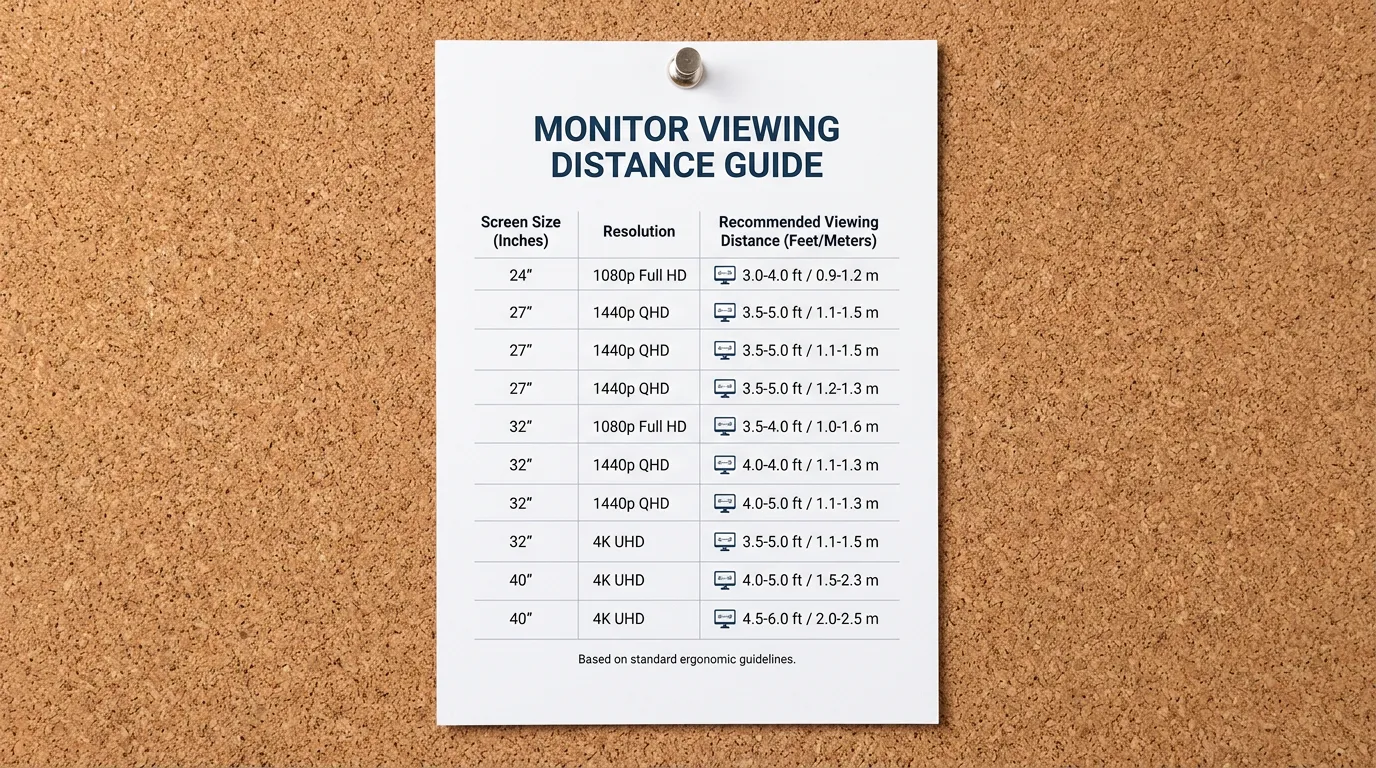
Monitor Distance Setup Checklist
Measurement
- I have measured the distance from the center of my screen to my eyes while seated normally.
- My monitor distance is within the recommended range for my screen size.
- I have accounted for my monitor’s resolution in setting the distance.
Equipment
- My desk is deep enough for the correct distance, or I have a monitor arm installed.
- My monitor arm is adjusted so the screen surface is at the target distance.
Height and Angle
- The top edge of my monitor is at or slightly below eye level.
- My monitor is tilted back 10?20 degrees so it faces my eyes directly.
- I am not tilting my head up or down to see the screen center.
Legibility
- OS display scaling is set so I can comfortably read text at the correct distance.
- Browser zoom is set for comfortable reading.
- Brightness is matched to ambient room light.
Break Habits
- I have a 20-20-20 timer or reminder set.
- I know where to look for a 20-foot focal distance from my desk.
Special Considerations
- If I wear progressive or reading glasses, I have confirmed my lens type is appropriate for my monitor distance.
- If I use a dual-monitor setup, both screens are approximately equidistant from my eyes.
Frequently Asked Questions
How far should you sit from a 27-inch monitor?
The ideal distance from a 27-inch monitor to your eyes is 27–30 inches (69–76 cm). For a 27″ 1080p monitor, sit toward the far end of that range (28–30 inches) because the lower pixel density makes individual pixels more visible at close range. For a 27″ 1440p or 4K monitor, 25–28 inches is comfortable. If your desk is too shallow to achieve this, a monitor arm is the practical solution.
How far should you sit from a 32-inch monitor?
For a 32-inch monitor, the recommended distance is 30–36 inches (76–91 cm). This is further than most people intuitively sit and further than many shallow desks allow. A 30″ distance is the minimum; going under 28 inches on a 32″ display is likely to cause both eye strain and field-of-view discomfort. A monitor arm or deeper desk is strongly recommended for 32″ displays.
Is 12 inches from a monitor too close?
Yes, 12 inches is significantly too close for any standard monitor size. At 12 inches, your eyes are under extreme accommodative and convergence stress — far beyond what is sustainable over a work session. The minimum recommended distance for any monitor is 20 inches (51 cm), and that applies to the smallest desktop displays. Even laptop screens, when used at desk distance, should be at least 16–18 inches from your eyes.
Does a 4K monitor change the ideal viewing distance?
A 4K monitor’s higher pixel density means you can sit closer without seeing individual pixels, which gives you a slightly narrower ideal range compared to a 1080p screen of the same size. However, the physiological need to reduce eye strain still sets a minimum of approximately 20 inches. A 4K 27″ monitor is comfortable at 22–28 inches; a 4K 32″ monitor works well at 24–34 inches. The 4K advantage is that you gain some flexibility at the closer end of the range — it does not eliminate the ergonomic floor.
Conclusion
Monitor distance is the most foundational ergonomic variable in any screen-based workspace, and it is also the one most people have never actually measured. The good news is that fixing it requires no special equipment in most cases — only a tape measure, 90 seconds, and the willingness to adjust.
Start with your screen size and use the distance chart in this guide to find your target range. If your current setup already falls within that range, move on to resolution adjustments and the checklist. If your desk is too shallow to achieve correct distance, a monitor arm is the single most impactful investment you can make for your long-term comfort — far more so than an expensive chair or keyboard.
Combine correct monitor distance with the 20-20-20 Rule and proper monitor height, and the vast majority of screen-related eye strain, headaches, and upper-body tension resolves within days.
Next steps in this series:
Monitor Height: How High Should Your Monitor Be? — the companion guide to distance
Best Monitor Arms for Every Desk Setup — tested arms for shallow desks, ultrawide monitors, and dual setups
Ergonomic Monitor Setup: The Complete Positioning Guide — covers distance, height, tilt, and angle together