

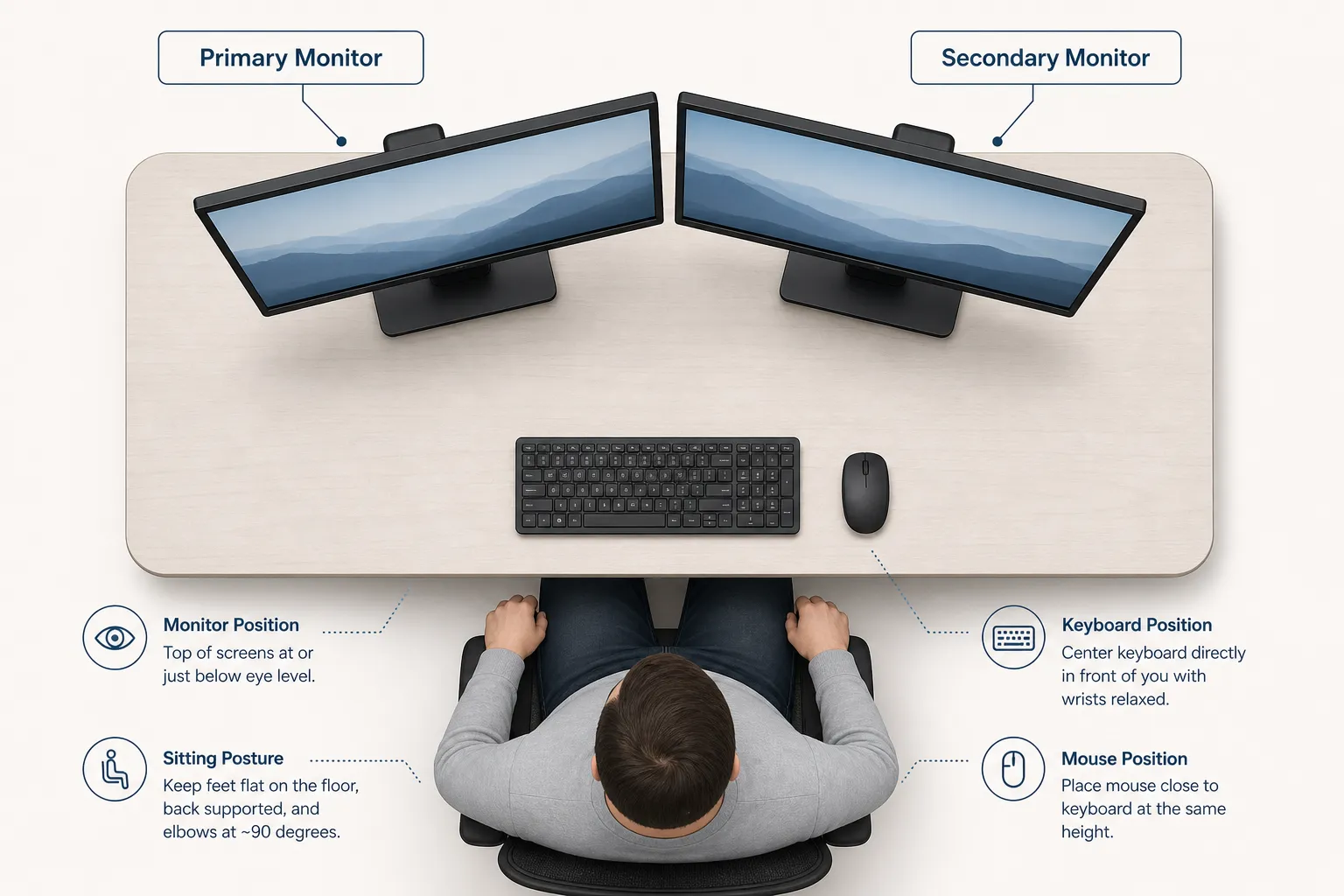
An ergonomic dual monitor setup starts with one simple goal: keeping your neck neutral while both screens stay easy to scan. If you work at a desk with two monitors, you are rotating your head and neck thousands of times every single day without realizing it. Over hours and weeks, that accumulated stress compounds into neck stiffness, shoulder tension, and the kind of dull, persistent ache that follows you home from the office. The good news: a proper ergonomic dual monitor setup eliminates most of this strain before it ever starts — without buying new equipment.
This guide covers everything you need. You will learn the biomechanics of why dual monitors cause neck pain, the exact measurements and angles your screens need to be at, a decision framework based on how you actually use your monitors, and a troubleshooting section for when adjustments alone are not enough. Whether you are building your ergonomic dual monitor setup from scratch or trying to fix persistent discomfort in an existing one, the answers are here.
⚡ Quick Answer: Ergonomic Dual Monitor Setup at a Glance
| Setting | Rule |
|---|---|
| 50/50 equal use | Sit centered at the bezel seam; angle each screen inward 15°–25° |
| 80/20 primary/secondary | Primary screen centered in front; secondary beside it, angled 30° inward |
| Monitor height | Top edge at or just below eye level — natural resting gaze hits the top third |
| Viewing distance | 20–30 inches from your eyes (approximately arm's length) |
| Monitor angle | Both screens tilted inward 15°–30° to form a shallow V-shape |
| Bezels | As close together as possible — ideally touching |
| Keyboard alignment | Centered on and aligned with your primary screen |
Why Dual Monitors Cause Neck Pain (The Science in 90 Seconds)
A single monitor centered in front of you is relatively forgiving. A dual monitor setup introduces a biomechanical problem that a single screen never does: asymmetrical head rotation.
Research published by the CDC/NIOSH on the impact of dual monitor screens on head-neck posture found that even moderate head rotation increases activation in the sternocleidomastoid muscle — the large rope-like muscle that runs from behind your ear down to your collarbone. When that muscle works unevenly on one side for hours, it triggers a chain of tension up into the suboccipital muscles at the base of your skull and down into the upper trapezius across your shoulders. A separate study in Applied Ergonomics confirmed that screen placement deviating more than 15° from a neutral gaze angle produces a measurable and sustained increase in cervical muscle activity — particularly in the upper trapezius — even when the deviation feels comfortable to the user.
The cervical spine compounds the problem. For every inch your head moves forward from neutral (a posture called forward head tilt), the effective weight on your neck increases by roughly 10 pounds. A head at neutral weighs about 10–12 pounds. Lean it forward just 2 inches to squint at a screen placed too far away, and your neck is managing the equivalent of 30 pounds. Multiply that by eight hours and you understand why people end the day in pain. OSHA's computer workstation guidelines reinforce this directly, recommending monitor placement at or slightly below eye level and at a viewing distance of 20–40 inches as the primary intervention for reducing musculoskeletal loading in office workers.
The fix is not complicated. It requires correct positioning, correct angles, and knowing which setup pattern matches the way you actually work.
Step One: Decide How You Use Your Monitors
Before touching a single monitor, answer one question honestly: do you use both screens roughly equally, or does one screen handle most of your work?
Your answer determines everything about how your setup should look.
The 50/50 Setup (Equal Use)
If you split your attention evenly between both screens — for example, video editing on the left and a timeline/reference on the right, or coding on one screen while reading documentation on the other — you are a 50/50 user.
50/50 Rule: Center yourself directly at the point where the two bezels meet. Both monitors should sit symmetrically to your left and right, angled inward at 15° to 30° each to form a shallow "V" shape pointing toward your face. Your keyboard and your nose should be aligned with the seam between the two screens.
The 80/20 Setup (Primary + Secondary Monitor)
If one screen handles the vast majority of your work — emails on the secondary while you write on the primary, reference material on the side while you work in your main app — you are an 80/20 user. This is the most common pattern for office workers.
80/20 Rule: Center the primary monitor directly in front of you, aligned with your keyboard and your midline. Place the secondary monitor immediately beside the primary (touching bezels), angled inward at roughly 30° toward your face. Your body faces forward. You access the secondary monitor with your eyes and a slight head turn — not a full rotation.
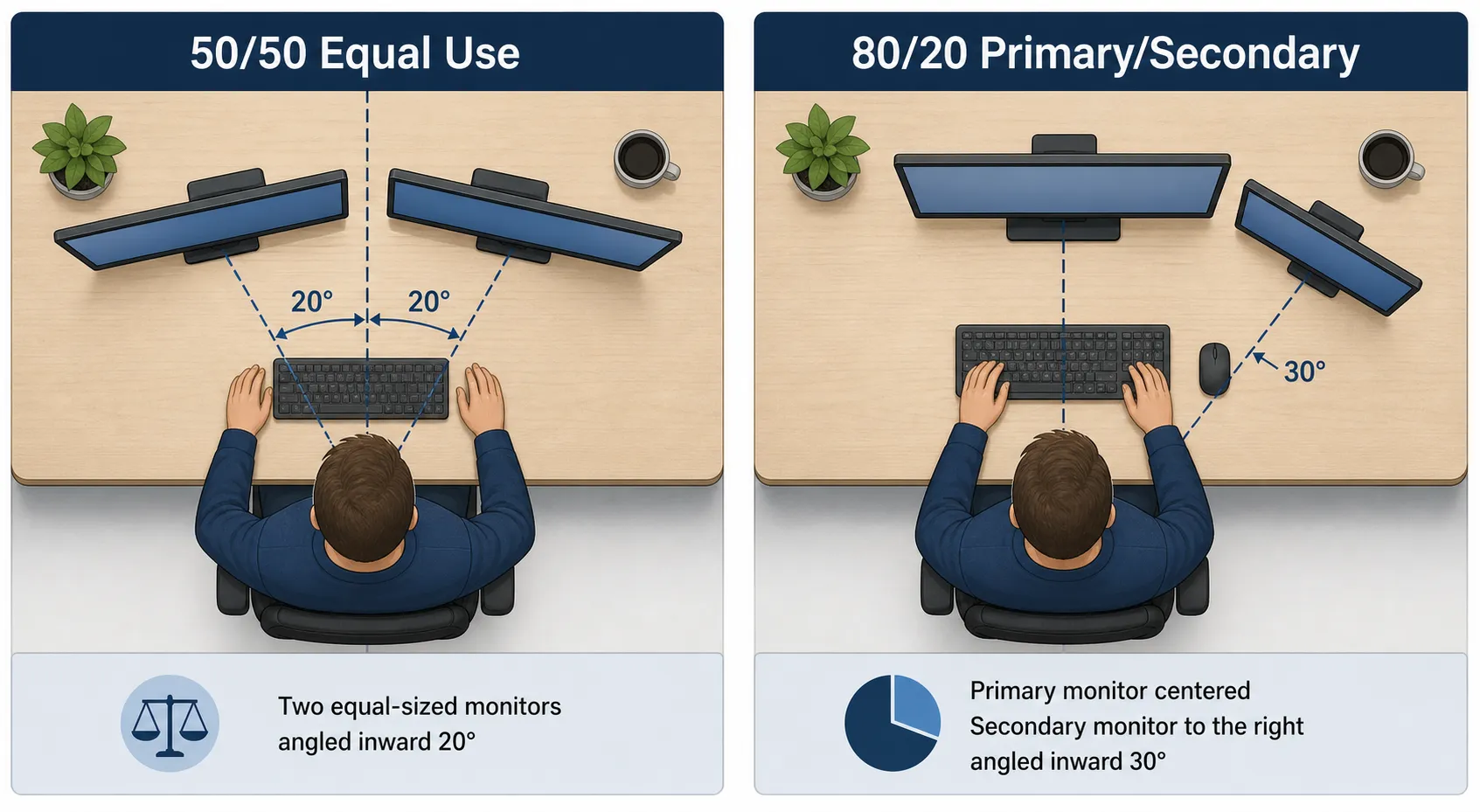
| Configuration | Body Position | Primary Monitor | Secondary Monitor |
|---|---|---|---|
| 50/50 Equal Use | Centered at bezel seam | Left of center | Right of center |
| 80/20 Primary/Secondary | Centered on primary | Directly in front | Beside, angled 30° inward |
| Laptop + External Monitor | Centered on external | External (raised) | Laptop (flat beside or below) |
The 5 Ergonomic Dual Monitor Setup Rules Every Desk Must Follow
Regardless of whether you use the 50/50 or 80/20 pattern, every ergonomic dual monitor setup must satisfy these five rules. Violate any one of them and you will have pain regardless of how good the rest of your setup is.
Rule 1 — Height: Top of Screen at or Just Below Eye Level
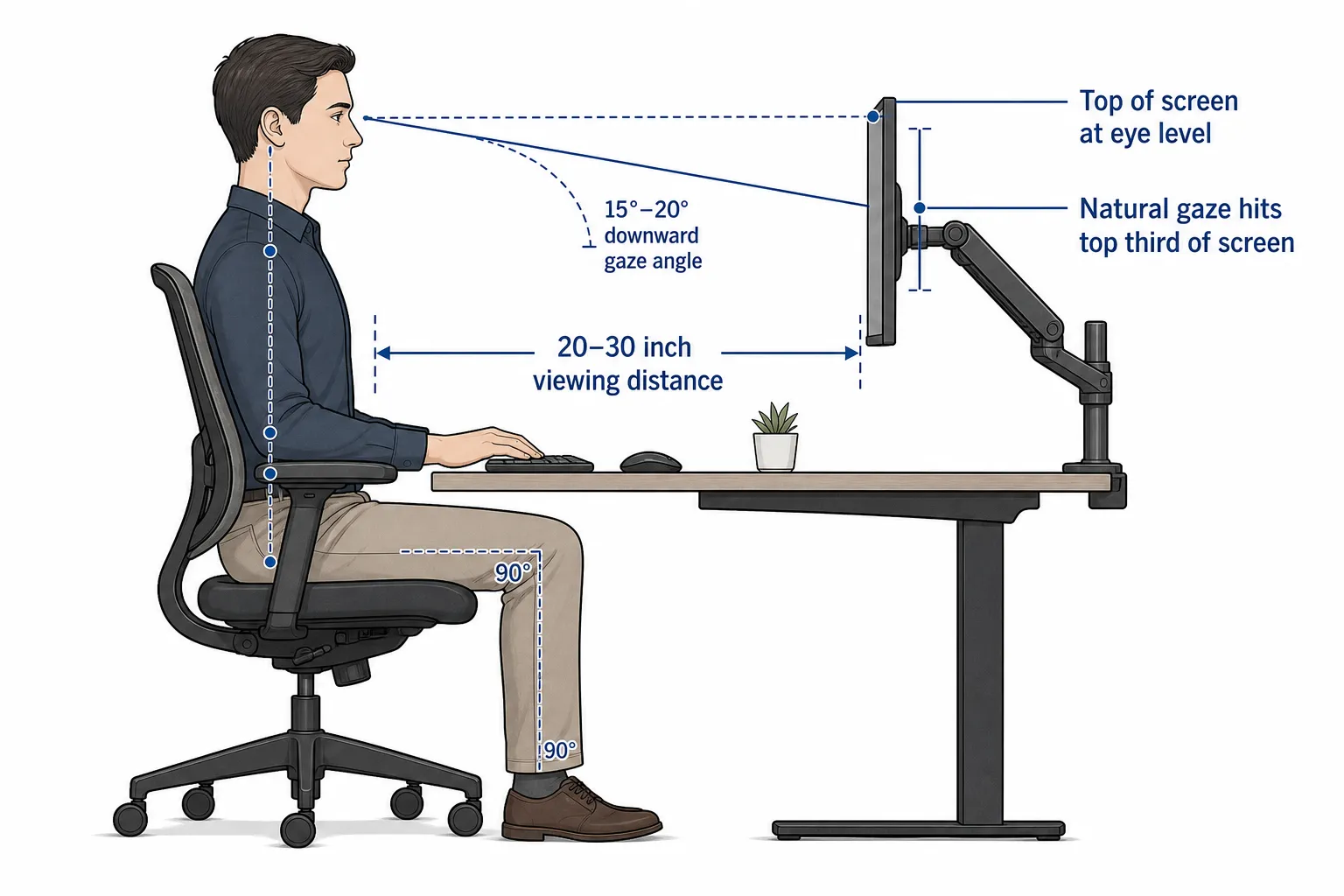
This is the single most violated rule in office setups. When you close your eyes, sit up straight, and open them again, your natural resting gaze should fall on the top third of your monitor. The very top edge of the screen should be at or just slightly below eye level.
If your screens are too low, you tilt your chin down and flex your neck forward all day. If they are too high — a common mistake with monitor arms cranked up or monitors stacked — you extend your neck backward, which compresses the posterior cervical vertebrae and is equally harmful.
For larger monitors (32 inches and above), your eyes should land on the upper quarter of the screen when looking straight ahead. For a detailed breakdown of how to calculate the precise height for your specific chair, desk, and monitor combination, see our guide on ideal monitor height for any desk setup.
Rule 2 — Distance: 20–30 Inches from Your Eyes
Both monitors should sit at approximately arm's length — typically 20 to 30 inches from your eyes. The correct monitor distance scales with monitor size: a 24-inch monitor works well at 24 inches; a 32-inch monitor may need 28–32 inches.
For a measurable starting point, calculate a baseline height and distance for your primary display, then match the secondary screen to that reference.
If your desk is too shallow to achieve proper distance, a dual monitor arm is the most effective solution. It lets you push screens further back, freeing desk surface and eliminating the temptation to lean forward. Our monitor arm buying guide for desk workers covers the best options at every budget, including what to look for in a dual-arm configuration.
Rule 3 — Angle: Tilt Both Screens Inward 15° to 30°
Screens that face flat forward make your eyes travel to the outer edges of each display — and your head follows. Angling each screen inward so they form a V-shape (or cockpit curve) means your eyes sweep across the displays rather than your neck rotating. The exact angle depends on your setup:
- 50/50 users: 15° to 25° inward angle on each screen
- 80/20 users: secondary screen at 30° inward; primary screen facing directly forward or with slight inward tilt (5° to 10°)
Most monitors allow tilt adjustment via the stand. If yours do not, a monitor arm with swivel capability solves this.
Rule 4 — Match the Height of Both Monitors
Mismatched monitor heights are a hidden source of neck strain. When your eyes constantly travel between a screen at one height and a screen at a different height, your neck makes micro-compensations hundreds of times per hour. Both monitor tops should sit at the same height from the desk surface (within half an inch).
This is harder than it sounds if you are using two different monitor models with different stand heights. A pair of monitor arms or a quality monitor riser under the lower screen is the practical fix — and the riser option is significantly cheaper if arms are not in the budget.
Rule 5 — Align Your Keyboard and Mouse with Your Primary Screen
This is the rule most people forget. Your input devices define where your body naturally faces. If your keyboard is centered between both monitors but your primary screen is to the right, you will spend all day with your torso twisted slightly left while your eyes look right — a recipe for uneven shoulder and neck tension.
Your keyboard, mouse, and primary monitor should form a straight line perpendicular to your body.
Side-by-Side vs. Stacked: Which Arrangement Is Better for Your Neck?
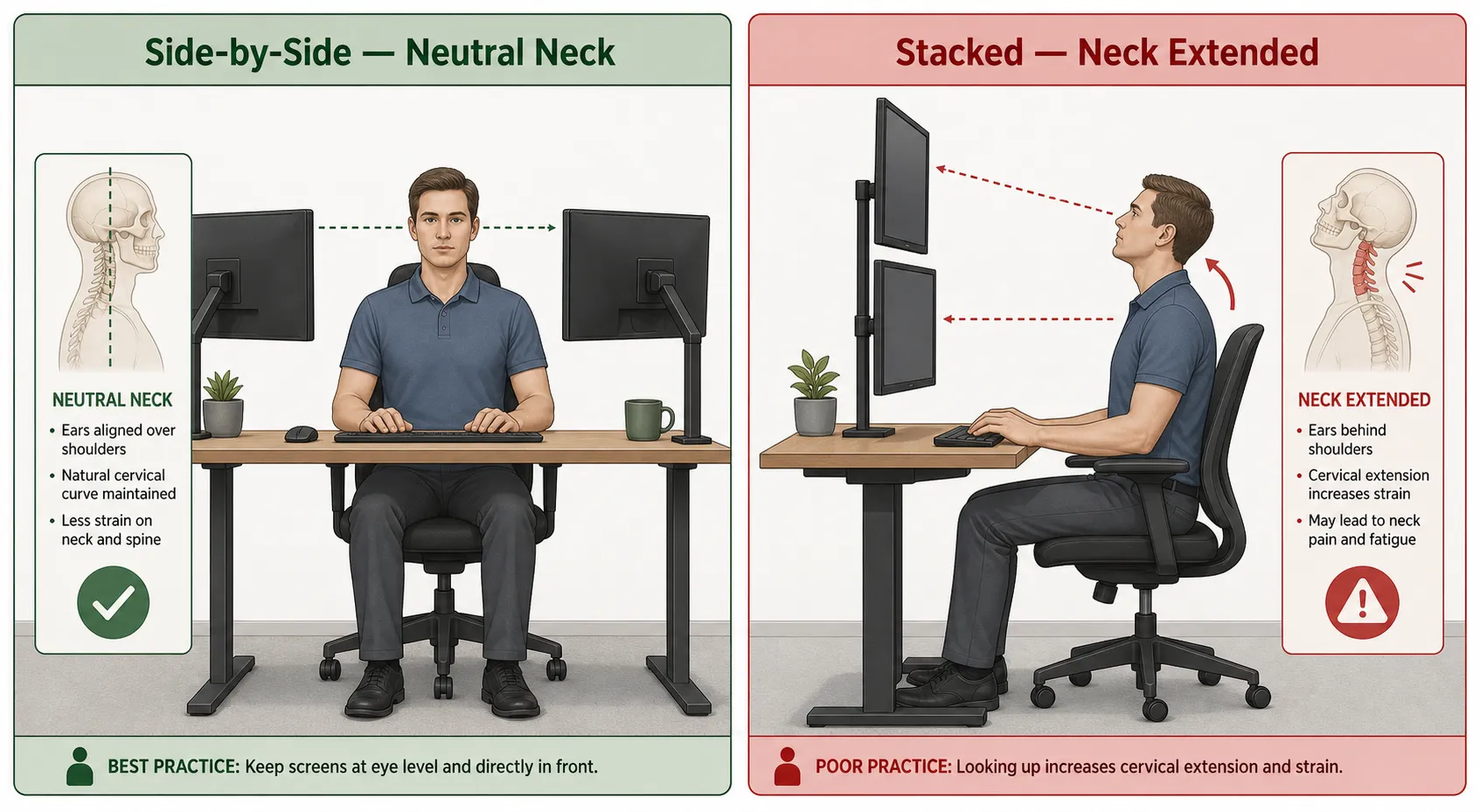
A growing number of people use one monitor directly above the other in a vertical stacked arrangement. Here is how the two compare for neck health.
Side-by-side (horizontal): The most common arrangement. Requires head rotation to access the secondary screen but allows screens to be positioned at the correct ergonomic monitor height. Works best for 80/20 users who keep the secondary monitor close and angled inward.
Stacked (vertical): Eliminates left-right head rotation entirely. However, a stacked monitor introduces a new problem: the upper screen is almost always above the ergonomic eye level zone, forcing you to tilt your head back to view it. Most stacked monitor setups use the upper display as secondary — which limits the time your neck is in that extended position. For 50/50 users, stacked arrangements are generally worse than side-by-side because you will be switching between screens at very different vertical positions constantly. Stacked monitor neck strain is a real and common complaint among developers and video editors who equalize their usage between screens.
Verdict: Side-by-side wins for most users when positioned correctly. Stacked is acceptable only if the top monitor is a true secondary (rarely referenced) and the lower monitor sits at proper eye level.
Hardware: What Actually Helps
You do not need expensive equipment for an ergonomic dual monitor setup. You need equipment that gives you adjustability. These are the hardware choices that make the biggest real-world difference. For a comprehensive overview of how each piece fits together across a full workstation, our ergonomic monitor setup guide walks through every component in sequence.
Dual Monitor Arms
A quality dual monitor arm replaces fixed stands and allows you to set height, depth, angle, and tilt independently for each screen. Brands like Ergotron (LX Dual Arm), Mount-It!, and Humanscale are consistently well-reviewed. Look for arms rated for your monitor's weight, with VESA compatibility (most monitors 21 inches and above support VESA 75×75 or 100×100 mounting).
Gas-spring arms are worth the extra cost over friction arms — they hold position reliably and make adjustments effortless. See our tested picks in the best monitor arms for desk work roundup.
Monitor Stands with Height Adjustment
If a monitor arm is not in the budget, adjustable monitor stands or a combination of a fixed stand and a dedicated monitor riser can approximate the correct height. Avoid stacking books or random objects — they are unstable and rarely put the monitor at a precise, reproducible height. Our best monitor riser guide covers stable options around $25–35 that work well for dual setups.
Desk Depth Matters
A desk shallower than 24 inches makes it nearly impossible to achieve proper viewing distance without placing monitors at the very back edge. If your desk is too shallow, a monitor arm that extends over the desk and allows you to position screens further from your body is the most practical solution.
Special Case: Dual Monitor Setup with a Laptop
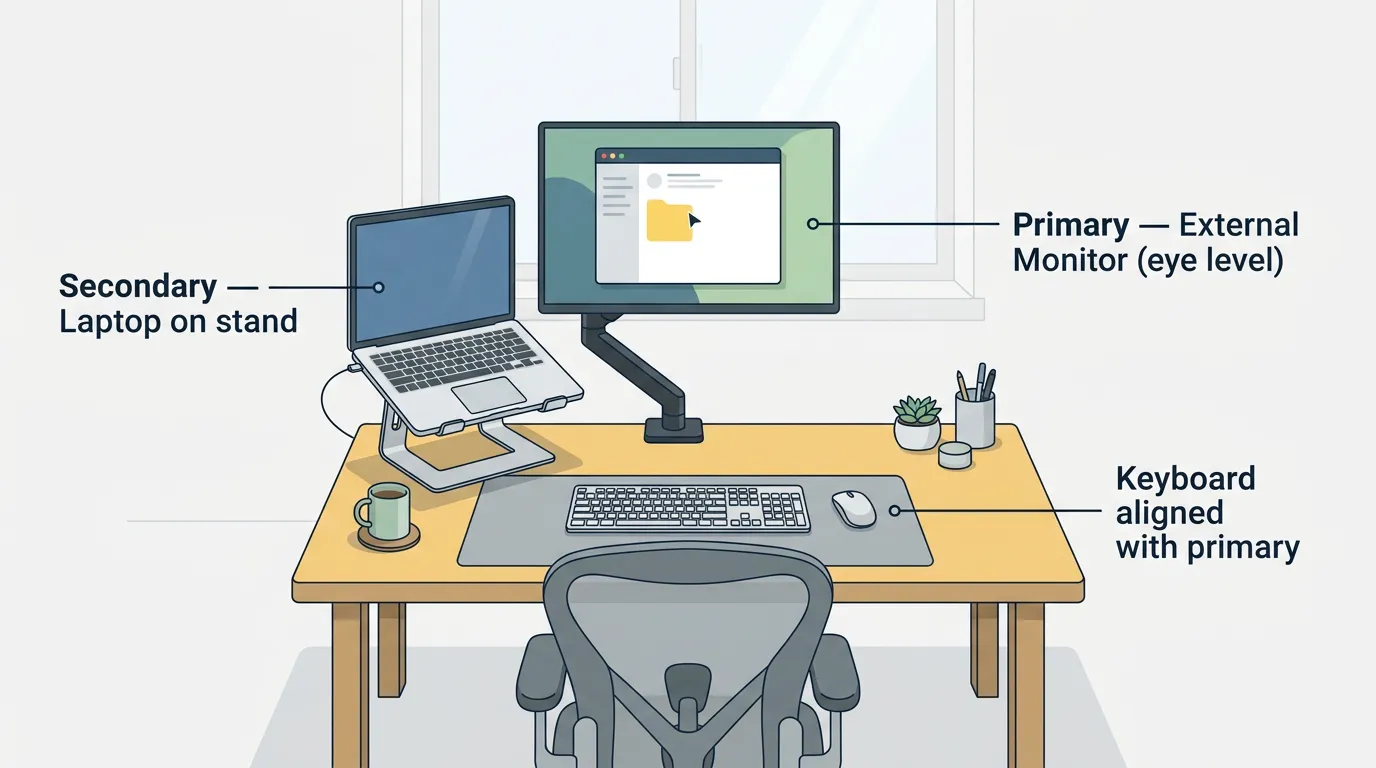
A laptop screen used alongside an external monitor is one of the most ergonomically compromised setups in existence — and one of the most common. The laptop screen is almost always too low, too close, and at the wrong angle.
The correct approach:
- Treat the external monitor as your primary screen. It should be raised to eye level and positioned directly in front of you.
- Use the laptop as a secondary screen. Place it to the side (not in front of you) on a laptop stand or laptop arm that raises it to roughly the same height as the external monitor. If you are unsure which to choose, our laptop stand vs laptop arm comparison explains the trade-offs in adjustability, desk space, and price.
- Use an external keyboard and mouse so that your input devices are aligned with the external monitor, not with the laptop.
Trying to use a laptop flat on the desk beside an external monitor forces you to constantly look down and rotate your neck simultaneously — two ergonomic problems in one. For the full laptop workstation setup — including keyboard angle, screen brightness, and wrist position — see our complete laptop ergonomics guide.
Troubleshooting: Still Getting Neck Pain After Adjusting?
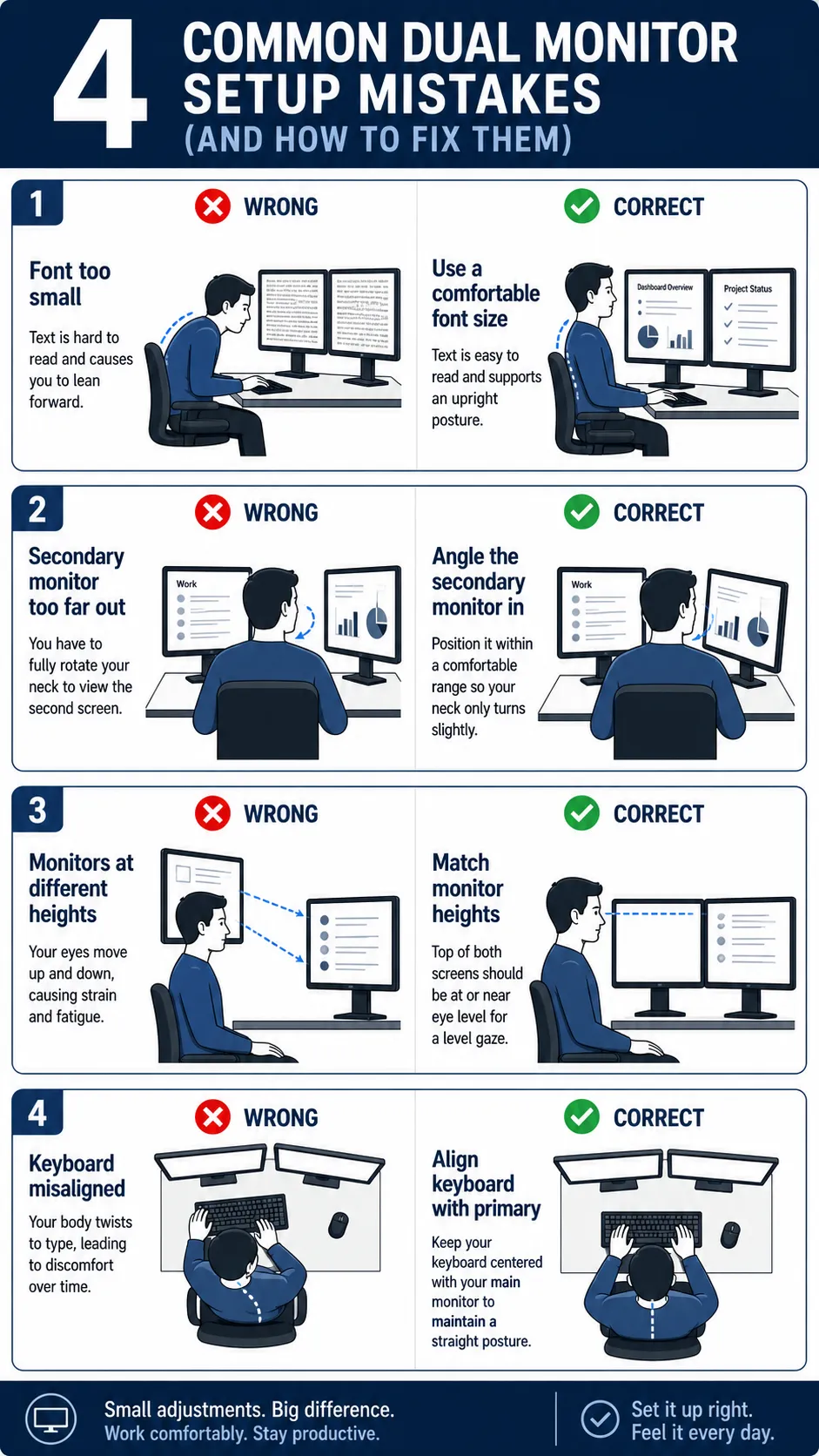
If you have followed all five rules and still experience neck pain after a few days, work through this checklist before assuming the setup is wrong.
Check your font size: Small text causes unconscious forward lean. If you are regularly leaning toward your screen to read, your eyes are telling your body the screens are too far away or the text is too small. Increase display scaling by 10–15% and observe whether you stop drifting forward.
Check your secondary monitor position: The most common residual dual monitor neck pain cause in 80/20 setups is a secondary monitor that is angled too far out, causing you to rotate your head fully to see it. Monitor position neck pain is almost always one-sided — if your right side aches and your secondary screen is to the right, the monitor position is the culprit. The secondary monitor should be close enough that you can view it with a slight head turn, not a full rotation.
Check your chair height: A chair set too low drops your eyes below monitor level, making you tilt your chin up to compensate. Your elbows should be at desk height when your shoulders are relaxed.
Add movement breaks: Even a perfect ergonomic setup is not designed for eight hours of immobility. Set a timer for every 45–60 minutes. Stand up, roll your shoulders back three times, and spend 20 seconds looking at something at least 20 feet away. This resets both your cervical musculature and your eye focus.
Posture reset exercise: Several times per day, perform a chin tuck: while looking straight ahead, gently pull your chin straight back (not down) as if making a double chin. Hold for 3 seconds, release. This counteracts the forward head posture that accumulates during computer work and re-activates the deep cervical flexor muscles that support your neck from the inside.
If neck pain persists despite a correctly configured workstation, the root cause may be cumulative tech neck — a pattern of structural muscle imbalance that hardware adjustments alone cannot reverse. Our guide on how to fix tech neck covers targeted stretches, daily resets, and the signs that it is time to see a physiotherapist.
30-Second Ergonomic Dual Monitor Setup Checklist
Print this and pin it to your monitor, save it to your phone, or run through it whenever you move to a new desk or adjust your chair. Every item takes under five seconds to verify.
- Monitor height — Top edge of both screens at or just below eye level
- Viewing distance — Both monitors approximately 20–30 inches from your eyes (arm's length)
- Monitor angle — Both screens angled inward 15°–30° to form a shallow V-shape
- Heights matched — Both monitor tops within half an inch of each other
- Bezels touching — No gap between the inner edges of the two screens
- Body alignment — Your nose, keyboard, and primary screen form a straight line
- Keyboard position — Centered on and directly in front of your primary monitor
- Mouse position — Close to the keyboard, on your dominant-hand side
- Chair height — Elbows level with the desk surface; feet flat on the floor or a footrest
- Movement break — Timer set for every 45–60 minutes to stand, reset posture, and look at something 20 feet away
FAQ
What is the best layout for dual monitors?
The best layout depends on your usage pattern. If you use both screens equally (50/50), position yourself centered at the seam between them with both screens angled inward at 15°–25°. If one screen is your primary workspace (80/20), center that screen in front of you with the secondary beside it at a 30° inward angle. Both setups require screens at eye level, 20–30 inches away, with matched heights.
Is a dual monitor setup bad for the neck?
Dual monitor neck pain is a real and documented problem — but it is caused by poor positioning, not by having two screens. A poorly arranged dual monitor setup causes significant neck strain through asymmetric head rotation and improper screen heights. A correctly arranged ergonomic dual monitor setup is not inherently worse for your neck than a single monitor — and for many people, having content on two screens reduces overall head movement compared to constantly switching windows on one screen.
How far apart should dual monitors be?
The bezels of your two monitors should be as close together as possible — ideally touching. A gap between screens forces your eyes (and your head) to travel further to sweep between displays. If your monitor stands prevent the screens from sitting close together, a dual monitor arm that holds both screens on a single pole is the best fix.
What are the disadvantages of dual monitors for posture?
The main postural disadvantage of dual monitors is the temptation to place them wide apart and face one at an angle, which forces constant neck rotation. When both monitors are close together, angled correctly, and set to the same height, the postural disadvantages largely disappear.
Can I use a vertical (stacked) dual monitor setup ergonomically?
Yes, with a caveat: the upper monitor must be a genuine secondary screen you reference rarely. The top monitor in a stacked setup will almost always sit above ideal eye level, requiring you to tilt your head back to view it. If you reference it only occasionally, this is acceptable. If you split time equally between stacked screens, a side-by-side arrangement is better for your neck.
How do I set up dual monitors ergonomically with a laptop?
Raise the external monitor to eye level and center it directly in front of you. Place the laptop to the side on a stand that raises its screen close to the height of the external monitor. Use a separate keyboard and mouse aligned with the external monitor. This eliminates the twin problems of looking down at a flat laptop and rotating your neck between mismatched screen heights.
Conclusion
A correct ergonomic dual monitor setup requires four key decisions: choosing the right arrangement for your usage pattern (50/50 or 80/20), setting both screens to the proper height, placing them at the right distance and angle, and aligning your input devices with your primary screen. Get those four things right and the neck and shoulder pain that most dual-monitor users accept as inevitable largely disappears.
Small improvements across your full workstation compound quickly. The checklist above gives you a five-minute audit you can repeat any time you change your setup.
Continue Improving Your Workspace
Each of the articles below targets a specific piece of the ergonomic puzzle. Together they add up to a workstation that works with your body rather than against it.
- Ideal Monitor Height — Exact formulas for calculating the correct height based on your chair, desk, and monitor size.
- Ergonomic Monitor Setup — The complete single-monitor and multi-monitor setup guide covering every variable in one place.
- Best Monitor Arm for Desk Work — Tested picks for single and dual arms across three budget tiers.
- Best Monitor Riser for Desk Work — The most effective low-cost option for raising your screens to the correct height without replacing your stands.