

Disclosure: This article may contain affiliate links. If you buy through these links, ErgoLivingSpace may earn a commission at no extra cost to you. Our recommendations are based on research, product usefulness, ergonomic relevance, value, and user needs.
Laptop stand vs laptop arm for neck pain is one of the most common questions for people working long hours on a laptop. This article is based on peer-reviewed ergonomics research. Always consult a healthcare provider for persistent pain.
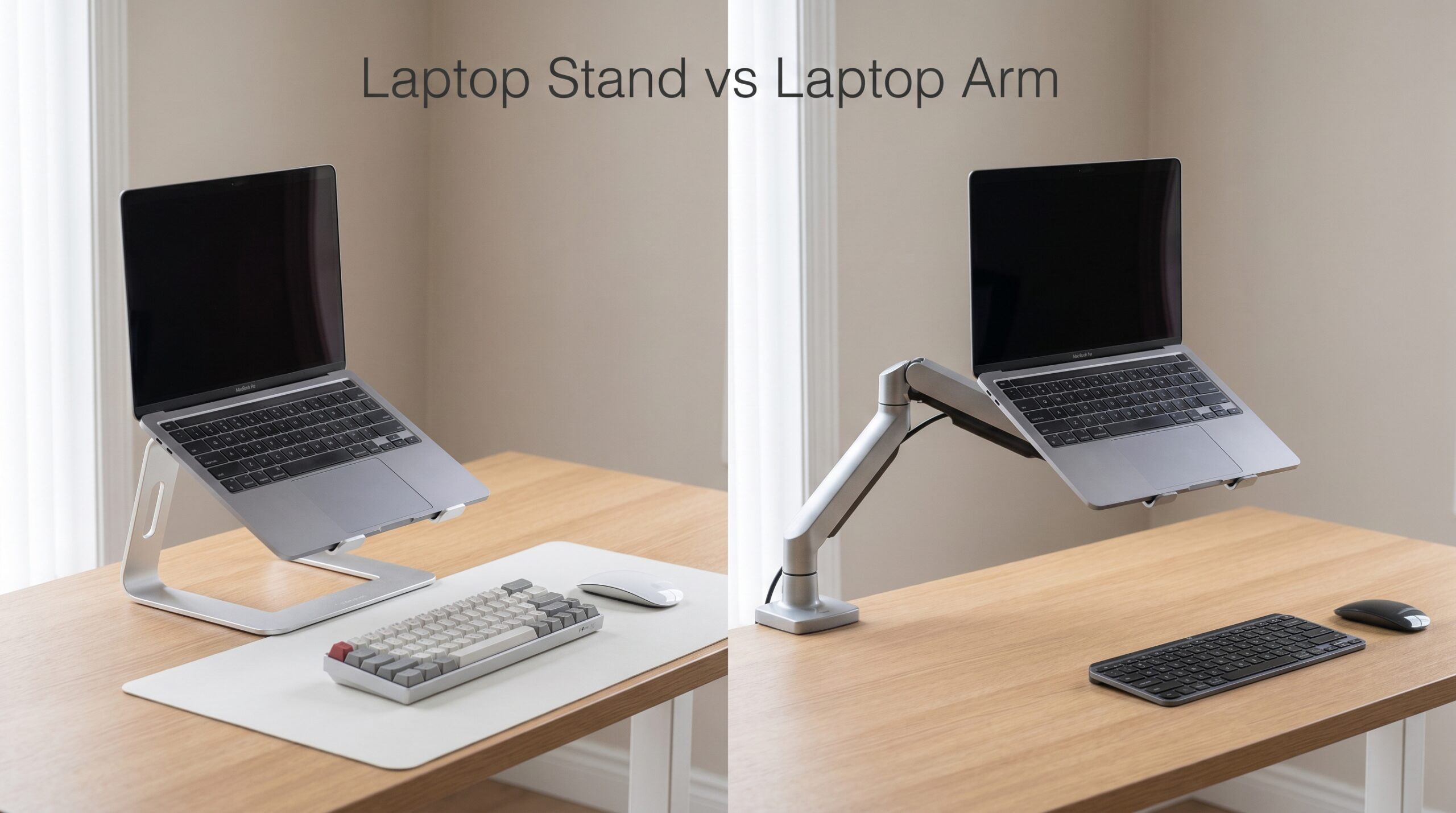
When comparing laptop stand vs laptop arm neck pain solutions, a laptop stand is usually the better first choice for most people. It raises your screen to eye level quickly and works well for fixed desk setups. A laptop arm (also called a monitor arm) offers more flexibility and adjustability but is better suited for advanced or dual-monitor setups. The right choice depends on your workspace and how often you move.
Laptop Stand vs Laptop Arm: The Short Answer
For most people, a laptop stand is the better first choice for laptop-related neck pain because it is cheaper, easier to set up, and raises the screen to eye level quickly. A laptop arm is better for people with dual monitors, sit-stand desks, or very limited desk space.
Laptop Stand vs Monitor Arm: Which Do I Need?
The fastest way to answer this: it depends on whether you’re working with a laptop screen only, or with an external monitor.
If you’re laptop-only (no external monitor), your choice is between a laptop stand (a platform on the desk) and a laptop arm (a clamp-mounted articulating holder). For most people in this situation, a laptop stand is the right answer — it costs less, sets up in under 2 minutes, and delivers equivalent neck pain relief.
If you have or want an external monitor, your choice is between a monitor stand and a monitor arm. A monitor arm is the better ergonomic choice here — it allows precise height adjustment, frees desk space, and lets you position the screen exactly at eye level regardless of your chair or desk.
| Factor | Go with a Stand | Go with an Arm |
|---|---|---|
| Desk type | Any desk, no tools needed | Fixed desk with clamping edge |
| Monitor ownership | Laptop screen only | External monitor or dual screens |
| Budget | $20–$60 | $50–$200+ |
| Portability needs | Travel, hybrid, multiple locations | Permanent fixed desk only |
| Flexibility needs | Consistent sitting position | Sit-stand desk, adjusts often |
| Neck pain severity | Mild–moderate, new to ergonomics | Severe, chronic, or unresolved by stand |
The honest bottom line: if you’re dealing with neck pain from a laptop at a fixed desk and you don’t have a standing desk or external monitor, a laptop stand solves 80% of the problem at 20% of the cost. A monitor arm earns its price when your setup is more complex. For more on correct screen positioning once you’ve chosen your setup, see our guide on ideal monitor height for neck pain.
➤ Do you travel or work from multiple locations?
→ YES → Portable laptop stand. Arms are not portable.
➤ Do you use an external monitor?
→ YES → Monitor arm for the external display. Add a laptop stand for the laptop if needed as a secondary screen.
→ NO → Continue.
➤ Do you use a sit-stand desk and switch positions during the day?
→ YES → Adjustable laptop stand (wide height range, 2″–21″) or laptop arm for maximum repositioning speed.
→ NO → Continue.
➤ Is your desk critically small (under 40" wide) and surface space is the problem?
→ YES → Laptop arm (mounts to the desk edge, clears the entire surface).
→ NO → Continue.
➤ Is your main problem neck pain from looking down at a laptop on a fixed desk?
→ YES → Laptop stand. Fastest fix, lowest cost, works immediately. Start here.
Choose a Laptop Stand If…
- You work on a laptop only — no external monitor — at a fixed desk
- You want neck pain relief today, not after 45 minutes of installation
- Your budget is around $50–70 and you want to verify the fix before investing more
- You work from multiple locations or travel and need portability
- You’re new to ergonomic setups and want the simplest change with the biggest return
- Your desk has no clamping edge, or you rent and can’t modify the workspace
A good laptop stand eliminates the primary cause of laptop neck pain — downward gaze — in under 2 minutes. Most users notice a difference the same day.
Choose a Monitor Arm If…
- You have an external monitor and want precise, stepless height adjustment
- You use a sit-stand desk and need to reposition your screen when you switch positions
- You have limited desk space and need to clear the surface entirely
- You run a dual-monitor setup and need consistent positioning across both screens
- You’ve already tried a laptop stand and need more precision or flexibility
- Your neck pain is severe or chronic and a fixed-height solution hasn’t been sufficient
A monitor arm takes 30–60 minutes to install but gives you full repositioning freedom — height, depth, tilt, and rotation — every time you need it.
Choose a Laptop Arm (Desk-Mounted) Only If…
A laptop arm — a clamp-mounted arm specifically designed to hold a laptop rather than an external monitor — is the most niche option here. It makes sense in one specific scenario:
- You want to completely clear your desk of any device footprint while using the laptop as your primary screen
- You’re willing to install a permanent desk clamp and route cables along the arm
- You use the laptop in a fixed position all day and never need to move it
For most users, this is unnecessary. A laptop stand achieves the same elevation result at a fraction of the price without installation. The desk-mounted laptop arm is for advanced, permanent setups — not for someone starting their ergonomic journey.
Your neck hurts. You’ve done the research, and you keep seeing two solutions: a laptop stand or a laptop arm. Both promise to fix your posture. Both look like they’d work. But they’re not the same thing — and picking the wrong one means spending money while your neck keeps hurting.
This article cuts through the confusion. By the end, you’ll know exactly which setup is right for you — and why most people get the answer wrong before they buy.
Laptop Stand vs Laptop Arm: Quick Comparison
| Option | Best For | Desk Space Used | Stability | Height Range | Cost | Cable Clutter | Neck Pain Benefit | Main Drawback |
|---|---|---|---|---|---|---|---|---|
| Laptop Stand | Laptop-only, fixed desk | Sits on desk | ⭐⭐⭐⭐ (solid models) | Fixed or stepped, 4–10" | $20–$60 | Very low | ⭐⭐⭐⭐ Immediate | Fixed height; not ideal for sit-stand |
| Portable Stand | Travel, hybrid, cafés | Minimal; folds flat | ⭐⭐⭐ (slight flex) | Wide (some to 19"+) | $25–$95 | Very low | ⭐⭐⭐⭐ Good | Slight flex at max height on budget models |
| Laptop Arm (desk-mounted) | Limited desk space, permanent setup | Clears desk entirely | ⭐⭐⭐⭐⭐ (mounted) | Full arm range (sit + stand) | $60–$150 | Medium (cable routing needed) | ⭐⭐⭐⭐⭐ Precise | 30–60 min install; needs compatible desk edge |
| Monitor Arm (for external display) | External monitor, sit-stand desks, dual screens | Frees all desk surface | ⭐⭐⭐⭐⭐ (mounted) | Infinitely adjustable (gas-lift models) | $50–$200+ | Medium (cable routing needed) | ⭐⭐⭐⭐⭐ Best precision | Install time; desk compatibility; not portable |
Why Your Laptop Setup Is Causing Neck Pain?
Whether you use a stand or an arm, the root cause of laptop neck pain is always the same: your screen is too low. When your laptop sits flat on a desk, your head tilts forward at 15 -45°. According to research by Dr. Kenneth Hansraj published in Surgical Technology International, that tilt multiplies the effective load on your cervical spine from 10 -12 lbs to as much as 49 lbs.
Both a stand and an arm solve this by raising your screen to eye level. For the exact target height — which varies by your chair height and seated posture — see our guide on ideal monitor height for neck pain. The difference is how they do it — and how much control you get. If you haven’t set up your laptop ergonomically yet, our complete guide on how to use a laptop without neck pain covers every step from chair height to keyboard position.
Laptop Stand: Pros, Cons, and Best Use Cases
A laptop stand is a fixed or semi-adjustable platform that elevates your laptop 4-8 inches above your desk. It’s the fastest way to fix laptop ergonomics for most users.

Pros
- Immediate relief: Setup takes under 2 minutes. Your neck feels the difference the same day.
- Affordable: Quality stands start at $15–25. No installation, no tools, no drilling.
- Portable: Most fold flat and fit in a laptop bag. Works at home, in cafés, in hotels.
- Works with any desk: No clamps, no desk edge required. Place it anywhere.
Cons
- Not ideal for sit-stand desks: most laptop stands are fixed or have a limited height range. If you switch between sitting and standing during the day, you’ll need to manually reposition the stand each time, which most people stop doing within a week.
- Takes up desk surface: unlike a desk-mounted arm, a stand sits on the desk itself. On smaller desks (under 48"), this can be a meaningful space trade-off.
- Requires an external keyboard: this applies to arms too, but it bears repeating: elevating your laptop makes the built-in keyboard too high to type on comfortably. A stand without an external keyboard is a half-fix.
- Limited adjustability on cheaper models: fixed-height risers lock you into one elevation angle. If that angle doesn’t land at your exact eye level, you’re still looking down. Worth spending the extra $15–20 for an adjustable model.
Laptop Arm: Pros, Cons, and Best Use Cases
A laptop arm is a desk-mounted articulating arm: it clamps to the edge of your desk and holds your laptop in a fully repositionable position, allowing height, depth, angle, and rotation adjustments without touching the laptop itself.
Pros
- Full positioning freedom: height, tilt, depth, and rotation are all independently adjustable. You set your screen exactly where it needs to be, not approximately.
- Clears your entire desk surface: with the laptop floating on the arm, you reclaim all the space a stand would occupy. For small desks, this can feel transformative.
- Ideal for sit-stand desks: reposition the arm in seconds when you switch from sitting to standing. No lifting, no adjusting the stand, no recalibrating height.
- Works for dual-screen setups: some arms mount a laptop and an external monitor simultaneously, letting you run both screens at the correct height from a single clamp.
Cons
- Installation takes 30–60 minutes: clamping, cable routing, and calibrating takes time. It is not plug-and-play. Budget for a proper setup session.
- Not compatible with all desks: requires a clamping edge between roughly 0.75" and 3.5" thick. Glass desks, desks with thick aprons, and very thin tabletops may not fit. Check your desk measurements before buying.
- Not portable: once installed, it stays. If you work from multiple locations, cafés, or travel regularly, an arm is not a practical option.
- Higher cost: quality laptop arms start at $50–70 and premium models run $135–165+. The price is justified for the right setup; it’s overkill for a simple fixed-desk workflow.
- Cable management adds complexity: the arm moves, and your cables need to move with it. Proper cable routing along the arm requires zip ties or cable channels; skip this step and the cables tangle within a week.
Best Use Cases
A laptop arm makes clear sense when:
- You have a sit-stand desk and switch positions regularly
- You run a dual-monitor setup (laptop + external display)
- Your desk space is critically limited and you need to clear the surface entirely
- You’re willing to invest setup time for long-term precision
- Your neck pain is severe or chronic and a fixed-height stand hasn’t been enough
Laptop Stand vs Laptop Arm for Neck Pain: Which Is Better?
If you’re specifically searching for laptop stand vs laptop arm neck pain comparisons, the answer depends on how adjustable your setup needs to be.
Here is the honest answer: for most people dealing with neck pain, a laptop stand is the fastest and most effective fix.
Both solutions raise your screen to eye level — which is the fundamental fix for tech neck. The difference is in how much flexibility you need beyond that. Here’s how to decide:
- Most users (laptop only, fixed desk) → Laptop stand. Setup in 2 minutes, immediate relief, costs $20–$45. Done.
- WFH professionals with sit-stand desk → Adjustable laptop stand (2″–21″ range). One purchase that works in both positions.
- Dual monitor users or advanced setups → Laptop arm. The full adjustability justifies the cost and setup time.
- Limited desk space → Laptop arm. Frees the entire desk surface compared to a stand.
- Travelers and hybrid workers → Portable laptop stand. An arm is not an option when you’re on the move.
A 2023 study published in PubMed Central (Ghadimi et al.) found that adjustable laptop stands significantly reduced musculoskeletal discomfort during typing tasks — validating both solutions when used correctly, and confirming that screen elevation is the primary mechanism of neck pain relief.
Best Laptop Stands for Neck Pain (Quick Picks)
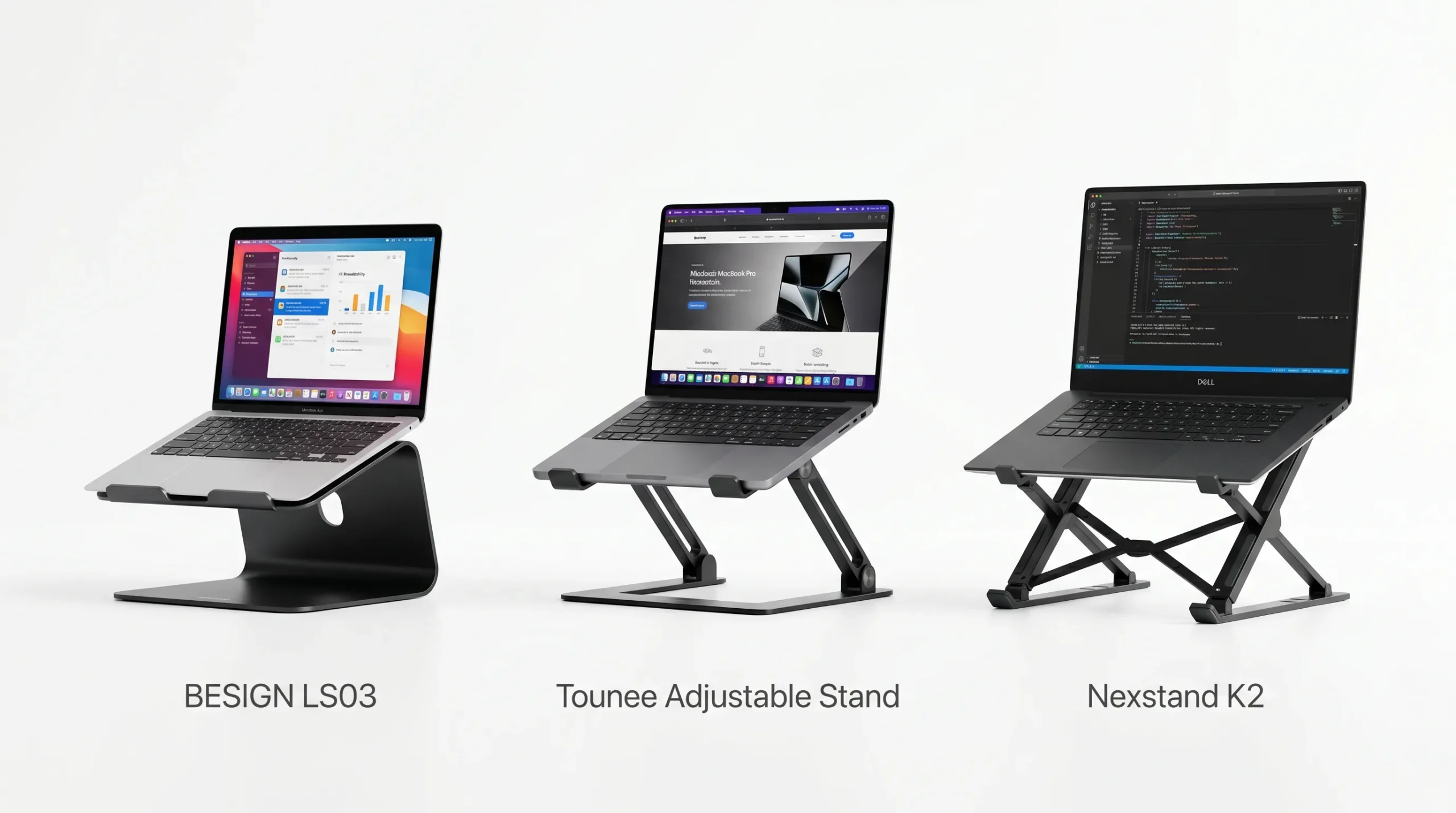
If you’ve decided a laptop stand is right for you, here are three picks by budget tier — each tested against the same criteria: screen elevation to eye level, stability, and value.
| Pick | Product | Price | Best For | Who Should Skip |
|---|---|---|---|---|
| 💰 Best Budget | BESIGN LS03 Aluminum | ~$15–20 | First-time stand users at a fixed desk with consistent chair height | Sit-stand desk users; anyone needing fine height adjustment |
| ⭐ Best Value / Best for Small Desks | Moallia N86 360 Rotating Laptop Stand | ~$30–45 | Hybrid workers who need one stand for desk and travel; folds flat into a laptop bag | Users with heavier 16"+ laptops who notice flex at max height |
| 🏆 Best Long-Term Upgrade | Tounee Adjustable (2″–21″) | ~$45–60 | Sit-stand desk users; anyone who wants stepless height adjustment from seated to full standing height | Travelers; users who set-and-forget at one height |
All three require an external keyboard and mouse — once your screen is elevated, the built-in keyboard is too high to type comfortably.
How to Set Up Your Laptop to Avoid Neck Pain
Getting the right hardware is step one. Setting it up correctly is step two — and most people skip it. If you haven’t fixed your full ergonomic setup yet, follow this complete guide: how to use a laptop without neck pain. It covers screen height, chair position, external keyboard placement, and the 20-20-2 posture reset rule — everything you need alongside your stand or arm.
When a Laptop Arm Is Actually Worth It?
A laptop arm earns its price in three specific situations. Outside of these, a stand is almost always the smarter buy:
- You use a standing desk — A sit-stand arm lets you reposition your screen instantly when you switch between seated and standing. A fixed stand requires you to physically adjust height each time.
- You have a dual monitor setup — Some arms handle both a monitor and a laptop simultaneously, giving you two screens at the exact right height with a single mounting solution.
- Your desk space is critically limited — An arm that clamps to the edge and holds your laptop off the surface entirely can free 12–18 inches of desk real estate — more than any stand can.
Common Mistakes That Keep Causing Neck Pain
Whether you choose a stand or an arm, these three errors will cancel out the ergonomic benefit:
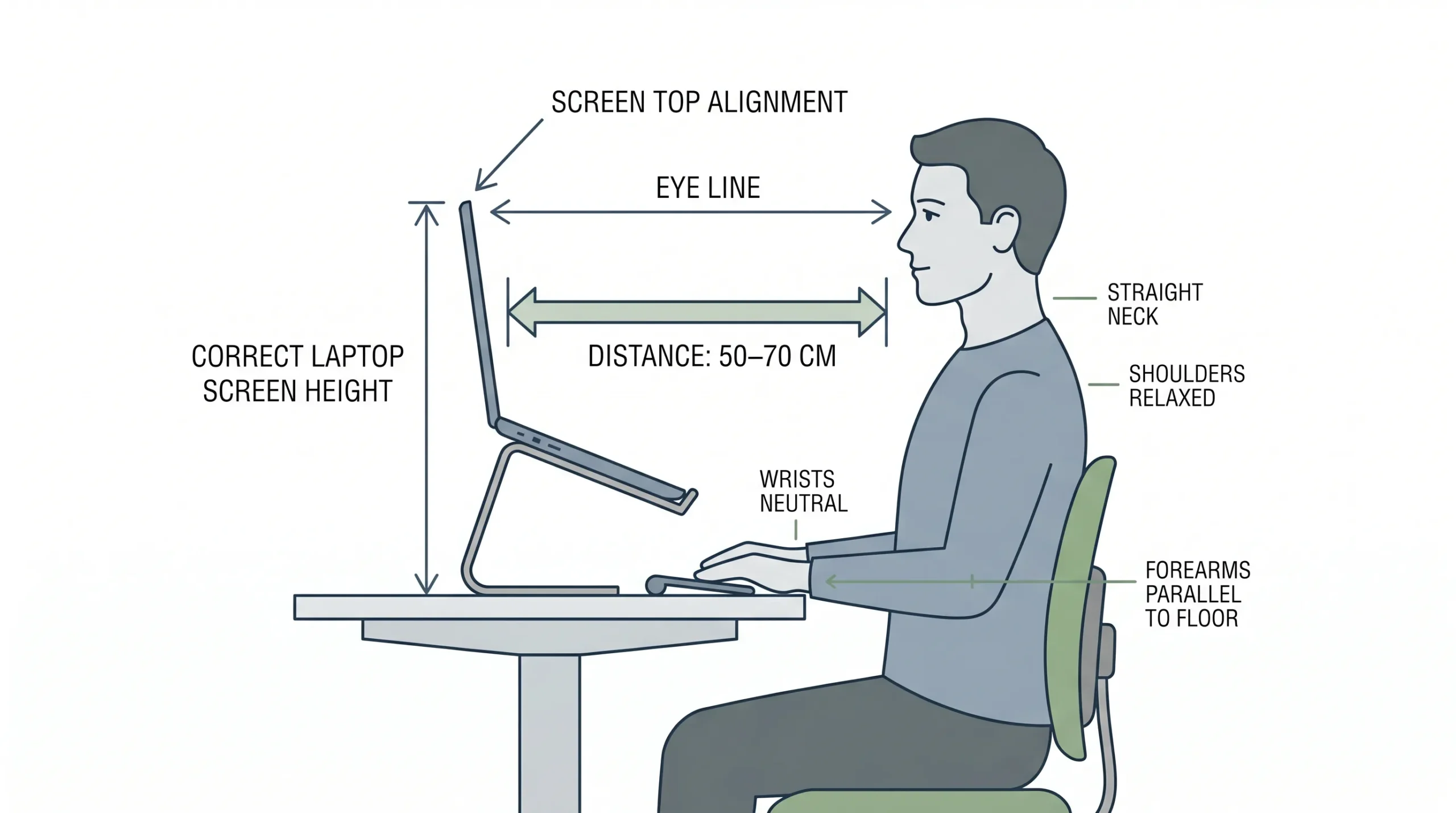
- Screen still too low — The top of your screen must reach your natural eye level. Most people elevate their screen but not enough. Test it: sit upright, close your eyes, then open them. Where your gaze lands naturally — that’s where the top third of your screen should be.
- No external keyboard — Raising your screen without adding an external keyboard transfers the strain from your neck to your wrists and shoulders. You haven’t solved the problem — you’ve moved it. An external keyboard is not optional once your screen is elevated. Pair it with an ergonomic mouse — reaching for a raised trackpad after elevating your screen is a common secondary pain source that an ergonomic mouse resolves.
- Not adjusting your chair — Screen height is relative to your seated eye level. If your chair is too low, even a perfectly elevated screen won’t be at the right position. Set your chair height first, then calibrate your screen.
Final Verdict: Which Should You Choose?
For most laptop stand vs laptop arm neck pain scenarios, a laptop stand is the right choice for 80% of people.. It’s affordable, immediate, and effective for anyone using a laptop as their primary screen at a fixed desk. Many users may feel a noticeable difference within a few days.
Laptop arm: the right choice for the remaining 20%. If you have a standing desk, a dual monitor setup, or critically limited desk space — the full adjustability and desk-clearing design justify the higher price and setup time.
When in doubt, start with a stand. You can always add an arm later if your setup demands it. You can’t easily return the 3 months of neck pain from doing nothing.
Frequently Asked Questions
Is a laptop arm better than a stand?
Not for most people. Both elevate your screen to eye level — which is the core fix for neck pain. A laptop arm offers more precise adjustability and frees up desk space, but requires more setup time and costs significantly more. For a standard laptop-only desk setup, a stand delivers equivalent neck pain relief at a fraction of the cost.
Can a laptop stand fix neck pain?
Yes — if used correctly. A laptop stand raises your screen to eye level, which eliminates the forward head tilt responsible for cervical strain. Most users notice reduced neck tension within a few days. You must also use an external keyboard and mouse — otherwise you’ve raised the strain from your neck to your wrists.
How high should my laptop screen be?
The top edge of your screen should sit at or just below your natural eye level when sitting upright with good posture. For most people, this means raising the laptop 4 to 8 inches above a flat desk surface. Use books to test the right height before buying a stand — if your neck tension reduces within 5 minutes, you’ve found the right elevation.
Do I need an external keyboard with a laptop stand?
Yes — this is non-negotiable. When your laptop is elevated on a stand, the built-in keyboard rises with it to an angle that strains your wrists and shoulders. An external keyboard placed at desk level keeps your arms at a comfortable 90° angle. Budget options like the Logitech K380 work well and cost around $30–40.
Can I use a laptop arm on any desk?
Not always. Most laptop arms clamp to a desk edge and require a minimum thickness of 0.75 inches and a maximum of about 3.5 inches. Glass desks and very thick or very thin desks may not be compatible. Check the clamp specifications before purchasing, and verify your desk has enough clearance underneath for the mounting hardware.
What’s the difference between a laptop stand and a monitor arm?
A laptop stand sits on your desk surface and elevates your laptop — no installation required, costs $20–$60, and is portable. A monitor arm clamps to your desk edge and holds a monitor (or laptop) on an articulating arm — takes 30–60 minutes to install, costs $50–$200+, and provides infinitely adjustable repositioning. Both raise your screen to eye level to reduce neck strain. The right choice depends on whether you travel, whether you have an external monitor, and whether you use a sit-stand desk.
Can I use a laptop stand and a monitor arm together?
Yes — and for dual-monitor setups, this is often the ideal configuration. Use a monitor arm for your external monitor (which benefits most from precise height and tilt control) and a laptop stand for the laptop itself as a secondary display. Many professionals with two screens run exactly this setup: one arm-mounted external monitor at eye level, and the laptop elevated on a stand slightly to the side or at an angle.
Is a laptop stand or monitor arm better for a standing desk?
For a true sit-stand desk where you switch positions regularly, neither a fixed-height laptop stand nor a fixed monitor stand is ideal — your eye level changes significantly between sitting and standing, so a fixed height calibrated for one position will be wrong for the other. The best options are: (1) a wide-range adjustable laptop stand (2″–21″) that you physically reposition when you switch, or (2) a desk-mounted laptop or monitor arm with quick repositioning so you can adjust in seconds. The arm is more convenient; the adjustable stand is cheaper.
Does a monitor arm work on any desk?
Not all desks are compatible. Most monitor and laptop arms use a C-clamp or grommet mount. C-clamps require a desk edge between approximately 0.75″ and 3.5″ thick — very thin desks and very thick desks may not fit. Glass desks and desks with aprons (a wooden frame under the edge) are often problematic. Before buying, measure your desk edge thickness and check for clear access underneath for the mounting hardware. Some arms offer a grommet mount alternative if your desk has a cable management hole — worth checking the product page before ordering.
Does raising your screen actually reduce neck pain?
Yes — this is one of the better-supported interventions in workplace ergonomics. Research published in PubMed Central found that adjustable laptop stands significantly reduced musculoskeletal discomfort. The mechanism is direct: forward head tilt from looking down at a low screen multiplies the effective load on the cervical spine — at 45° of tilt, that load can reach the equivalent of 49 lbs. Raising the screen eliminates the tilt. Most users notice reduced neck tension within a few days of consistent use at the correct height. Screen elevation is the highest-impact single change most laptop users can make — everything else (chair, keyboard, mouse) builds on it.
Start with a simple laptop stand if you use your laptop at a fixed desk. It is the fastest, most affordable way to raise your screen and reduce laptop-related neck strain. Add an external keyboard and mouse, adjust your chair height, and upgrade to a laptop arm later only if your setup becomes more complex.