

Table of Contents
Laptop ergonomics matter because laptops are brilliantly portable — and ergonomically incomplete. The screen and keyboard are attached to each other, which means you’re always making a compromise: either your screen is too low for your neck, or your keyboard is too high for your arms. For anyone working long hours on a laptop, that compromise adds up into real pain.
The good news: the laptop ergonomics fix is straightforward. You don’t need to overhaul your workspace or spend a lot of money. You need to separate the screen height from the typing height — and this guide walks you through exactly how to do that.
Whether you’re dealing with neck pain from laptop use right now, or you want a laptop ergonomics setup that prevents problems before they start, this is your complete reference. We cover screen height, keyboard and mouse placement, chair setup, the right accessories, and how to adapt your setup for different work situations.
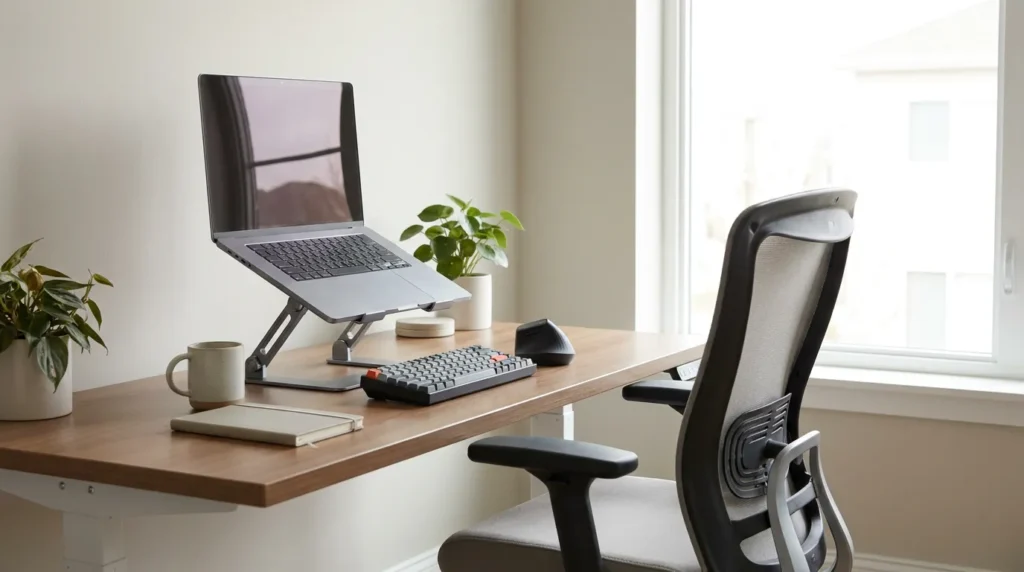
Already experiencing neck pain? See our guide: How to Use a Laptop Without Neck Pain
What Is Laptop Ergonomics?
Laptop ergonomics means setting up your laptop so your screen, keyboard, mouse, chair, and desk support a neutral posture. The goal is to keep your screen near eye level, your elbows relaxed, your wrists neutral, and your neck stacked over your shoulders — rather than pushed forward or bent down.
Common Laptop Problems — and Their Ergonomic Fix
| Problem | Common Cause | Ergonomic Fix |
|---|---|---|
| Neck pain | Screen too low — excessive cervical flexion | Laptop stand to raise screen to eye level |
| Wrist pain | Trackpad overuse, wrist deviation | External ergonomic mouse, wrist-neutral placement |
| Shoulder tension | Built-in keyboard too high when laptop is raised | External keyboard at desk level, elbows at 90° |
| Upper back pain | Poor posture, thoracic rounding | Full ergonomic setup + posture breaks every 20–30 min |
| Eye strain | Screen too far, too low, or too bright | Screen 20–28 in away, top at eye level, brightness adjusted |
| Headaches | Suboccipital tension from sustained neck flexion | Raise screen, add chin-tuck exercises, take movement breaks |
Core Insight
A laptop screen at the correct height for your neck puts the keyboard at the wrong height for your arms. Fixing laptop ergonomics means decoupling those two things — raise the screen, then bring the keyboard back down separately.
The Goal of an Ergonomic Laptop Setup
The ideal ergonomic position puts your body in a neutral alignment throughout the day:
- Neck: upright, ears directly above your shoulders — not jutting forward
- Eyes: looking slightly downward at the top third of your screen
- Shoulders: relaxed and down, not elevated or rounded forward
- Elbows: at roughly 90–100 degrees, close to your sides
- Wrists: neutral — neither bent up nor bent down
- Hips: at 90–100 degrees, with lower back supported
- Feet: flat on the floor or on a footrest
Why Laptops Create an Ergonomic Compromise
Desktop computers allow complete independence between screen and keyboard. Laptops do not. This single design constraint is responsible for nearly all laptop-related neck, shoulder, and wrist strain:
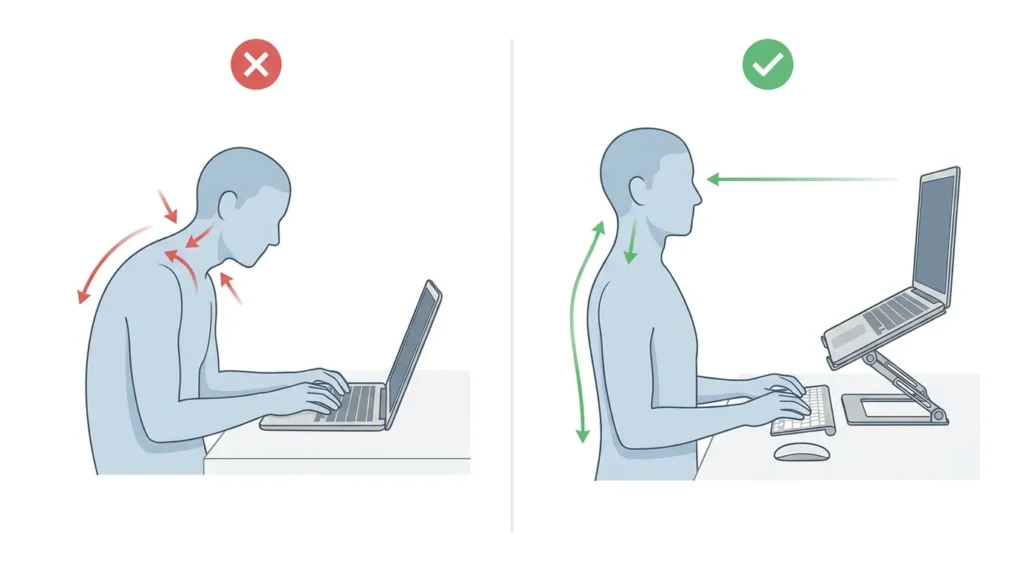
- If you place the laptop keyboard at a comfortable height, the screen sits far too low — typically 30–45 degrees below your eye level. At 45 degrees of neck flexion, your head exerts roughly 49 lbs of force on your cervical spine, compared to around 10–12 lbs in a neutral position (Hansraj, 2014).
- If you raise the laptop to bring the screen closer to eye level — on a stack of books, for example — the keyboard is now too high, causing shoulder elevation and wrist extension.
This is why the full ergonomic solution requires both a laptop stand and an external keyboard. Neither alone is sufficient.
The Anatomy of an Ergonomic Laptop Workstation
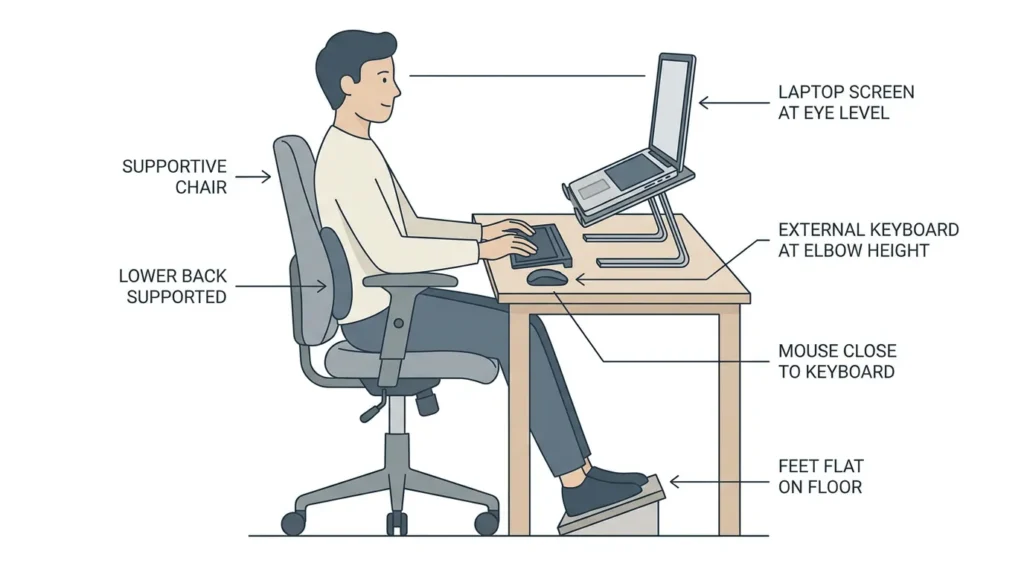
Before diving into the full setup guide, this diagram maps the six core variables that determine whether your workstation supports or strains your body. Each one is addressed in detail in the sections that follow.
| # | Element | Target Position | Why It Matters |
|---|---|---|---|
| ① | Screen height | Top edge at or just below eye level | Reduces cervical flexion angle and compressive load on the neck |
| ② | Viewing distance | 20–28 inches from the eyes | Prevents eye strain and forward-head lean toward the screen |
| ③ | Keyboard position | At desk level, elbows at 90°, wrists neutral | Keeps shoulders relaxed and wrists in a safe, unstrained position |
| ④ | Mouse position | Immediately beside the keyboard, same surface | Eliminates reaching that causes shoulder and upper-trap tension |
| ⑤ | Chair height | Hips at 90–100°, lower back supported | Maintains a neutral pelvic tilt that supports the whole spine |
| ⑥ | Foot position | Flat on floor or a footrest | Keeps hips and lumbar spine in neutral — prevents lower-back loading |
Key Insight
All six elements interact. Fixing screen height without separating the keyboard creates a new problem at the shoulders. Fixing the keyboard without chair height creates hip and lumbar strain. The checklist in the next section walks through each element in order.
The Ideal Laptop Ergonomic Setup
This laptop ergonomics setup is ordered by impact. Most people will see significant improvement just from steps 1 and 2.
Before buying accessories, estimate a practical desk and chair height so the external keyboard can remain close to elbow level.
1. Raise the Screen to Eye Level
Use a laptop stand to raise your screen so the top edge of the display is at or just below eye level when you’re sitting upright. This single change removes the largest biomechanical load from your cervical spine.
Temporary option: a stack of sturdy books works. Permanent fix: a dedicated laptop stand, ideally adjustable, so you can fine-tune screen height to your exact sitting position.
→ Best Laptop Stands for Neck Pain (2026)
2. Use an External Keyboard
Once the laptop is raised, the built-in keyboard is too high to type on comfortably. An external keyboard stays at desk level, where your elbows can remain at 90 degrees and your wrists stay neutral. Position the keyboard close to you — close enough that your forearms don’t reach forward.
→ Best Ergonomic Keyboards for Neck Pain
3. Use a Separate Mouse
The trackpad on a raised laptop is inaccessible. Even when the laptop is at desk level, trackpad use encourages shoulder rounding and repetitive micro-movements that accumulate into wrist and forearm strain. A separate mouse placed close to the keyboard reduces reach and keeps your shoulder in a more relaxed position.
→ Best Ergonomic Mouse for Wrist Pain
4. Keep Elbows Relaxed Near 90 Degrees
Your elbows should hang close to your sides at roughly 90–100 degrees, with forearms roughly parallel to the floor. If you’re reaching forward or up to type, adjust your chair height or desk height first before adding accessories.
5. Support Your Lower Back
Lumbar support keeps your pelvis in a neutral tilt, which in turn makes it easier to maintain an upright neck and spine. If your chair lacks adequate lumbar support, a small rolled towel or lumbar cushion placed at the curve of your lower back makes a meaningful difference.
6. Keep Feet Flat or Supported
Feet flat on the floor (or a footrest if you’re shorter) keep your hips at a neutral angle and prevent lower back loading. Dangling feet or crossed legs shift your whole spinal alignment upward.
7. Take Posture Breaks
No static posture — however well-optimized — is sustainable without movement. Every 20–30 minutes, stand up, roll your shoulders back, do 5 chin tucks, and walk for 30 seconds. Movement keeps muscles active, prevents fatigue, and resets your postural baseline throughout the day.
Ergonomic Laptop Setup Checklist
- Screen top at or just below eye level
- Screen roughly arm’s length away (20–28 inches)
- Laptop on a stand — not directly on the desk for long sessions
- External keyboard at desk level, close to the body
- Mouse close to the keyboard, same level
- Elbows at 90–100 degrees, close to the sides
- Wrists neutral — not bent up or down
- Feet flat on floor or footrest
- Lower back supported by chair or lumbar cushion
- Shoulders relaxed — not elevated or rounded
- Break every 20–30 minutes to stand and move
Why Laptops Cause Neck Pain
For the complete collection, browse all free ergonomic tools, including desk, monitor and workstation calculators plus an educational wrist symptom self-check.
Laptop neck pain develops through a predictable chain of events, most of which happen so gradually you don’t notice until the discomfort is already established.
The Screen-Height Problem
A standard laptop on a desk puts the screen center somewhere between chest and chin height for most people. Looking down at it — even slightly — progressively loads the cervical spine throughout the day. The muscles of your neck and upper back are working continuously to hold your head in a forward and downward position, accumulating fatigue that becomes soreness, stiffness, and eventually chronic strain.
The Built-In Keyboard Problem
Even users who prop their laptop up to improve screen height often undercut the benefit by keeping the built-in keyboard. Typing on a keyboard that’s too high forces your shoulders up and your wrists into extension — substituting one strain pattern for another.
How Laptop Posture Turns into Tech Neck
When forward head posture becomes habitual over months or years of laptop use, it can progress into tech neck — structural changes in how your cervical spine curves, persistent muscle tension, and in some cases a visible rounding at the base of the neck (the tech neck hump).
For a full guide to symptoms, exercises, and recovery: How to Fix Tech Neck (2026)
Not sure whether you need a stand or an arm? See: Laptop Stand vs. Laptop Arm for Neck Pain
Laptop Ergonomics Screen Height: Where Should the Screen Be?
Screen height is the single highest-impact variable in laptop ergonomics, and it is the first laptop ergonomics adjustment most people should make. Get this right, and everything else becomes easier.
How High Should Your Laptop Screen Be?
The top edge of your screen should be at or slightly below eye level when you’re sitting upright with your back supported. Your gaze should fall naturally onto the middle of the screen with a slight downward angle — roughly 15–20 degrees. This keeps neck flexion minimal and cervical loading low.
How Far Away Should Your Laptop Screen Be?
Approximately 20–28 inches from your eyes, depending on your screen size and vision. If you’re squinting or leaning forward, move it closer. If you’re leaning back or the image looks large, move it further away. The arm’s-length test is a reliable starting point.
When to Use a Monitor Instead of Your Laptop Screen
For users at a permanent desk who also want a larger display, a separate external monitor can replace the laptop screen entirely. The laptop then acts as a processing unit only, connected via HDMI or USB-C. An adjustable monitor arm gives the most flexibility for monitor positioning.
Laptop Ergonomics: Stand, Laptop Arm, or External Monitor?
Three main laptop ergonomics approaches exist for raising your screen. Which is right for you depends on your desk, budget, and how often you move your setup.
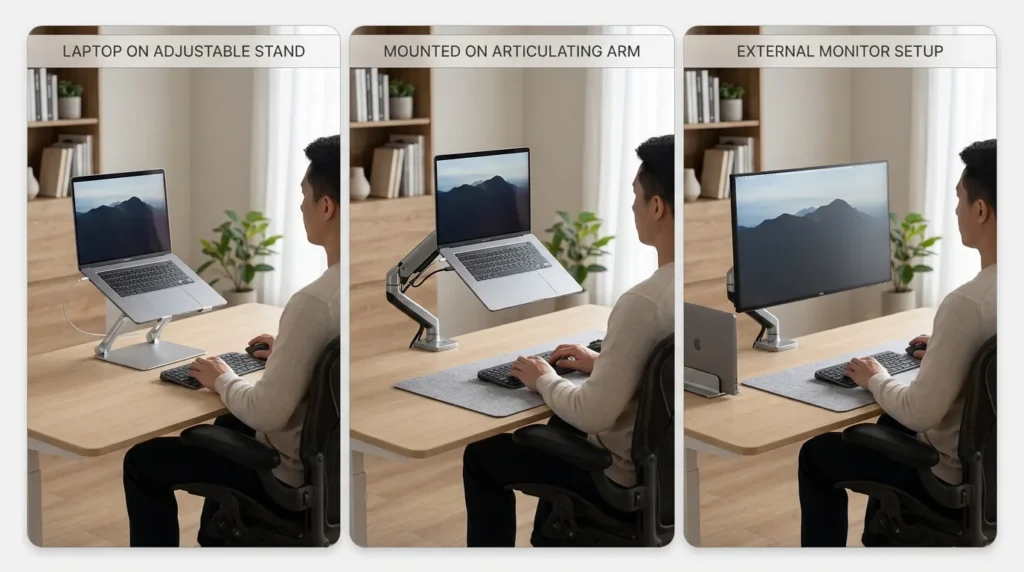
Quick Comparison
| Option | Best For | Pros | Cons | Typical Cost |
|---|---|---|---|---|
| Laptop stand | Most users, any desk | Simple, portable, stable | Fixed adjustability on cheaper models | $20–$80 |
| Laptop arm | Flexible or multi-screen setups | Full range of motion, clears desk | Requires clamping, more complex setup | $60–$200 |
| External monitor | Permanent desk setups | Larger screen, full independence | Higher cost, not portable | $150–$600+ |
Full comparison: Laptop Stand vs. Laptop Arm for Neck Pain
Why You Need an External Keyboard and Mouse
A laptop stand raises the screen — which is exactly what you want. But it also raises the built-in keyboard and trackpad to a height that’s too high for comfortable typing. Without an external keyboard and mouse, you’ve traded neck strain for shoulder and wrist strain.
External Keyboard Placement
Place the keyboard directly in front of you on the desk surface, close enough that your elbows are at your sides and your forearms don’t reach forward. The keyboard should be at a height where your elbows are at approximately 90 degrees.
→ Best Ergonomic Keyboards for Neck Pain
Mouse Placement
Position the mouse immediately beside the keyboard — as close as possible without crowding. The further the mouse is from your body, the more you extend your shoulder and reach forward, loading the upper trapezius and rotator cuff.
Wrist Position and Shoulder Comfort
Wrists should be neutral when typing — not bent upward or downward. Shoulders should remain relaxed and down. If you notice shoulders creeping up, it’s usually a sign the keyboard or desk is too high.
Key Reminder
A laptop stand without an external keyboard is a partial fix. To fully resolve the laptop ergonomics compromise, you need: laptop stand + external keyboard + mouse. All three together eliminate the root cause of most laptop-related neck, shoulder, and wrist strain.
Laptop Ergonomics for Neck Pain
If you’re already experiencing neck pain from laptop use, ergonomic setup changes are the most important first step — but they work best when combined with targeted exercises.
Common Symptoms of Laptop Neck Strain
- Stiffness or soreness at the base of the skull, especially after long sessions
- Tension headaches starting from the back of the head
- Tightness across the upper trapezius (neck-to-shoulder ridge)
- Aching between the shoulder blades
- A visible forward head position — ears in front of shoulders in a side-profile view
What to Change First
If your pain is primarily in the neck and upper back, start with screen height. Raising the screen to eye level immediately reduces the biomechanical load that’s creating the pain. Add the external keyboard and mouse to complete the setup.
When Exercises Help
Ergonomic setup changes remove the cause. Exercises address the damage that’s already been done — tight muscles, weakened deep neck flexors, and postural habits built up over time. Chin tucks, upper trapezius stretches, and thoracic extension are the most effective exercises for laptop neck pain.
When to Get Medical Advice
The guidance in this article is not medical advice. If you experience numbness or tingling in the arms or hands, shooting pain radiating from the neck into the arms, weakness in grip, or symptoms that worsen rather than improve, please consult a healthcare professional.
Full exercise routine and recovery guide: How to Fix Tech Neck (2026)
Laptop Ergonomics for Wrist and Shoulder Pain
Tech neck gets the most attention, but laptop use also creates predictable patterns of wrist and shoulder strain — particularly from trackpad overuse and poor keyboard placement.
Wrist Pain from Trackpad Use
The laptop trackpad requires small, precise movements repeated thousands of times a day. Without a separate mouse, users often work with the wrist in an awkward position that loads the wrist tendons repeatedly. Switching to an external mouse is the most effective fix.
Shoulder Strain from Poor Keyboard Placement
Keyboards placed too far away or too high require reaching or shoulder elevation to use. Over time, this loads the upper trapezius and rotator cuff. The fix is keeping the keyboard close and at the correct height (elbows at 90 degrees, shoulders relaxed).
When to Consider a Vertical Mouse or Split Keyboard
For users with persistent wrist pain despite a standard ergonomic mouse, a vertical mouse can significantly reduce forearm pronation strain. For users with shoulder or elbow pain, a split keyboard allows the hands to be positioned at a more natural width.
Wrist pain: Best Ergonomic Mouse for Wrist Pain
Shoulder or typing pain: Best Ergonomic Keyboards for Neck Pain
Ergonomic Laptop Setup by Situation
The core setup principles are the same regardless of context — but the practical application varies. Here’s how to adapt for the most common situations.
For Remote Workers
Invest in the full setup: adjustable laptop stand, external keyboard, ergonomic mouse, and a supportive chair. These are tools you use 8+ hours a day — the return on investment is measured in pain avoidance and long-term health.
For Students
A portable laptop stand (foldable, lightweight) and a compact Bluetooth keyboard are the highest-impact, most affordable interventions. Even a stack of books to raise the screen and a basic wireless keyboard substantially reduce strain at very low cost.
For Small Desks
Compact 60% keyboards leave more mouse room and reduce the reach distance. A small, lightweight laptop stand preserves workspace. Vertical mouse designs also have a smaller footprint than traditional mice.
For Travel
A portable folding laptop stand, a compact Bluetooth keyboard, and a travel mouse are the three items that make the biggest difference on the road. All three fit in a laptop bag.
For Couch or Bed Use
Short sessions in relaxed positions are fine. Extended work from the couch or in bed puts the neck in extreme flexion without spinal support — which is one of the fastest routes to developing or worsening tech neck. Limit these sessions to under 30 minutes.
For Standing Desks
Standing desks benefit from a laptop stand or monitor arm that can be adjusted to match the new working height. Screen height changes when you move from sitting to standing — an adjustable stand or monitor arm lets you quickly re-position the screen to eye level in each mode.
Budget Laptop Ergonomics Setup
You don’t need to spend a lot to make a significant laptop ergonomics improvement. Here’s a practical breakdown by budget, prioritized by impact:
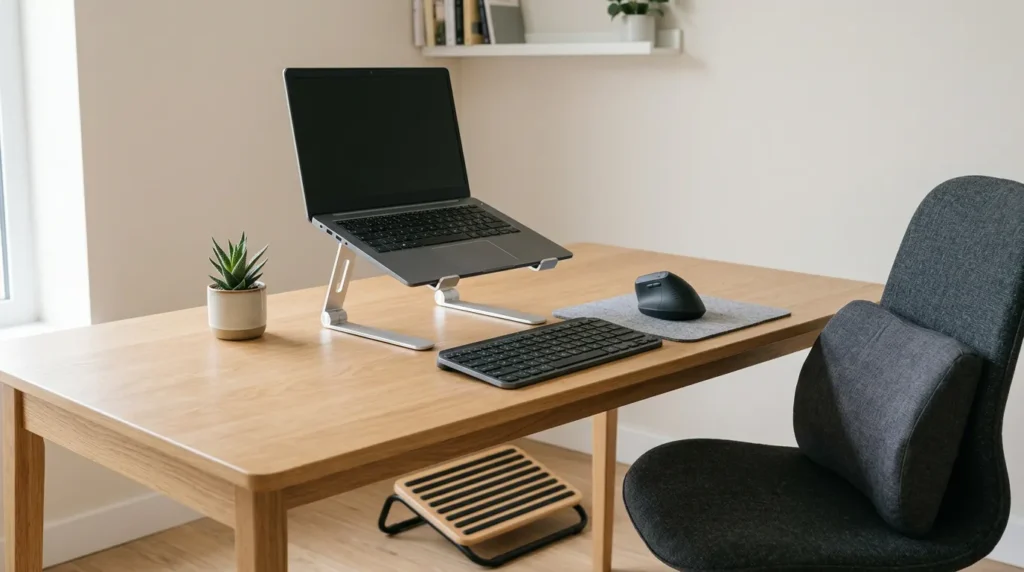
| Budget | What to Get | What to Skip |
|---|---|---|
| $0 | Raise laptop on books, take hourly breaks, do chin tucks daily | All accessories — start here first |
| around $45–60 | Basic adjustable laptop stand + compact wireless mouse | Expensive chair upgrades |
| around $135–165 | Adjustable stand + external keyboard + ergonomic mouse | Monitor arm (save for later) |
| $150–$300 | Quality adjustable stand + keyboard + mouse + lumbar support | Randomly chosen accessories |
| $270–330+ | Monitor arm or full stand + keyboard + mouse + chair support + optional monitor | Anything before fixing screen height first |
Priority Order
Fix screen height first (stand), then typing position (external keyboard + mouse), then seating (chair/lumbar support). Most people see the greatest pain reduction from the first two steps alone.
Common Laptop Ergonomics Mistakes
Using a Stand Without an External Keyboard
This is the most common and costly mistake. Raising the screen without separating the keyboard doesn’t solve the ergonomic compromise — it moves it from the neck to the shoulders. The stand is only the first half of the fix.
Not Raising the Laptop High Enough
Many users raise the laptop a few inches and stop. But the screen top needs to be near eye level — for most people, that means raising the laptop 5–10 inches or more above the desk surface.
Typing with Shoulders Lifted
If the keyboard is too high — or the chair too low — users compensate by raising their shoulders. This constant tension in the upper trapezius is a direct cause of neck and shoulder pain. Adjust chair height first.
Working from the Couch for Hours
Couch posture puts the screen low, the back unsupported, and the neck in extended flexion. Short sessions are fine; extended work sessions in this position are a significant driver of neck strain.
Buying a Chair Before Fixing Screen Height
Chair ergonomics matter — but a good chair doesn’t fix a screen that’s 12 inches below eye level. Screen height is the primary driver of laptop neck pain. Fix the screen first, then assess whether the chair needs upgrading.
Ignoring Breaks
Even a perfectly set-up workspace creates strain over long static sessions. The 20–30 minute break rule exists because no ergonomic position is sustainable indefinitely.
Laptop Ergonomics Checklist
Use this laptop ergonomics checklist as a quick-reference check when setting up a new workspace or troubleshooting pain:
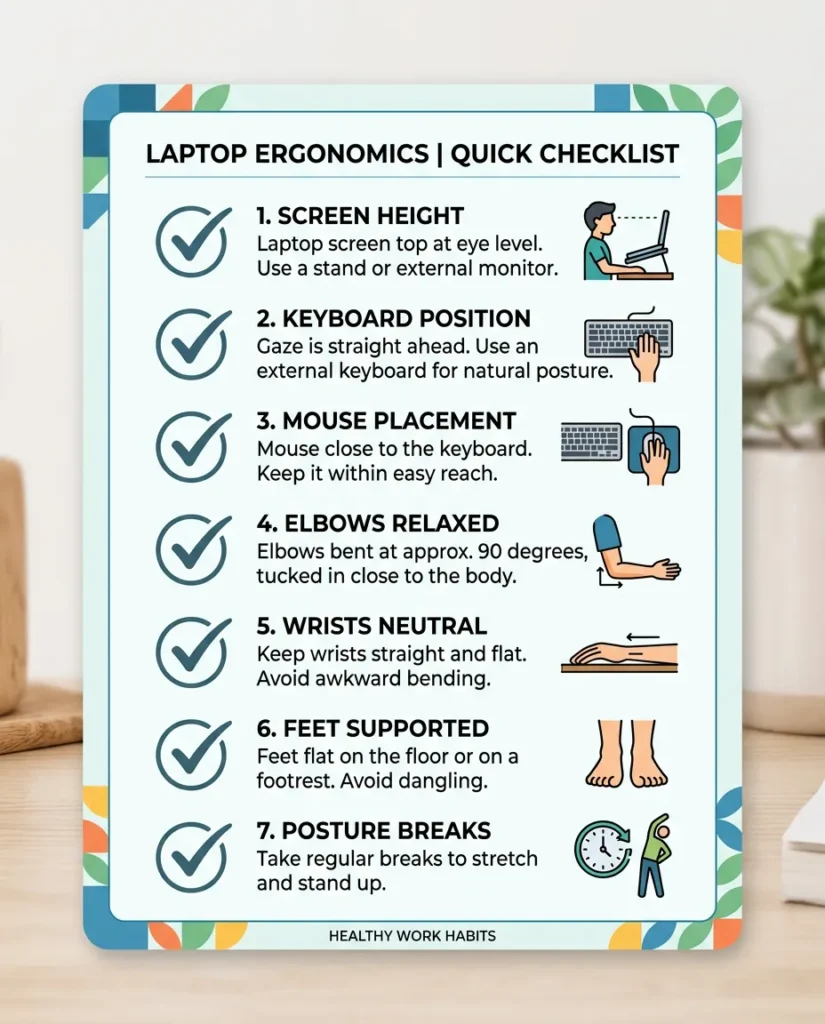
- Screen top at or just below eye level
- Screen approximately arm’s length away (20–28 inches)
- Laptop raised on a stand — not flat on the desk for sessions over 30 minutes
- External keyboard at desk level, close to the body
- Mouse immediately beside the keyboard
- Elbows at 90–100 degrees, close to the sides
- Wrists neutral — not bent up or down
- Feet flat on the floor or a footrest
- Lower back supported by chair lumbar or a rolled towel
- Shoulders relaxed and down throughout the session
- Posture break every 20–30 minutes
- Chin tucks or shoulder rolls during breaks
Recommended Laptop Ergonomics Products by Priority
You don’t need to buy everything at once. This section maps the highest-impact purchases in order — so you can improve your setup in stages without buying the wrong thing first.
If You Buy Only One Thing
Laptop Stand
Highest-impact single purchase
Screen height is the primary driver of laptop neck pain. A laptop stand raises the screen to eye level and immediately reduces the biomechanical load on your cervical spine. Even a basic adjustable stand makes a measurable difference. Pair it temporarily with the built-in keyboard while you save for step 2.
→ See the best laptop stands for neck pain →
If You Buy Two Things
Laptop Stand + External Keyboard
The complete screen–typing separation
Adding an external keyboard completes the core ergonomic fix. With the laptop raised on a stand, the built-in keyboard is too high — an external keyboard brings typing back to the correct elbow-level height. This combination eliminates the root cause of both neck and shoulder strain for most laptop users.
→ See the best ergonomic keyboards →
Complete Setup
Laptop Stand + External Keyboard + Mouse
Full ergonomic solution — eliminates neck, shoulder, and wrist strain
An ergonomic mouse is the third piece. It replaces trackpad use (which causes wrist deviation and shoulder tension) and keeps your hand in a neutral grip position beside the keyboard. With all three pieces in place, you’ve fully decoupled screen height from typing height, and replaced the trackpad with a proper pointing device.
→ See the best ergonomic mice for wrist pain →
Not sure which stand to buy?
Our buying guide covers adjustable stands, platform risers, portable foldable options, and monitor arms — with recommendations for every desk size and budget. Start there before buying.
Frequently Asked Questions
What is the best ergonomic position for a laptop?
Screen top at or just below eye level; external keyboard at elbow height (elbows at 90 degrees); external mouse beside the keyboard; lower back supported; feet flat on the floor. Ears directly above the shoulders when viewed from the side.
Is it bad to use a laptop without a stand?
For short sessions (under 30 minutes), the risk is low. For regular work sessions of an hour or more, consistently using a laptop without a stand places significant cumulative load on the cervical spine. Over months and years, this contributes to neck strain, forward head posture, and tech neck.
How high should my laptop screen be?
The top edge of your screen should be at or slightly below eye level when sitting upright. For most desk setups, this means raising the laptop 5–10 inches above the desk surface on a stand.
Do I need an external keyboard with a laptop stand?
Yes — for the setup to be ergonomically complete. Raising the laptop brings the screen to the correct height, but also raises the built-in keyboard above comfortable typing level. An external keyboard stays at desk height, keeping your elbows and wrists in a neutral position.
Can a laptop stand help neck pain?
Yes, significantly. Raising the screen to eye level is the primary intervention for laptop-related neck pain. Research suggests correct screen positioning can reduce cervical strain by up to 32%. The stand should be paired with an external keyboard for the full benefit.
Is a laptop arm better than a laptop stand?
For most users, a laptop stand is simpler and sufficient. A laptop arm provides greater flexibility — particularly for users who alternate between sitting and standing, use multiple screens, or want to clear desk space. See the full comparison in our laptop stand vs. laptop arm guide.
How far should a laptop screen be from your eyes?
Approximately 20–28 inches, depending on screen size. The arm’s-length test is a reliable guide: extend your arm toward the screen; your fingertips should just reach the display.
What is the cheapest ergonomic laptop setup?
At $0: raise the laptop on books and take breaks every 20–30 minutes. around $45–60: a basic adjustable stand and a wireless mouse. around $135–165: stand, external keyboard, and ergonomic mouse — the complete solution.
Can laptop use cause tech neck?
Yes. Tech neck (forward head posture caused by looking down at screens) is directly linked to extended laptop use without ergonomic setup correction. The low screen height of a standard laptop on a desk is the primary cause.
Should I use a mouse instead of a trackpad?
For short sessions, the trackpad is fine. For extended daily use, a separate mouse reduces wrist deviation, decreases repetitive micro-movements, and keeps the shoulder in a more relaxed position.
Is it okay to work from bed or the couch?
Occasionally and briefly — yes. As a regular work setup — no. Extended sessions in these positions put the neck into significant flexion without spinal support. Limit to under 20–30 minutes and take frequent breaks.
What should I buy first for laptop ergonomics?
Start with the screen-height problem: a laptop stand. Then add an external keyboard to bring typing back to the correct height. Then add an ergonomic mouse. In that order, these three purchases resolve the core ergonomic issues for the majority of laptop users.
Related Guides
- How to Use a Laptop Without Neck Pain
- How to Fix Tech Neck
- Laptop Stand vs. Laptop Arm for Neck Pain
- Best Laptop Stands for Neck Pain
- Best Ergonomic Keyboards for Neck Pain
- Best Ergonomic Mouse for Wrist Pain
Sources and Ergonomic References
- Hansraj KK. Assessment of stresses in the cervical spine caused by posture and position of the head.
- OSHA Computer Workstations eTool: workstation components.
- OSHA Computer Workstations eTool: purchasing guide checklist for laptop workstations.
✏ Reviewed by the ErgoLivingSpace Editorial Team
ErgoLivingSpace publishes research-based guides focused on ergonomic home office setups, comfort, posture, accessibility, and pain reduction for remote workers and laptop users. Content is reviewed for accuracy against current ergonomic research before publication.
ErgoLivingSpace.com | /laptop-ergonomics/ | Updated May 2026 | Reviewed by the ErgoLivingSpace editorial team
This article is for informational purposes only and does not constitute medical advice. If you are experiencing persistent pain, numbness, tingling, or weakness, consult a qualified healthcare professional.