


Finding the best ergonomic mouse for wrist pain is not about choosing one universally superior shape. A mouse may feel more comfortable when its size, button reach, wrist position, and control method match the way you work.
Disclosure: This article contains affiliate links. As an Amazon Associate I earn from qualifying purchases. ErgoLivingSpace may also earn commissions from other qualifying purchases, at no extra cost to you.
A vertical mouse changes hand and forearm orientation but still moves across the desk. A trackball keeps the device stationary, yet shifts cursor control to the thumb, fingers, or palm. A lighter or smaller mouse can also change grip demand and reach. Each design transfers workload rather than removing it.
This broad guide compares seven current options for non-specific wrist discomfort, everyday work comfort, fit, grip demand, reach distance, button access, and vertical-mouse-versus-trackball choice. Not sure whether a vertical mouse is actually the right direction? Start with our ergonomic mouse choosing guide, then use the fit notes and trade-offs here before buying.
Educational note: This article does not diagnose the cause of wrist pain and is not a substitute for professional evaluation. Persistent or worsening pain, numbness, tingling, or weakness deserves medical attention.
Quick Selector: Start With the Workload
Use this as a shortlist, not a diagnosis. The same wrist location can be uncomfortable for different reasons, and the mouse still has to fit your hand.
If you are uncertain between moving and stationary control, compare the two formats in the dedicated vertical mouse versus trackball section before choosing a product. For a fuller format-only comparison, see Vertical Mouse vs. Trackball.
At-a-Glance Comparison
The table compares the seven products by fit, movement style, workload, learning curve, and their main trade-offs. On a phone, swipe inside the table to see every column.
How to Choose the Best Ergonomic Mouse for Wrist Pain
Use these broad ergonomic factors to compare a mouse for wrist pain. They describe observable work patterns, not diagnoses.
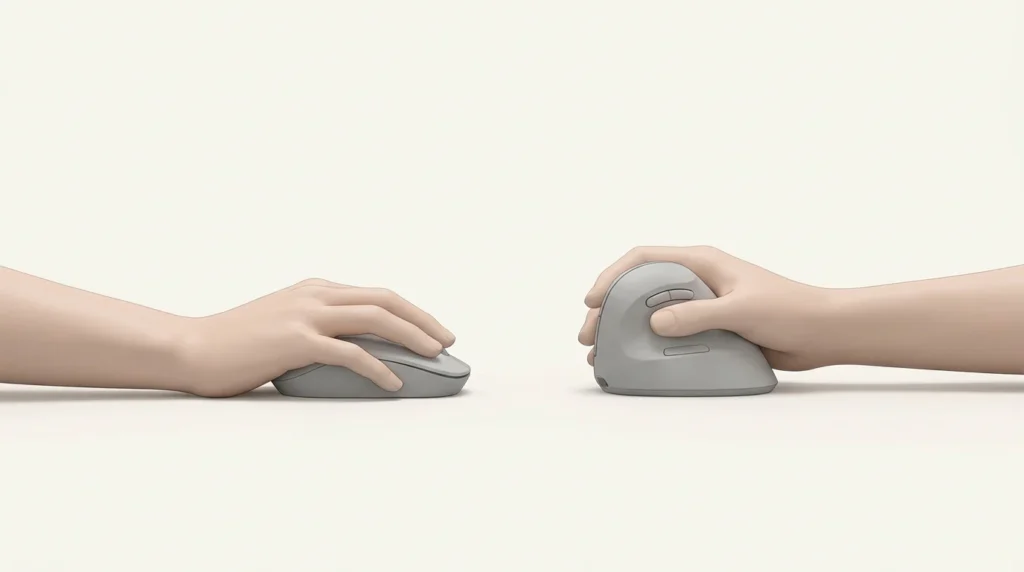
Forearm rotation
- What you may notice: A palm-down grip feels awkward or tiring during long sessions.
- Worth considering: A moderate or steep vertical angle may be worth trying.
- Main trade-off: More angle changes button access and can increase adaptation time.
- Options to compare: MX Vertical or Lift for moderate angles; Evoluent only when a steep geometry is already familiar.
- A grip angle alone does not identify the cause of discomfort or predict an outcome.
Wrist side-bending or ulnar deviation
- What you may notice: The hand drifts outward from the forearm while the pointer moves.
- Worth considering: A closer mouse position, higher pointer sensitivity, and a shape that does not force a wide grip may help keep the wrist straighter.
- Main trade-off: High sensitivity reduces travel but can make precision harder until adjusted.
- Options to compare: A correctly sized Lift or MX Vertical; a stationary trackball if device travel is the bigger issue.
- The location of discomfort alone does not show whether side-bending is the cause.
Wrist extension and button reach
- What you may notice: The wrist lifts from the desk or the fingers stretch to reach buttons.
- Worth considering: A lower or shorter body with reachable controls may be worth considering.
- Main trade-off: A compact mouse can feel cramped when the hand is larger.
- Options to compare: Lift for small-to-medium hands; compare button reach on every option before committing.
- An ergonomic label does not by itself establish that the mouse height fits your hand.
Hand size, mouse fit, and grip tension
- What you may notice: You squeeze the sides, hover the fingers, or repeatedly reposition the palm.
- Worth considering: Choose a width, height, and length that support the hand without forcing a pinch grip.
- Main trade-off: More palm support can reduce fingertip gripping but may make the device feel slow or bulky.
- Options to compare: MX Vertical for larger fit, Lift for smaller fit, or an appropriately sized Evoluent variant.
- Pain location alone cannot determine fit; compare measurements and use a return window when possible.
Reach distance and device travel
- What you may notice: The mouse sits beyond the keyboard or repeated sweeps pull the arm away from the body.
- Worth considering: Move the mouse closer, shorten keyboard reach, adjust sensitivity, or consider stationary control.
- Main trade-off: Trackballs reduce device travel but transfer repeated control to the thumb, fingers, or palm.
- Options to compare: MX Ergo or M575 for thumb control; Kensington Expert for finger/palm control.
- Less device travel still leaves wrist, hand, and shoulder workload to manage.
Vertical-angle tolerance
- What you may notice: A moderate vertical mouse still feels too flat—or a steep one feels unstable.
- Worth considering: Try the angle gradually and judge grip tension, button access, and cursor control together.
- Main trade-off: Steeper is not automatically better and may lengthen adaptation.
- Options to compare: MX Vertical or Lift for a moderate angle; Evoluent for fit-tested users who prefer steeper geometry.
- Angle alone does not determine comfort, and a steeper design is not automatically a better fit.
Adaptation and accuracy
- What you may notice: The first sessions involve overshooting, extra grip force, or slower pointing.
- Worth considering: Lower the workload initially, tune sensitivity in small steps, and alternate with a familiar device if needed.
- Main trade-off: An unfamiliar device can feel worse when introduced during a heavy workday.
- Options to compare: Anker for a lower-cost vertical-format trial; M575 for a simpler stationary-control trial.
- Adaptation varies, so there is no fixed timeline for getting used to a new device.
When a More Specific Guide Fits Better
Keep this page for broad wrist-position, fit, grip, reach, and control-method questions. Condition-specific or hand-specific targeting belongs elsewhere:
- For a diagnosed or suspected nerve-compression context, use the carpal-tunnel mouse comparison.
- For background on typing, pointing, and nerve symptoms, read carpal tunnel and computer work.
- For thumb, finger, pinky, grip, or button-load questions, use the hand and finger discomfort guide.
- If you are unsure how to describe what you notice, start with the wrist discomfort self-check guide.
Arthritis, RSI, tendonitis, trigger finger, shoulder pain, and elbow pain can involve different tasks and clinical considerations. Use the distinctions here to compare device fit and workload, then follow the more specific guide when it matches your situation.
What Should You Expect to Spend?
Budget. Budget options are useful for trying a vertical or trackball format before committing to more features. The Anker 2.4G Vertical Ergonomic Mouse is a basic vertical option for that comparison.
Mid-range. The Logitech Ergo M575 is a simpler stationary-control option. Mid-range choices often add more controls or wireless flexibility; fit, button reach, and the workload you prefer still matter more than the tier.
Premium. Logitech MX Vertical, Logitech Lift, Logitech MX Ergo, and Kensington Expert Mouse may add adjustable tilt, software features, rechargeable power, or multi-device pairing. Choose them when those specific features match the way you work.
Pricing and availability change, so check the current listing before buying.
Best Ergonomic Mice for Wrist Pain (2026 Picks)
The seven options below help you compare fit, workload, and trade-offs rather than look for a promise of relief.
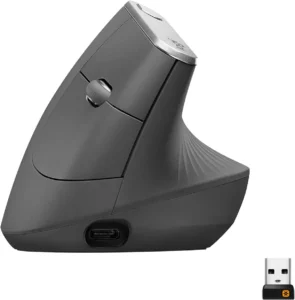
1. Logitech MX Vertical
- Best for: Medium-to-large hands; a moderate-angle vertical option when forearm rotation feels uncomfortable.
- Skip if: Your hand cannot reach the thumb controls without shifting, you need left-handed use, or you want stationary control.
- Main trade-off: It keeps conventional moving-mouse control, so device travel and reach still matter.
- Fit note: The body is relatively large; check palm support and thumb-button reach before long-term use.
- Adaptation note: The 57° geometry is a meaningful change from a flat mouse, but less steep than the Evoluent option.
- Setup note: Keep it close to the keyboard and raise sensitivity only enough to avoid wide sweeps.
This is the moderate-angle vertical choice in the lineup, not a universal best. The linked listing is the graphite MX Vertical model. Its value is the combination of a vertical orientation, conventional cursor control, and multi-device productivity features.
Check the current Amazon listing for Logitech MX Vertical.
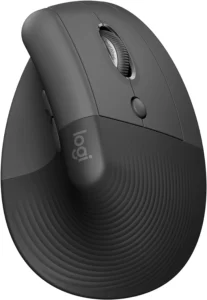
2. Logitech Lift
- Best for: Small-to-medium hands, compact fit, accessible buttons, and a lower transition barrier.
- Skip if: Your hand feels crowded, you need a rechargeable model, or the linked right-handed variant does not match your handedness.
- Main trade-off: The compact shell improves reach for some users but can increase grip tension in larger hands.
- Fit note: The linked graphite listing is right-handed; Logitech also sells a separate left-handed Lift variant.
- Adaptation note: Its moderate 57° angle is usually more familiar than a near-upright vertical design, but individual adaptation varies.
- Setup note: Place the thumb naturally before checking button reach; do not stretch the thumb to make the fit work.
Lift is the compact vertical option here. Quiet clicks and Bluetooth or Logi Bolt connectivity suit shared and hybrid work, but fit should drive the choice before those extras.
Check the current Amazon listing for Logitech Lift.
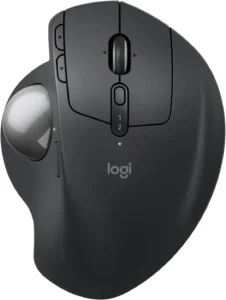
3. Logitech MX Ergo
- Best for: Adjustable stationary thumb control when reducing device travel and side reach matter.
- Skip if: Repeated thumb movement is already uncomfortable or you prefer moving the whole device.
- Main trade-off: It reduces mouse travel while concentrating cursor control in the thumb.
- Fit note: The hand rests on a substantial shell; verify thumb reach to the ball and side controls.
- Adaptation note: Begin with conservative sensitivity and short sessions before experimenting with tilt.
- Setup note: Keep the device close and avoid anchoring the wrist against a hard desk edge.
The linked listing is the MX Ergo S. Its adjustable stationary design differentiates it from the simpler M575, but neither trackball eliminates hand workload.
Check the current Amazon listing for Logitech MX Ergo.
4. Logitech Ergo M575
- Best for: A simpler stationary-control trial, reduced device travel, and desks with little room for mouse movement.
- Skip if: You need adjustable tilt, extensive shortcuts, or want to avoid repeated thumb control.
- Main trade-off: The simpler shell lowers complexity but offers fewer adjustment options than MX Ergo.
- Fit note: Check whether the thumb rests on the ball without stretching or squeezing the sides.
- Adaptation note: Trackball accuracy may feel unfamiliar; adjust sensitivity gradually instead of forcing speed.
- Setup note: Let the device stay still and keep the forearm supported without pressing the wrist into the desk.
The linked listing is the Ergo M575S variant. It is a practical way to test thumb-operated stationary control, not a pain solution.
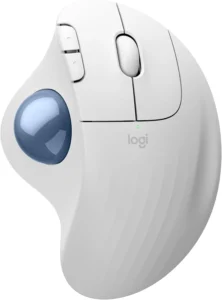
Check the current Amazon listing for Logitech Ergo M575.
5. Kensington Expert Mouse
- Best for: Finger- or palm-operated stationary control when avoiding a thumb trackball matters.
- Skip if: Desk space is tight, portability is important, or you want a quick transition from a standard mouse.
- Main trade-off: It shifts control toward the fingers or palm and requires a larger footprint and more adaptation.
- Fit note: The centered ball and ambidextrous layout change reach patterns; test button and scroll-ring access.
- Adaptation note: Expect a deliberate learning period for cursor accuracy; no fixed timeline applies.
- Setup note: Try a centered or near-keyboard position and support the forearm without hard wrist-edge contact.
The linked K72359WW wireless Expert Mouse uses a large finger/palm-operated ball and scroll ring. It does not remove wrist or hand involvement; it redistributes the work.
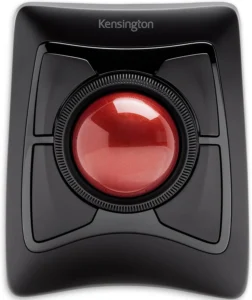
Check the current Amazon listing for Kensington Expert Mouse.
6. Anker 2.4G Vertical Ergonomic Mouse
- Best for: A lower-cost way to test a vertical format with basic controls.
- Skip if: You need Bluetooth, rechargeable power, premium controls, or a precisely sized shell.
- Main trade-off: Lower cost comes with basic buttons, a USB receiver, and fewer fit or software options.
- Fit note: The shape generally targets medium hands; confirm reach before assuming the angle is suitable.
- Adaptation note: Use it to assess vertical-format tolerance, not as proof that every vertical mouse will fit.
- Setup note: Keep the receiver connection simple and tune pointer sensitivity to limit wide sweeps.
The current linked listing is the black 2.4G wireless Anker vertical mouse with a USB receiver. Its role is format testing at lower cost.
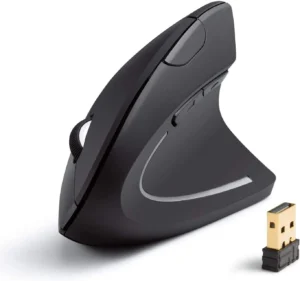
Check the current Amazon listing for Anker 2.4G Vertical Ergonomic Mouse.
7. Evoluent VerticalMouse 4 Right Hand USB Wireless
- Best for: Users already comfortable with a steep, fit-dependent vertical geometry.
- Skip if: You are new to vertical mice, uncertain about sizing, or prefer a moderate angle and polished software.
- Main trade-off: A steeper orientation can change forearm position more, but it also raises fit and adaptation demands.
- Fit note: The Evoluent VerticalMouse 4 Right Hand USB Wireless is a regular-size right-hand wireless variant; Evoluent variants differ by size, hand, and connection.
- Adaptation note: Introduce it gradually and stop if the geometry increases grip tension or makes button access awkward.
- Setup note: Check size and handedness before purchase, then keep the mouse close enough to avoid side reach.
The Evoluent VerticalMouse 4 Right Hand USB Wireless is the steep-angle option in this comparison. It is appropriate only when that geometry and exact variant fit the user—not because a steeper angle is inherently better.
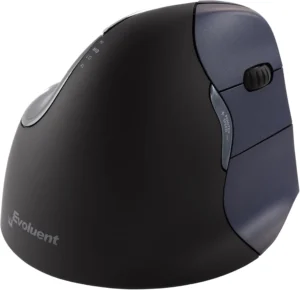
Check the current Amazon listing for Evoluent VerticalMouse 4 Right Hand USB Wireless.
Vertical Mouse vs Trackball: Which Is Better?
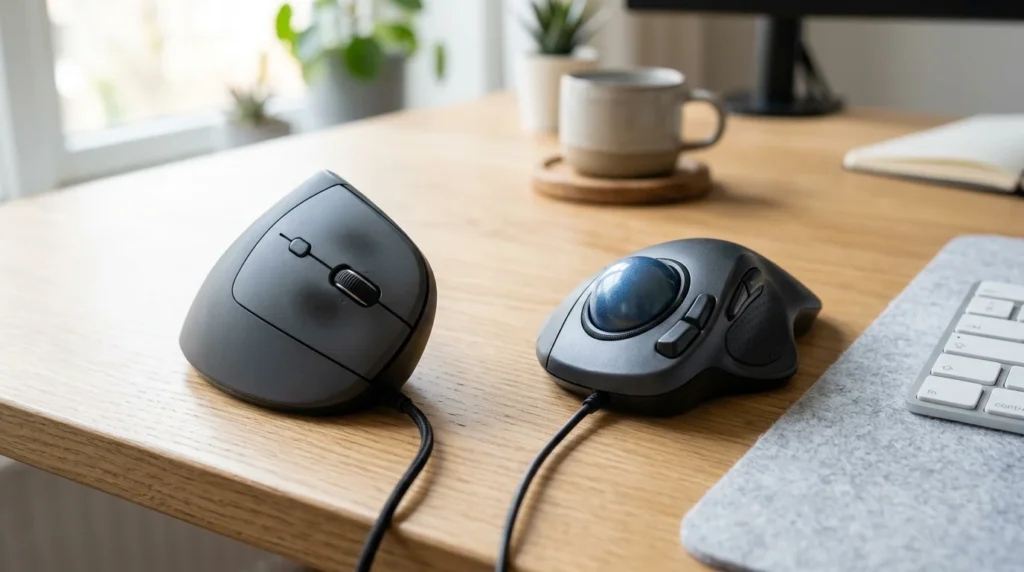
Neither format is categorically better for wrist pain. A vertical mouse for wrist pain changes orientation while preserving familiar moving-mouse control. A trackball changes the control method and reduces device travel, but transfers repeated work elsewhere.
| Format | Primary change | How the pointer moves | Main workload trade-off |
|---|---|---|---|
| Vertical mouse | Changes hand and forearm orientation | Device still travels across the desk | Grip tension, reach, and side-bending can remain |
| Thumb trackball | Keeps the device stationary | Thumb controls most cursor movement | Thumb workload and ball reach become central |
| Finger/palm trackball | Keeps the device stationary | Fingers or palm control the ball | Finger workload, desk footprint, and adaptation increase |
Choose a vertical mouse when orientation is the main experiment
A vertical design may be worth considering when a flat, palm-down grip feels awkward and the hand fits the shell without squeezing. Moderate angles such as MX Vertical or Lift retain familiar desk movement. A steeper design such as Evoluent asks more of fit, balance, and adaptation.
Choose a trackball when device travel is the main experiment
MX Ergo and M575 keep the device stationary but use the thumb for control. That may suit a reader who wants less reaching or sweeping, but it is a poor trade when thumb workload is already unwelcome. Kensington Expert moves control toward the fingers or palm and requires more desk space and practice.
Compare fit, accuracy, and adaptation—not symptom severity
A good trial checks whether the wrist stays roughly aligned with the forearm, buttons are reachable, the grip stays light, and the pointer remains controllable. Workload is transferred, not eliminated. Use a return window when possible and avoid making the change during an unusually heavy deadline week.
Common Buying Mistakes
- Choosing by the word ergonomic alone. Shape, size, button reach, and control method still need to match the hand and task.
- Assuming steeper is better. More vertical angle can also increase grip tension, instability, and adaptation demand.
- Ignoring thumb-versus-finger workload. A stationary mouse can reduce device travel while concentrating movement in a smaller area.
- Buying a shell that is too wide, narrow, tall, or short. A poor fit can force squeezing, hovering, stretching, or wrist extension.
- Leaving the mouse beyond a full-size keyboard. Excess side reach can undermine a well-fitting device.
- Changing sensitivity too aggressively. Tune in small steps so reduced travel does not come at the cost of constant corrective movements.
- Judging during the first intense work session. Introduce an unfamiliar device gradually, while keeping the previous device available.
- Expecting a device to diagnose or resolve symptoms. Equipment changes alter exposure and workload; they do not replace evaluation.
Mouse Fit and Desk Positioning
Fit and placement can matter as much as mouse category. OSHA recommends keeping the wrist and hand aligned with the forearm, selecting a pointing device that fits the hand, and setting sensitivity so the pointer can cross the screen without large wrist deviation. See the official OSHA pointer and mouse guidance.

- Check length, width, and height. The palm should not overhang excessively, and the fingers should reach primary buttons without stretching.
- Keep the mouse close. Place it beside the keyboard, not beyond a wide number pad. CCOHS also discusses reducing side reach in its mouse-placement guidance.
- Limit side-bending and extension. Adjust chair, desk, keyboard, and mouse height so the wrist does not bend sharply upward or outward.
- Avoid hard edge contact. Support the forearm or palm during pauses without pressing the wrist crease into a sharp desk edge.
- Use a light grip. If the mouse must be squeezed to stay stable, reconsider the size, surface, or pointer settings.
- Tune sensitivity gradually. Reduce unnecessary travel while keeping precise control.
- Adapt in stages. Short sessions and alternation can make a new angle or control method easier to assess.
For concise setup details, see the keyboard and mouse height guide. You can also compare a wrist-rest setup, an ergonomic keyboard, and monitor positioning without turning the mouse choice into a full workstation rebuild.
Can an Ergonomic Mouse Help With Wrist Discomfort?
An ergonomic mouse changes one or more exposure factors: forearm orientation, wrist alignment, grip demand, button reach, device travel, or the body part used for cursor control. A better match may feel more comfortable during ordinary work, but no model can promise an outcome.
The useful test is practical: does the device fit, keep the controls reachable, allow a light grip, and sit close enough to avoid unnecessary reach? Reassess the keyboard position and pointer settings at the same time.
Do not use a product trial to delay care. Persistent or worsening pain, numbness, tingling, weakness, loss of coordination, or symptoms that interrupt sleep should be discussed with a qualified clinician.
Frequently Asked Questions
Are vertical mice better for wrist pain?
Not universally. A vertical mouse changes hand and forearm orientation, which may suit someone who finds a flat, palm-down grip uncomfortable. It still requires device movement, and the shell must fit without forcing a tight grip or difficult button reach.
Is a trackball better than a vertical mouse?
They solve different ergonomic problems. A trackball reduces device travel but transfers cursor control to the thumb, fingers, or palm. A vertical mouse changes orientation while preserving familiar movement. Choose by fit, workload, desk space, and the control method you can use accurately.
Does an ergonomic mouse help with wrist discomfort?
A well-matched device may feel more comfortable because it changes posture, reach, grip, or movement demand. It cannot diagnose or treat the cause of discomfort, and results vary. Placement and pointer settings still matter.
How do you choose between a vertical mouse and trackball?
Try a vertical mouse when orientation is the main factor you want to change. Try a trackball when reducing device travel is the priority. Avoid a thumb trackball if repeated thumb control is an obvious concern, and compare return policies before a longer trial.
Is a lighter mouse better for wrist discomfort?
Sometimes, because a lighter mouse may require less force to move. Weight is only one factor: a light device can still be too wide, too small, unstable, or difficult to control. Fit, sensitivity, surface friction, and grip tension should be assessed together.
What mouse is better for small hands?
The Logitech Lift is the compact vertical option in this guide, while the M575 is a relatively compact stationary option. Measure hand length and check button and ball reach; a label such as small or ergonomic is not a substitute for trying the fit.
How long does it take to adapt to an ergonomic mouse?
There is no fixed timeline. Vertical mice often preserve more familiar cursor control than trackballs, while finger-operated trackballs can require more practice. Introduce the device gradually, adjust sensitivity in small steps, and stop if the new workload feels increasingly uncomfortable.
Should you use a wrist rest with an ergonomic mouse?
A rest can support the palm or forearm during pauses, but it should not create hard pressure at the wrist crease or become an anchor that forces side-bending during movement. Match its height to the device and keep the wrist roughly aligned with the forearm.
How should the mouse be positioned?
Keep it close to the keyboard and near elbow height so the upper arm can remain relaxed. Avoid reaching around a wide number pad, bending the wrist outward, lifting the wrist sharply, or pressing against a hard desk edge.
Is a mouse or trackpad better for the wrist?
Neither is automatically better. A trackpad removes device travel but can increase repeated finger gestures or wrist positioning demands. A mouse may offer more palm support but requires grip and movement. Compare the task, placement, sensitivity, and how lightly you can operate each device.
Final Recommendation
For a broad best mouse for wrist pain shortlist, start with the workload you want to change. Choose MX Vertical or Lift when a moderate vertical orientation and familiar movement fit the hand. For that head-to-head decision, see our Lift vs MX Vertical comparison. Choose MX Ergo or M575 when less device travel is worth added thumb work. Choose Kensington Expert when stationary finger/palm control and thumb avoidance justify the larger footprint and learning curve. Anker is the lower-cost vertical trial; Evoluent is the steep, fit-dependent option for users who already know that geometry suits them. If the vertical category is the right fit, compare those models by hand size, handedness, and adjustability in our Best Vertical Mouse guide.
Fit, close placement, light grip, reachable buttons, and gradual adaptation are more useful decision checks than a universal ranking.